
How to Benchmark Your Laptop Before and After an Upgrade
Benchmark your laptop before and after an upgrade to find out whether new RAM, an SSD, or another hardware improvement actually delivers better performance. Rather than relying on how fast your computer feels, laptop benchmarking gives you measurable results you can compare, save, and use to make smarter upgrade decisions.
Whether you’re upgrading an older laptop for everyday productivity, improving a development workstation, or trying to reduce loading times, this guide explains how to test your laptop, which benchmarking tools to use, and how to interpret the results.
Additional articles:
Why You Should Benchmark Your Laptop Before an Upgrade
Before opening money on new hardware, establish a performance baseline. Without one, you may not know whether an upgrade improved performance or whether another issue is holding your laptop back.
Benchmarking can help you:
- Measure CPU and GPU performance
- Compare SSD read and write speeds
- Identify potential memory-related bottlenecks
- Detect inconsistent performance caused by heat or power limitations
- Evaluate whether an u0pgrade delivers enough improvement to justify its cost
- Document results for future troubleshooting or upgrades
For example, replacing a mechanical hard drive with an SSD can substantially improve boot times and application loading. Adding RAM may improve multitasking when your existing memory capacity is insufficient, but it will not necessarily increase CPU benchmark scores.
Related article:
What You Need Before Running Laptop Benchmarks
You don’t need an expensive testing laboratory to measure laptop performance. A suitable benchmarking application, a few minutes of preparation, and a consistent testing procedure are usually enough.
Prepare the following:
- Your laptop and original power adapter
- A relabele benchmarking application
- A notebook, spreadsheet, or screenshot folder for saving results
- Information about your CPU, GPU, RAM capacity, and storage drive
- A reasonably cool, well-ventilated work area
If you plan to upgrade hardware, check compatibility first.
Check out Gear and Code’s Supporting Guides:
- Is My Laptop RAM Upgradeable
- Check Laptop SSD Compatibility
- How to Back Up Your Laptop
- Clone Your Laptop SSD
The Best Laptop Benchmarking Tools
Different benchmarking tools measure different aspects of performance. You don’t need every tool available; choose tests that match the hardware you intend to upgrade.
1. Geekbench: CPU and GPU Performance
Geekbench measures processor performance using single-core and multi-core. tests. Its GPU Compute benchmark can also evaluate supported graphics workloads.
Use it to establish a general performance baseline before changing hardware. After the upgrade, run the same version and tests again.
2. Cinebench: Processor Performance
Cinebench evaluates CPU rendering performance and is useful for comparing processor performance under a demanding workload.
Run the same test mode before and after the upgrade. If your upgrade does not involve the CPU, a major score increase may not be expected.
3. CrystalDiskMark: SSD and Storage Performance
CrystalDiskMark measures storage read and write speeds. It is especially useful when upgrading from a hard drive to an SSD or replacing an existing SSD with a faster model.
Record sequential and random read/write results, and use the same test configuration before and after the upgrade.
4. Real-World Performance Tests
Synthetic benchmarks are useful, but everyday performance matters too.
Measure tasks relevant to your workload, such as:
- Time to boot into a useable desktop
- Time required to open a large application
- How smoothly the laptop handles multiple browser tabs
- Project build times for software development
- File transfer times for large folders
Use the same files, applications, settings, and starting conditions when comparing results.
Step 1: Prepare Your Laptop for Testing
Before running your first benchmark, make the testing conditions as consistent as possible.
- 1. Restart your laptop
- 2. Install any pending updates that are necessary for a stable testing environment, then let background activity settle
- 3. Close unnecessary applications and browser tabs
- 4. Connect the original power adapter
- 5. Select a consistent power mode and keep it unchanged for both sets of tests
- 6. Place the laptop on a hard, flat surface so its cooling system can operate normally
- 7. Record the laptop model, operating system, CPU, GPU, RAM, storage type, and available storage capacity
Avoid running benchmarks while updates, antivirus scans, cloud synchronization, to other demanding tasks are active.
If you suspect overheating, address that issue before comparing results. Excessive heat can reduce sustained performance and make benchmark scores inconsistent.
Support articles:
Step 2: Run Your Baseline Benchmarks
Before installing new hardware, run the tests that match your planned upgrade.
For a RAM upgrade, prioritize memory-related workloads and real-world multitasking. For an SSD upgrade, record storage benchmarks and application loading times. For a graphics-related workload, use a suitable GPU benchmark.
Run each set at least twice, ideally three times if the results vary. Sove screenshots or export the results where the software supports it.
Record:
- Benchmark name and version
- Test mode and settings
- Individual scores
- Average score when multiple runs are available
- Power mode and whether the laptop was plugged in
- Ambient conditions or noticeable thermal issues
Don’t compare scores from different benchmark versions as if they were directly interchangeable. Workloads and scoring systems can change between releases.
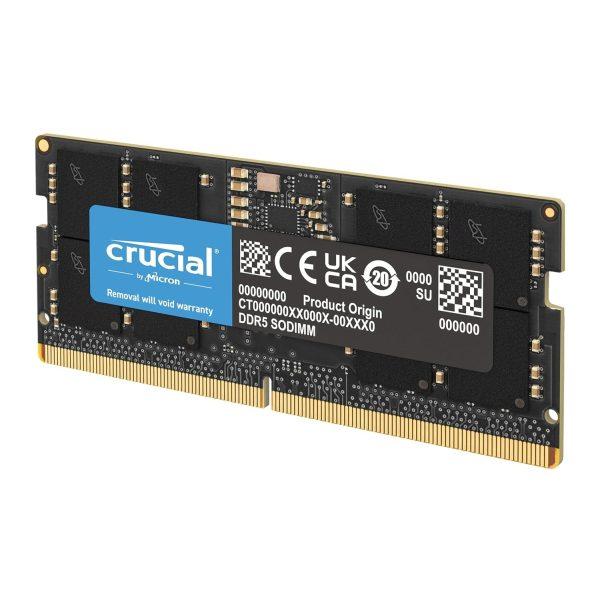
RAM Upgrade Kits
- A-Tech DDR4 RAM 32GB Kit (2x16GB) 2666MHz PC4-21300 SSODIMM
- Crucial 32GB. DDR5 RAM Kit (2x16GB), 5600MHz or 4800MHz, 262 Pin SPDIMM
- PUSKILL 32GB DDR4 3200MHz (2x16GB) SODIMM CL22 Laptop
Important: Always verify compatibility before purchasing!
Step 3: Upgrade Your Laptop
Once you’ve recorded the baseline, install the new component or have a qualified technician do so.
Before opening the laptop, shut it down, disconnect external power, and follow the manufacturer’s service instructions. Disconnect the internal battery if the service procedure calls for it. Use suitable electrostatic-discharge precautions.
If you’re upgrading storage, back up important data first. If you’re replacing the operating system or cloning a drive, make sure the new installation is stable before testing.
After the upgrade:
- Confirm the new component is detected
- Check that the operating system starts normally
- Install any required drivers or firmware updates
- Allow updates and background maintenance to finish
- Confirm that cooling fans and ventilation are working normally
Check out:
Step 4: Repeat the Same Benchmark Tests
Now repeat the original tests using the same applications, versions, settings, power mode, and general environmental conditions.
Do not change several variables at once if your goal is to determine the effect of one specific upgrade.
For example, if you upgraded RAM, avoid simultaneously changing power settings, reinstalling Windows, and updating multiple drivers unless necessary. Otherwise, you may not be able to determine which change affected the results.
Save the new scores alongside your original measurements.
Step 5: Compare Your Before-and-After Results
The most useful comparison is the change in performance, not simply whether a score looks impressive.
Use this formula to calculate percentage improvement:
Percentage improvement =
[
\frac{\text{After score} – \text{Before score}}{\text{Before score}}\times 100
For example. is a benchmark score rises from 5000 to 6000:
[frac{6000-5000}{5000}\times100 = 20%
The result is a 20% increase in that benchmark score.
For elapsed times, such as boot time or application loading time, a lower number is generally better. Calculate the percentage reduction using the original time as the denominator.
Example Benchmark Comparison
The figures below are illustrative, not actual test results for a particular laptop.
Test
CPU benchmark score
Storage read speed
Application loading time
Boot time
Before
5000
500 MB/s
12 sec
30 sec
After
5100
3000 MB/s
6 sec
22 sec
Change
+2%
+500%
50% less time
26.7% less time
This example illustrates why you should test the component you upgraded. An SSD replacement can dramatically improve storage performance without materially changing the CPU’s benchmark score.
Step 6: Benchmark Laptop Storage After an SSD Upgrade
Storage upgrades deserve special attention because the results can differ substantially depending on the original drive, replacement drive, connection interface, and workload.
Using CrystalMark:
- 1. Select the correct drive
- 2. Use the same benchmark version and test profile for both measurements
- 3. Keep the test size and number of runs consistent
- 4. Close applications that heavily use the drive
- 5. Run the test and record the read/write results
- 6. Repeat the test after the upgrade
Sequential speeds measure large, continuous data transfers. Random tests measure smaller, scattered operations that can be relevant to operating systems and applications.
Remember that advertised speeds are not guaranteed in every laptop. The drive interface, controller, thermal conditions, and laptop design can limit actual performance.
Benchmarking also writes data to the drive, so avoid running unnecessary repeated tests on storage you do not need to stress.
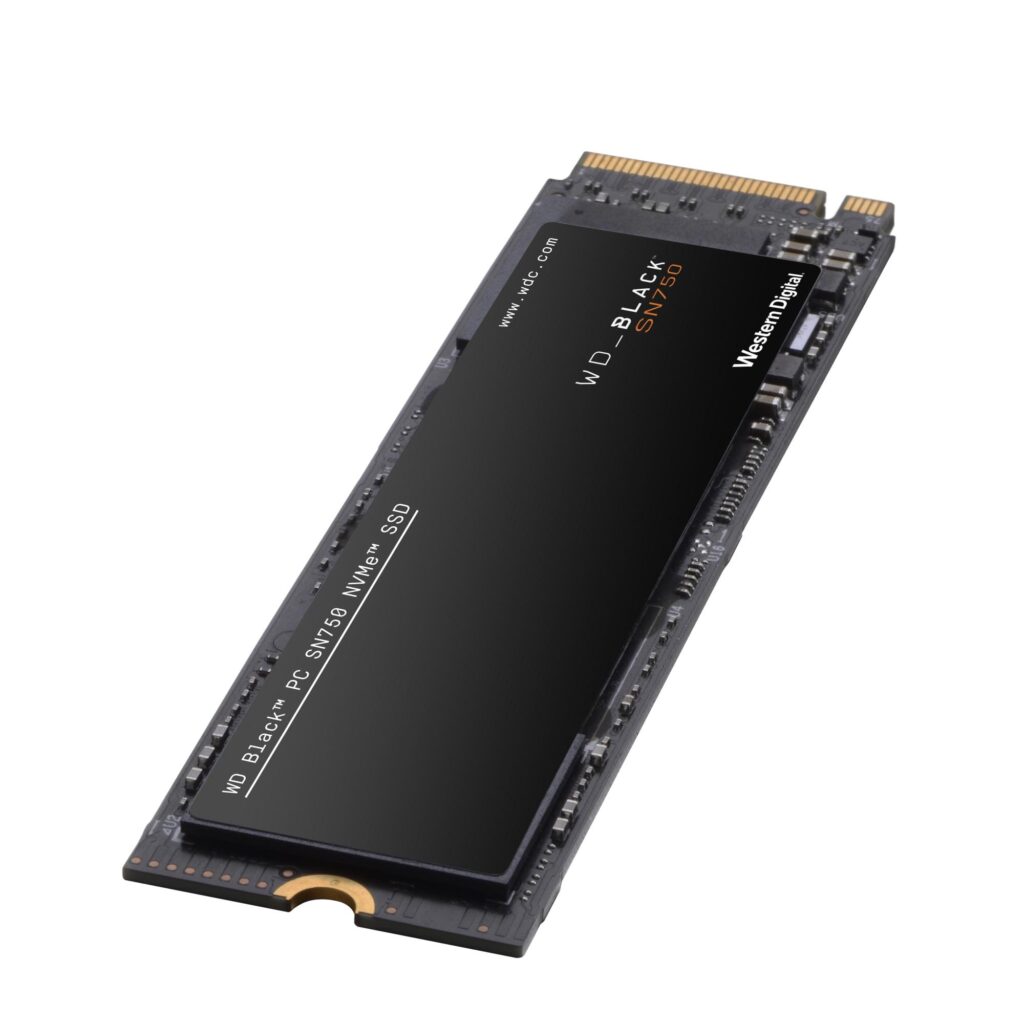
Check out these SSDs:
- Sandisk Optimus 5100 2TB NVMe SSD
- 1TB M.2 2230 NVMe SSD OEM Pull for Surface Pro
- Sandisk Optimus 5100 2TB NVMe SSD 4.0, M.2 2280
- Samsung Internal SSD 990 1TB Read/Write speeds up to 7150/6450 MB/s
Step 7: Evaluate RAM and CPU Performance
Adding RAM can help when your laptop frequently runs out of available memory. It may reduce reliance on disk-based paging and improve responsiveness during heavy multitasking.
However, more RAM does not automatically mean a higher CPU score. If your laptop already has enough memory for your normal workload, the improvement may be modest.
For CPU testing, use a repeatable workload and monitor temperatures and sustained performance. A laptop may deliver a strong short benchmark result but slow down during longer workloads if its cooling system or power limits restrict performance.
When investigating poor results, also consider background processes, power settings, driver issues, and thermal throttling.
Related article:
Step 8: Understand What Your Results Mean
A benchmark score is a measurement, not a complete verdict on your laptop.
Interpret the results in context:
- Higher CPU scores: May indicate improved processor performance, but check that you are comparing equivalent tests
- Higher GPU score: Suggest improved performance for the tested graphics workload, not necessarily every game or creative application
- Higher storage speeds: Indicate better performance in the tested read/write patterns; everyday responsiveness depends on more than sequential throughput
- Inconsistent scores: Can result from heat, power limits, background tasks, or ordinary run-to-run variation
Step 9: Troubleshoot Unexpected Results
If performance has not improved as expected, check the following:
- Confirm the hardware is recognized. Verify installed RAM capacity and the correct storage drive
- Check the connection and compatibility. An incompatible component or incorrectly seated module can prevent the expected improvement
- Review power settings. Make sure the laptop is not running in a reduced-performance mode
- Check temperatures. Excessive heat can reduce sustained performance
- Check background activity. Updates, indexing, synchronization, and security scans can affect results
- Repeat the benchmark. Use the same test version and configuration to rule out measurement noise
- Check firmware and driver. Consult the laptop manufacturer’s support documentation for relevant updates
If the system is unstable, overheats, or fails to recognize the new component, stop testing and resolve the underlying issue before continuing.
Related article:
Step 10: Whether the Upgrade Was Worth It
Performance gains are only one part of the decision. Consider the upgrade’s cost, the tasks you perform, andd whether the laptop feels more responsive in daily use.
A useful upgrade evaluation should answer three questions:
- Did the relevant benchmark or real-world task improve?
- Is the improvement noticeable in your normal workflow?
- Was the improvement worth the money and time invested?
For example, an SSD upgrade that substantially reduces application loading times may be worthwhile even if CPU scores remain almost unchanged. A RAM upgrade may be valuable if it eliminates slowdowns during multitasking, even when a synthetic benchmark changes very little.
If the laptop remains slow despite appropriate upgrades, investigate software problems, thermal limitations, and hardware constraints before investing more money.
Relevant article:
Laptop Benchmarking Checklist
Before you finish, confirm that you have completed each item:
- Recorded the laptop’s original hardware specifications
- Installed and noted the benchmarking software version
- Run and saved baseline benchmark results
- Prepared the laptop and completed the intended upgrade
- Confirmed that the new hardware is recognized
- Repeated the same tests with equivalent settings
- Calculated score improvements or time reductions
- Checked the overheating or inconsistent results
- Evaluated real-world performance and upgrade value
Frequently Asked Questions
How often should I benchmark my laptop?
Benchmark before and after a major hardware upgrade, when troubleshooting performance problems, or when you need a repeatable baseline. Routine benchmarking is unnecessary for most everyday users.
What is a good laptop benchmark score?
There is no universal good score. Results depend on the hardware, benchmark version, test settings, and cooling or power configuration. Compare like-for-like results and use relevant reference systems.
Can I benchmark my laptop for free?
Yes. Tools such as the free personal-use edition of Geekbench and CrystalDiskMark can help measure processor, graphics-compute, and storage performance. Some tools also offer paid editions with additional features.
Will adding RAM increase my laptop benchmark score?
It depends on the workload. Add atonal RAM can improve performance when memory capacity is a bottleneck, but it does not guarantee a higher CPU score or faster performance in every application.
How do I benchmark an SSD before and after upgrading?
Use a storage benchmark such as CrystaDiskMark with the same version, test profile, and settings. Record rears and write speeds for the original and replacement drives, and compare the results.
Should I benchmark my laptop while it is plugged in?
For most repeatable performance tests, use the power adapter and keep the power mode consistent. Some laptops change performance behavior when operating on battery power.
Final Thoughts
Benchmarking your laptop before and after an upgrade gives you evidence to evaluate whether your investment made a difference. Start with a baseline, change one major variable at a time, repeat the same tests, and compare the results alongside everyday performance.
For Gear and Code readers, this process also makes it easier to decide whether upgrading RAM or storage is a better value than buying a replacement laptop. Pair benchmark results with compatibility checks, safe upgrade procedures, and realistic expectations to make better hardware decisions.
Related articles: