The Complete Guide to Upgrading Your Laptop
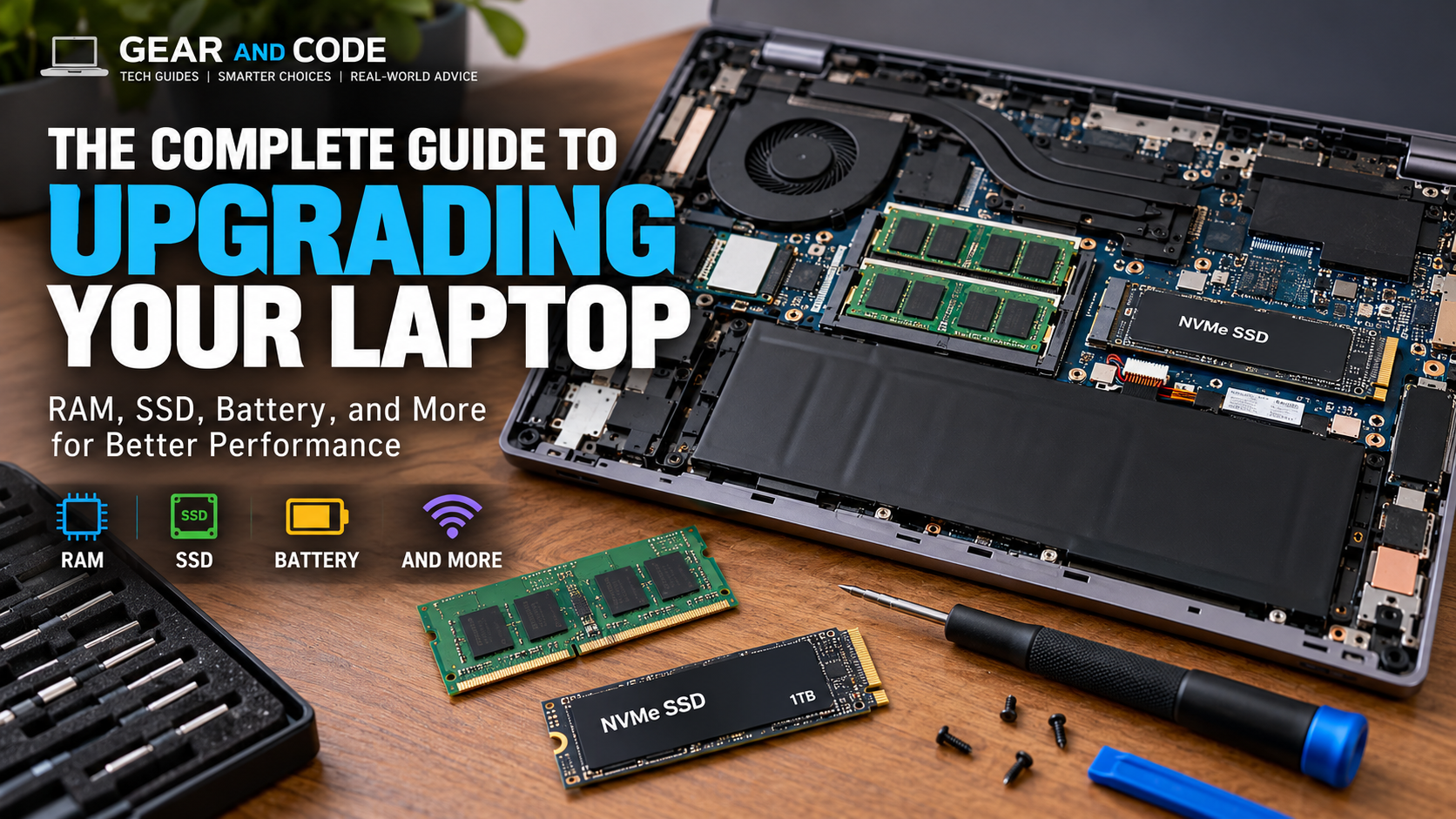
Upgrading your laptop can be one of the most cost-effective ways to improve performance without replacing your entire computer. Depending on your model, you may be able to add more RAM, replace the SSD, upgrade the battery, or improve connectivity while extending the useful life of your laptop. However, not every laptop is designed to be upgraded, so knowing what your particular machine supports should be the first step.
A laptop that feels slow isn’t necessarily ready for the recycling bin. A storage upgrade can dramatically improve responsiveness, while adding additional RAM can make multitasking smoother. In some cases, replacing an aging battery can make an otherwise capable laptop dfeel new again.
The key is knowing which upgrades actually make a difference, which components are compatible, and when upgrading makes more financial sense than buying a new laptop.
Related article:
Suggested product:
- High-Quality Laptop Upgrade Kit
What Can You Upgrade in a Laptop?
The answer depends heavily on the specific laptop.
Some machines provide easy access to RAM and storage, while others have components soldered directly to the motherboard.
The most common upgradeable components include:
Component
RAM
SSD
2..5-inch HDD/SSD
Battery
Wi-Fi card
Display
CPU
GPU
Usually Upgradeable?
Sometimes
Often
Older laptops
Sometimes
Some models
Rarely
Rarely
Almost never
Potential Benefit
Better multitasking
More storage and faster loading
More storage/performance
Longer battery life
Beyyer wireless connectivity
Higher resolution quality
Usually not practical
Usually soldered
Modern consumer laptops generally don’t allow CPU or GPU replacement because these components are commonly soldered to the motherboard.
Related article:
Steps to Follow
1. Determine Whether Your Laptop Is Upgreadeable
Before purchasing anything, identify the exact laptop model.
This is one of the most important steps in the entire upgrade process.
A laptop’s marketing name isn’t always enough. Manufactureres can feel several configurations under the same product family.
For example, a laptop may be available with:
- 8GB RAM
- 16GB RAM
- 32GB RAM
- One RAM slot
- Two RAM slots
- Soldered RAM
- M.2 NVMe storage
- M.2 SATA storage
- 2.5-inch SATA storage
- Multiple storage slots
Therefore, knowing the exact model number is essential.
How to Find Your Laptop Model
Look for the model number:
- On the bottom of the laptop
- Inside Windows System Information
- In BIOS/UEIF
- On the original packaging
- On the manufacturer’s support site
Windows
Press Windows + R, type msinfo32, and look for System Model
Related article:
2. Check Your Laptop’s Ram
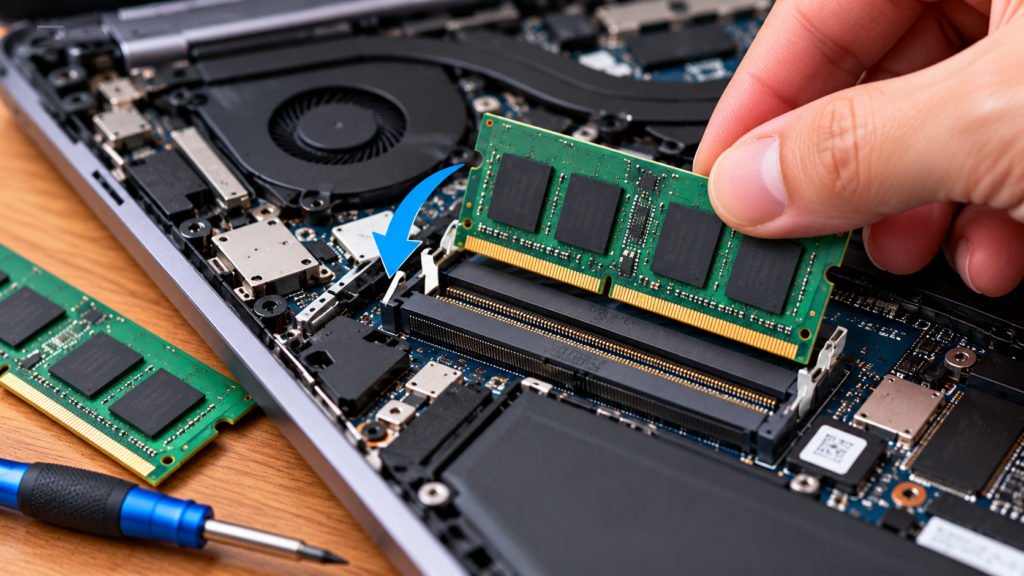
Ram is one of the most popular laptop upgrades.
If your laptop frequently slows down when you have many browser tabs, applications, or large files open, additional memory may help.
However, the first question isn’t “How much RAM shod I buy?”
it’s:
“Can I upgrade my RAM at all?”
Some laptops use removable SO-DIMM modules, while others have memory soldered directly to the motherboard. Micro Center notes terms such asLPDDR4x, LPDDR5x, and onboard memory commonly indicate soldered memory, while SO-DIMM indicates replaceable memory modules.
What to Check
Determine:
- Current RAM capacity
- Number of RAM slots
- Wether RAM is soldered
- Maximum supported RAM
- RAM generation
- Supported speed
- Whether modules need to be matched
Related article:
3. How Much RAM Should You Add?
The right amount depends on how you use your laptop.
8GB
Suitable for:
- Basic web browsing
- Offie applications
- Light productivity
16GB
A strong choice for:
- Programming
- Multitasking
- Business applications
- Photo editing
- General productivity
32GB
Useful for:
- Software development
- Video editing
- Virtual machines
- Large creative projects
- Advanced multitasking
64GB or More
Primarily useful for:
- Professional development
- Heavy virtual machines
- Large datasets
- High-end creative work
- Specialized professional applications
Don’t automatically buy the maximum amount your laptop supports. The goal is to match the upgrade to your workload.
Upgrade your laptop’s memory:
4. Upgrading Your Laptop’s SSD
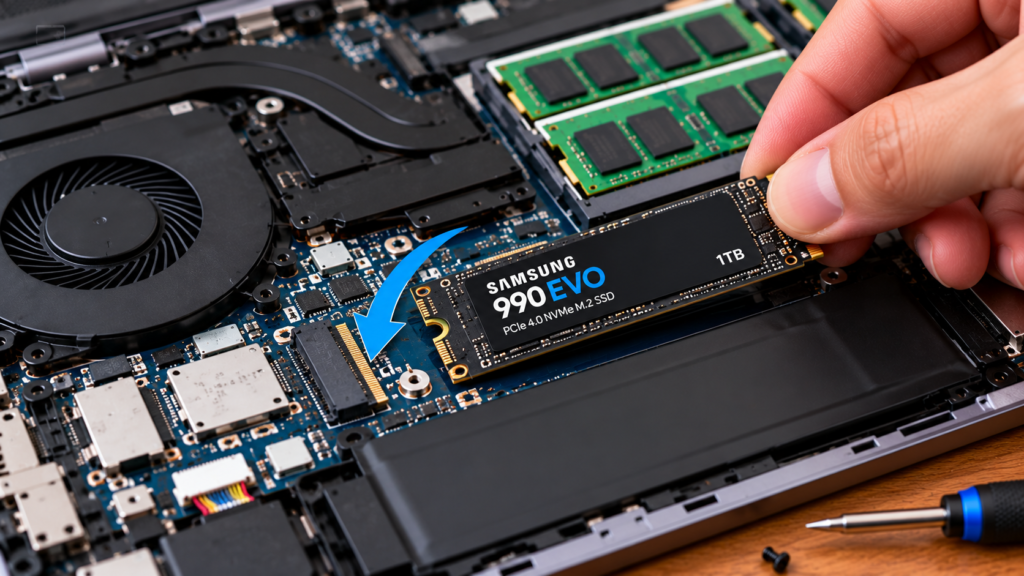
For many laptops, upgrading the SSD can be one of the most worthwhile improvements.
An SSD upgrade can provide:
- Faster boot times
- Faster application launches
- More storage
- Faster file transfers
- Better overall system responsiveness
If your laptop still used an older mechanical hard drive, moving to an SSD can produce an especially noticeable improvement.
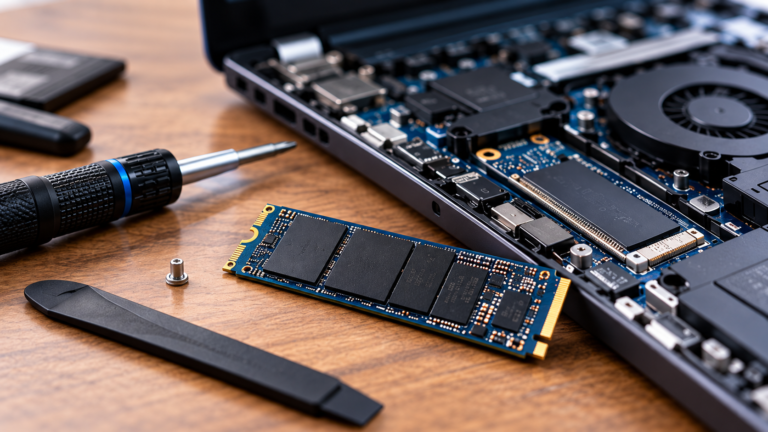
Modern laptops commonly use M.2 NVMe SSDs, although M.2 SATA and 2.5-inch SATA drives are also found in some systems.
Related article:
5. M.2 NVMe vs M.2 SATA
Don’t assume that every M.2 SSD will work in every M.2 slot.
An M.2 drive describes the physical form factor, not necessarily the storage interface.
Your laptop may support:
- M.2 NVMe
- M.2 SATA
- A particular M.2 length
- One or more storage drives
Common M.2 sizes include:
- 2230
- 2242
- 2260
- 2280
The numbers refer to the prices approximate dimensions.
2280, for example, is approximately 22mm wide and 80mm long.
6. Should You Upgrade to a Larger SSD?
If your current SSD is nearly full, upgrading capacity may be more valuable than chasing. higher sequential speeds.
Consider moving from:
- 256GB → 1TB
- 512GB → 1TB
- 512GB → 2TB
- 1TB → 2TB
For most users, a 1TB SSD is a particularly attractive balance between capacity and cost.
Gamers, developers, and video editors may benefit from 2TB or more.
Some oof our suggested products:
Important: Before purchasing ensure the SSD is completely compatible with your laptop!
7. Clone Your SSD Before Replacing It
If you’re replacing your primary drive, you have two major options:
Option 1: Clone the Existing Drive
Cloning creates a copy of your current operating system, applications, files, and settings.
This can make the transition to the new SSD much easier.
Option 2: Perform a Clean Installation
A clean installation gives you a fresh operating system.
This can be preferable if your existing installation has accumulated years of unnecessary software and files.
Related article:
A USB-to-NVMe enclosure can be useful when cloning a new SSD before installing it internally.
Clone your drive before installation. A compatible USB SSD enclosure makes it easier to clone and test your new drive before replacing the internal SSD.
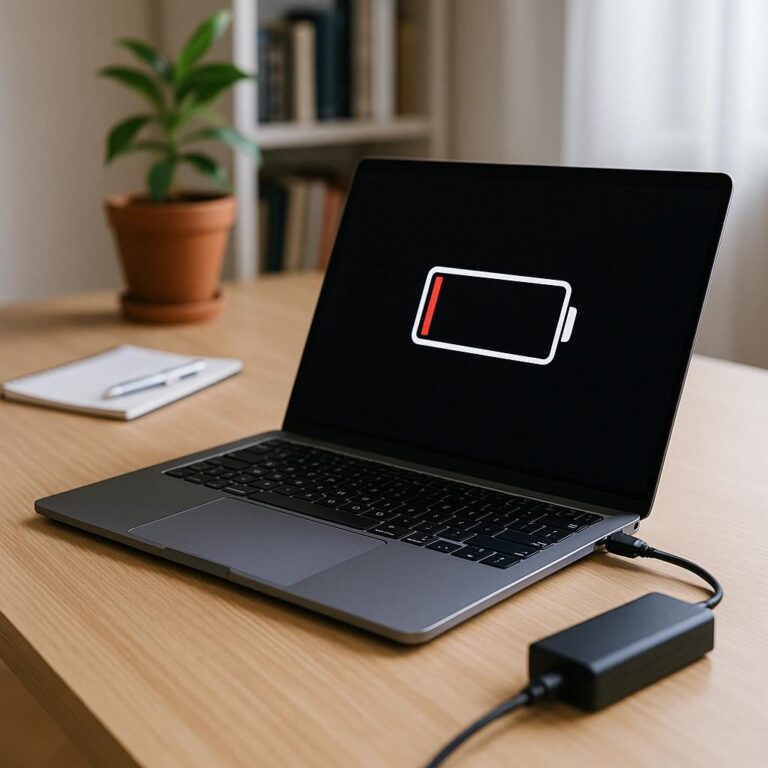
8. Consider Replacing an Aging Laptop Battery
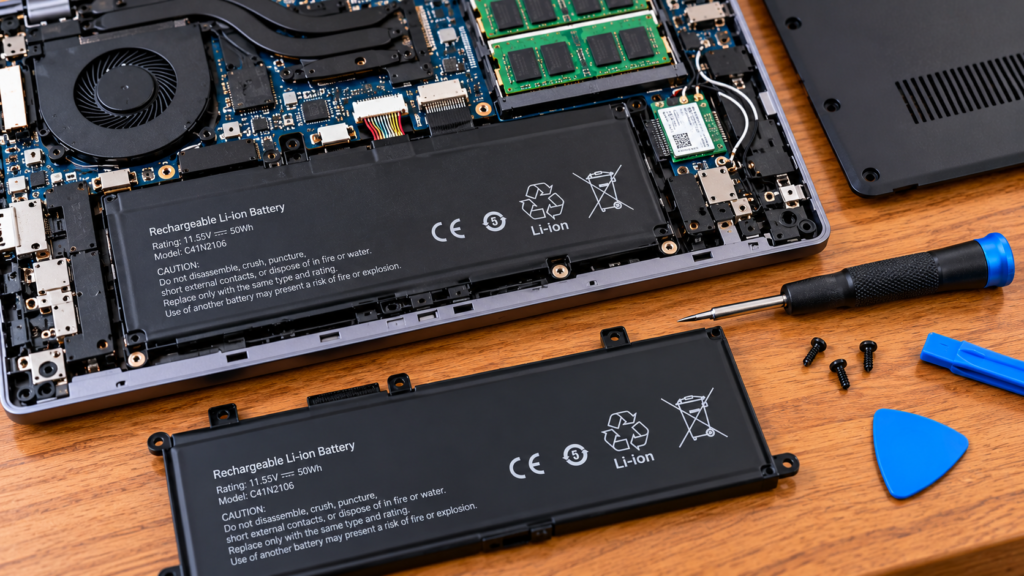
Storage and RAM aren’t the only possible upgrades.
If your laptop performs well when plugged in but rarely lasts away from an outlet, the battery may be the problem.
Signs of an aging battery include:
- Rapid battery drain
- Unexpected shutdowns
- Reduced battery capacity
- Battery health warnings
- Excessive charging cycles
- A swollen battery
Important Safety Warning
Never attempt to use or puncture a swollen lithium-ion battery.
If the battery is visibly swollen, stop using the laptop and follow appropriate manufacturer or battery-recycling guidance.
9. Can You Upgrade the Laptop CPU?
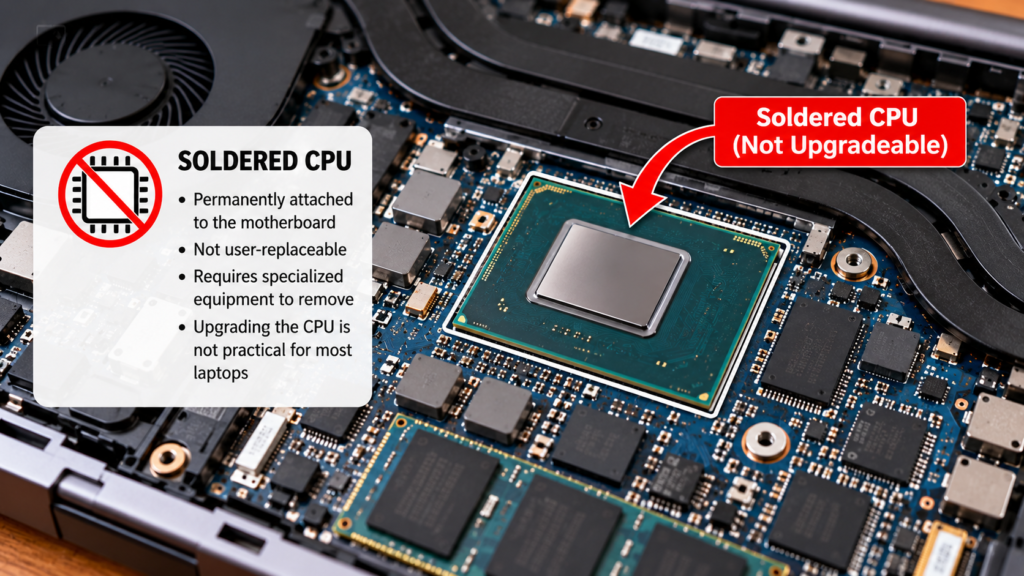
Usually, no.
Unlike desktop computers, modern laptops generally integrate the processor directly onto the motherboard.
That means upgrading from one laptop CPU to another usually isn’t practical.
Instead, consider:
- More RAM
- A faster SSD
- Better cooling
- Cleaning dust from the cooling system
- Updating drivers
- Reducing unnecessary startup programs
This is an important reason to carefully consider the CPU when purchasing a laptop in the first place.
Related article:
10. Can You Upgrade a Laptop GPU?
For almost all modern consumer laptops, the answer is no.
Dedicated laptop GPUs are typically integrated into the motherboard.
Some specialized gaming laptops have unusual modular designs, but these are exceptions rather than the rule.
If graphics performance is your main problem, your realistic options may include:
- Optimizing game settings
- Updating graphics drivers
- Improving cooling
- Using an external GPU where supported
- Replacing the laptop
11. What About Upgrading the Wi-Fi Card?
Some laptops have replaceable Wi-Fi modules.
If supported, replacing an older wireless card may provide:
- Newer Wi-Fi standards
- Better wireless performance
- Improved Bluetooth
- Better compatibility with newer routers
However, compatibility isn’t guaranteed.
Check:
- Physical interface
- Supported standards
- Antenna connectors
- Manufacturer restrictions
- Operating-system support
12. Laptop Display Upgrades
Display upgrades are possible on some laptops but are considerably more complicated than RAM or SSD upgrades.
Potential improvements include:
- Higher resolution
- Better color coverage
- Higher refresh rate
- Improved brightness
- Better viewing angles
However, you need to verify:
- Screen size
- Connecctor type
- Connector position
- Resolution
- Refresh rate
- Mounting points
- Power requirements
- BIOS compatibility
For most users, a laptop display upgrade isn’t the first upgrade I’d recommend.
13. Tools You’ll Need
Before opening your laptop, gather the correct tools.
Basic Laptop Upgrade Toolkit
- Precision Phillips screwdriver
- Torx screwdriver set
- Plastic pry tool
- Anti-static wrist strap
- Magnetic screw tray
- Small containers for screws
- USB flash drive
- External SSD enclosure
A precision screwdriver and plastic pry tool are particularly useful because laptop screws and clips can be small and delicate.
Build Your Laptop Upgrade Toolkit:
- iFixit-style precision screwdriver kit
- Magnetic screw mat
- Plastic pry tool kit
- Anti-static wrist strap
14. How to Prepare Before Opening Your Laptop
Preparation is one of the easiest ways to prevent problems.
Before opening the chassis:
1. Back Up Your Data
Create a current backup of important files.
2. Shut down completely
Don’t work inside a laptop that is powered on.
3. Disconnect the Charger
Remove all external power.
4. Disconnect the Battery When Appropriate
Many repair guides recommend disconnecting the intenal battery before handling components.
5. Photograph the Interior
Take photographs before removing components.
This gives you a reference when reconnecting cables and reinstalling screws.
6. Organize Your Screws
Laptop screws may differ in length.
Keep them organized by location.
15. Installing Laptop RAM
The basic process is:
- Shut down the laptop
- Disconnect power
- Remove the bottom cover
- Disconnect the battery is appropriate
- Locate the SO-DIMM slot
- Release the retaining clips
- Remove the existing module if necessary
- Align the notch on the new RAM
- Insert the RAM at an angle
- Press it down until the retaining clips lock
- Reassemble the laptop
- Boot the system
- Verify the new capacity
Laptop RAM generally installs at an angle and then presses down into position.
16. Installing a New Laptop SSD
The general procedure is:
- Shut down the laptop
- Disconnect the charger
- Discn=onnect or disable the battery when appropriate
- Remove the bottom cover
- Locate the SSD
- Remove the retaining screw
- Lift the SSD slightly
- Slide it out
- Insert the new SSD at the appropirate angle
- Secure it with the retaining screw
- Reassemble the laptop
- Boot the computer
- Verify the drive is recognized
The exact procedure varies considerably by laptop model..
17. Test Everything After the Upgrade
Don’t immediately assume the upgrade worked.
Check:
RAM
Verify:
- Total capaccity
- Number of modules
- Operating speed
SSD
Verify:
- Drive is recognized
- Correct capacity
- Operating system boots
- Files are accessible
- Temperatures are reasonable
Battery
Verify:
- Charging works
- Battery is detected
- Battery percentage changes normally
Wi-Fi
Verify:
- Wireless networks appear
- Bluetooth works
- Connection remains stable
18. Common Laptop Upgrade Mistakes
Avoid these common mistakes.
Buying Incompatible RAM
Don’t purchase RAM solely because it has the correct capacity.
Check the laptop’s supported memory type and specifications.
Buying the Wrong SSD
An M.2 isn’t automatically compatible with every M.2 slot.
Forgetting to Back Up
Never assume an upgrade will go perfectly.
Losing Screws
Laprtop screws can be surprisingly easy to lose.
Using Excessive Force
Ina panel, connector, or component doesn’t come out easily, stop an investigate.
Ignoring Soldered Components
Don’t purchase RAM for a laptop that uses soldered memory.
Skipping the Compatibility Check
This is perhaps the biggest mistake.
19. When is Upgrading Better Than Buying a New Laptop?
Upgrading makes sense when:
- The laptop’s CPU is still adequate
- The display meets your needs
- The chassis is in good condition
- RAM or storage is replaceable
- The upgrade cost is reasonable
- You don’t need substantially more CPU/GPU performance
Buying a new laptop make make more sense when:
- CPU performance is inadequate
- GPU performance is inadequate
- RAM is soldered and insufficient
- The display is poor
- The battery is difficult or uneconomical to replace
- Multiple components are failing
- The upgrade cost approaches the price of a replacement laptop
20. The Best Upgrade Path for Different Users
Student
Priority:
- 1. SSD
- 2. RAM
- 3. Battery
Office Professional
Priority:
- 1. RAM
- 2. SSD
- 3. Battery
Programmer
Priority:
- 1. RAM
- 2. SSD
- 3. Cooling
- 4. Wi-Fi
Content Creator
Priority:
- 1. RAM
- 2. SSD
- 3. External storage
Gamer
Priority:
- 1. RAM
- 2. SSD
- 3. Cooling
If the CPU or GPU is the primary performance limitation, however, an upgrade may not provide enough improvement to justify the expense.
Related article:
21. Laptop Upgrade Cost vs Replacement Cost
Before spending money, calculate the total upgrade cost.
For example:
Upgrade
16GB RAM
32GB RAM
1TB SSD
2TB SSD
Battery
Wi-Fi card
Repair toolkit
Professional installation
Potential Cost Category
Low
Moderate
Moderate
Moderate
Moderate
Low-Moderate
Low
Moderate-High
Don’t evaluate components individually.
Calculate:
RAM + SSD + battery + tools + installation
Related article:
22. Final Laptop Upgrade Checklist
Before ordering anything, answer these questions:
Compatibility
- What is my exact laptop model?
- Is the RAM upgradable?
- How much RAM does it support?
- What type of RAM does it use?
- Is the SSD replaceable?
- Does it support NVMe?
- What M.2 size does it use?
- Can I install a second SSD?
- Is the battery replaceable?
Preparation
- Have I backed up my data?
- Do I have the correct tools?
- Do I have a clean workspace?
- Do I know where each screw belongs?
Installation
- Laptop powered off
- Charger disconnected
- Battery disconnected where appropriate
- Components handled by their edges
- Connections checeked
- Screws organized
Testing
- RAM recognized
- SSD recognized
- Operating system boots
- Battery charging works
- Wi-Fi works
- Performance improved
Conclusion
Upgrading your laptop can be a smart alternative to replacing an otherwise capable computer. RAM and SSD upgrades are often the most practical improvements, while battery and Wi-Fi upgrades can also extend the useful life of compatible systems.
The most important rule is simple: check compatibility before buying anything.
Don’t assume that because one laptop model can accept a2TB NVMe SSD or 32GB of RAM, every configuration of that model can do the same. Manufacturer specifications, service manuals, and the exact model number should guide your purchasing decision.
If your laptop is upgradeable, a relatively inexpensive RAM or SSD upgrade Amy give it several more productive years. If the major performance limitations are soldered CPU, GPU, or RAM components, however, buying a new machine may ultimately be the better investment.