How to Tell If Your Laptop RAM is Upgradeable
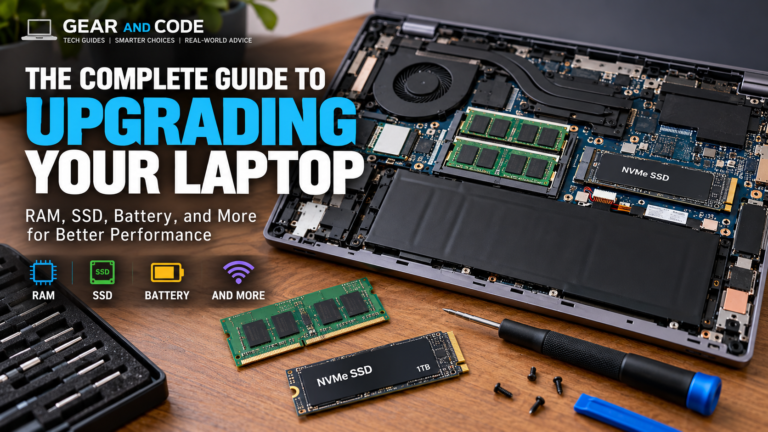
Before buying additional memory, you need to know whether your RAM is upgradeable. Some laptops have removable SO-DIMM memory modules, while others use RAM soldered directly to the motherboard. Some systems combine soldered memory with one or more upgradeable slots, making the situation more complicated.
Fortunately, determining whether you can upgrade your laptop RAM usually requires only a few checks. You can start with Windows, consult your laptop manufacturer’s specifications, check the service manual, or physically inspect the laptop if necessary.
Knowing your laptop’s RAM configuration before purchasing an upgrade can help you avoid buying incompatible memory or discovering that your laptop cannot be upgraded at all.
Related article:
Why Laptop RAM Upgradeability Matters
RAM is one of the components that can have a significant impact on everyday laptop performance.
If your laptop frequently slows down while running multiple applications, struggles with large projects, or becomes sluggish when you have numerous browser tabs open, additional RAM may help-provided the laptop supports a memory upgrade.
However, adding RAM isn’t always possible.
Modern laptops can use several different memory configurations:
- Removable SO-DIMM RAM
- Soldered RAM
- Solderred RAM plus an available SO-DIMM slot
- Multiple removable RAM slots
- Newer modular memory designs such as CAMM2/LPDDR-based configurations
Thin-and-light laptops increasingly use soldered memory, while many business and performance-oriented laptops continue to offer replaceable memory.
Related article:
1. Check Your Laptop’s Specifications First
The easiest way to determine whether your RAM is upgradable is to find the exact specifications for your laptop.
Don’t search only for the general product family.
For example, instead of searching:
Dell Inspiron RAM Upgrade
find the exact model number, such as”
Dell Inspiron 15 3530 RAM upgrade
Different configurations within the same laptop family can have completely different memory designs.
Look for specifications such as:
- Maximum RAM capacity
- Number of memory slots
- RAM type
- DDR generation
- SO-DIMM support
- Soldered memory
- Maximum memory speed
- Factory-installed memory configuration
If the specifications specifically state that the laptop has one or two SO-DIMM slots, that’s a strong indication that the memory can be replaced or expanded.
If the specifications state that memory is soldered, conventional RAM upgrades generally aren’t possible.
Check compatible laptop RAM before you buy:
- 32GB DDR4-3200MHz | PC4-25600 CL22 | 260-Pin Laptop Ram – Dual Rank 2Rx8 | Compatible with Dell, H Lenovo and Custom Builds
- PUSKILL 32GB DDR4 3200MHz Ram (2x16GB) SODIMM CL22 Laptop
- Crucial 32GB DDR5 RAM Kit (2x16GB) 5600MHz – 262 Pin SODIMM Compatible with Intel Core and AMD Ryzen 7000
2. Use Windows Task Manager to Check RAM Information
If you’re using Windows 11, Task Manager can provide useful information about your install memory.
Press:
Ctrl + Shift + Esc
Then:
1. Select Performance
2. Select memory
3. Look for information such as:
- Installed memory
- Memory speed
- Form factor
- Slots used
Windows can show information about the number of memory slots being used, although this information should not be treated as definitive proof that every reported slot corresponds to a physical, user-accessible SO-DIMM socket.
Microsoft documentation has historically shown Task Manager providing physical-memory details such as speed, form factor, and slots used.
Important: Don’t Rely on “Slots Used” Alone
Suppose Task Manager says:
Slots used: 1 of 2
That doesn’t automatically guarntee that you can simply install another RAM stick.
Some laptops use a combination of soldered memory and removable memory, and firmware can sometimes report memory configuration in ways that don’t perfectly represent the physical hardware.
For that reason, use Task Manager as a starting point-not your final compatibility check.
Related article:
3. Find Out Whether Your Memory is Soldered
One of the most important questions is whether your laptop uses soldered RAM.
Soldered RAM is permanently attached to the motherboard rather than installed in a removable memory socket.
If all of the laptop’s RAM is soldered, you generally cannot replace it with a larger module.
For example, a laptop might come with:
16GB LPDDR5X
But that doesn’t necessarily mean there is a 16GB module you can remove and replace.
Instead, the memory may be integrated directly into the motherboard.
This is particularly common in thin-and-light laptops where manufacturers prioritize compact designs, power efficiency, and reduced mother born space.
Kingston notes that many modern ultra-thin systems use soldered LPDDR5X memory, while laptops with SODIMM or newer modular memory designs can provide an upgrade path.
The Hybrid Configuration
Some laptops use:
8GB soldered + 8GB SO-DIMM
or another combination.
In this situation, you may be able to replace or add memory to the removable portion even though some of the laptop’s RAM is permanently attache to the mother board.
You need to determine the complete memory configuration.
4. Look for SO-DIMM Slots
For traditional upgradeable laptop memory, the term your want to look for is:
SO-DIMM
SO-DIMM stands for Small Outline Dual Inline Memory Module and is a. common form factor for removable laptop memory.
If your laptop documentation says something like:
- 2 x DDR5 SO-DIMM
- 2 x DDR4 SO-Dimm
- One SO-DIMM slot
- User-accessible memory slot
you likely have an upgradeable memory configuration.
However, you still need to determine:
- Supported DDR generation
- Maximum capacity
- Supported speed
- Number of slots
- Whether one slot is a ready occupies
- Whether the laptop supports the capacity you’re considering
5. Check the Laptop’s Service Manual
The service manual is often one of the best resources for determining whether RAM can actually be replaced.
Search for:
[Exact Laptop Model] service manual RAM
or:
[Exact Laptop Model] memory upgrade
A service manual may show:
- Motherboard layout
- RAM locations
- SO-DIMM sockets
- Memory removal instructions
- Maximum supported configurations
- Bottom-cover removal procedures
Look specifically for diagrams showing memory modules.
If the service documentation provides instructions for removing SO-DIMM, that’s considerably stronger evidence of upgradeability than a retailer’s generic specification.
6. Check the Manufacturer’s Memory Specifications
Once you know your exact laptop model, check the manufacturer’s support page.
Look for terms such as:
- Memory Technology
- Memory Slots
- Maximum Memory
- Maximum RAM
- System Memory
- Memory Configuration
For example, a specification might say:
Maximum memory: 64GB
and:
2 x DDR5 SO-DIMM
That provides much more useful information than simply knowing that the laptop currently has 16GB installed.
Don’t Confuse Maximum RAM With Upgradeable RAM
A laptop may support 64GB of RAM but ship with 32GB installed across two slots.
In that case, you might need to replace both existing models rather than simply adding another one.
7. Determine How Many RAM Slots Are Actually Available
One you’ve estabilished that your laptop uses removable memory, determine how many slots are occupied.
Consider these examples.
Example 1: One Slot Available
16GB installed
2 slots
1 slot occupied
You may be able to add another compatible 16GB module.
Potential configuration:
16GB + 16Gb = 32GB
Example 2: Both Slots Occupied
16GB installed
2 slots occupied
You may need to replace the existing modules.
For example:
8GB + 8GB = 16GB
could potentially become:
16GB + 16GB = 32GB
assuming the laptop supports the larger configuration.
Example 3: Soldered + SO-DIMM
8GB soldered + 8GB SO-DIMM
If the laptop supports a larger SO-DIMM, you may be able to replace the removable 8GB module with a 16GB or 32GB module.
The final capacity depends on the laptop’s specifications.
8. Identify Your Current RAM Type
Before buying an upgrade, identify the memory generation.
Common laptop memory generations include:
- DDR4
- DDR5
- LPDDR4X
- LPDDR5
- LPDDR5X
DDR4 and DDR5 are not interchangeable.
You cannot simply purchase DDR5 RAM because it is newer and expect it to work in a laptop designed for DDR4.
The same principle applies to physical form factor, voltage, capacity, and system support.
Windows may show memory information through Task Manager, but if the information isn’t available or appears incomplete, manufacturer specifications or a hardware-identification utility can provide additional information
9. Check the Maximum Supported RAM
Finding an empty slot is only half the process.
You also need to determine how much RAM the laptop supports.
For example:
Laptop A
- 8GB installed
- 2 SO-DIMM slots
- 64GB maximum
An upgrade to 32GB or potentially 64GB may be possible.
Laptop B
- 16GB installed
- 1 SO-DIMM slot
- 16GB maximum
There may be no meaningful RAM upgrade available.
Never assume that an empty slot automatically means the laptop supports an unlimited amount of additional memory.
10. Match RAM Specifications Before You Buy
If your laptop is upgradeable, the next step is identifying compatible memory.
At minimum, compare:
Specification
Memory type
Form factor
Capacity
Speed
Voltage
Maximum capacity
ECC
Module configuration
What to Check
DDR4 or DDR5
SO-DIMM
8GB, 16GB, 32GB, etc.
Supported MT/s
System-compatible voltage
Manufacturer specification
Usually non-ECC for consumer laptops
Single module or kit
Compatibility is more important than simply buying the fastest RAM you can find.
Kingston recommends verifying memory compatibility against the specific laptop model and notes that mixing memory with different capacities, speeds, or brands can sometimes create compatibility issues.
11. Should You Add One RAM Stick or Replace Both?
This depends on your laptop’s configuration.
If you have:
1 x 16GB
And one free compatible slot, adding another 16GB module may be an attractive option if the laptop supports it.
If you have:
2 x 8GB
and both slots are occupied, you may need to replace both modules to reach 32GB.
For some systems, matched modules can also help maintain dual-channel operation.
However, don’t automatically replace perfectly functional RAM just because a matched kit exists.
First determine what your laptop supports and what performance improvement you actually need.
12. Use a Compatibility Scanner
Another convenient method is to use a manufacturer’s compatibility tool.
For example, Kingston provides a PC Scanner that analyzes a system’s memory and storage configuration and recommends compatible upgrades.
These tools can be useful because they can identify:
- Currrent memory configuration
- Compatible memory
- Upgrade capacity
- Available products
Still, verify the result against your laptop manufacturers specifications before purchasing.
Find compatible RAM for Your Laptop:
- PUSKILL 32GB DDR4 3200MHz (2x16GB) SODIMM CL22 Laptop
- Timetec Premium 32GB Kit (2x16GB) DDR4 3200MHz SODIMM Laptop RAM – 260 Pin CL22
- PNY DDR4 32GB 92x16GB) Performance 3200MHz CL22 Notebook Memory
13. Physically Inspect the Laptop
If the documentation isn’t clear, physically iinspecting the laptop may provide the answer.
Before opening the computer:
- Shut down the laptop completely
- Disconnect the charger
- Follow the manufacturer’s service instructions
- Remove the bottom cover only if you’re confirmable doing so
- Look for removable SO-DIMM modules
- Check whether the memory is soldered directly to the motherboard
A removable SO-DIMM generally has a small circuit board held in place by clips.
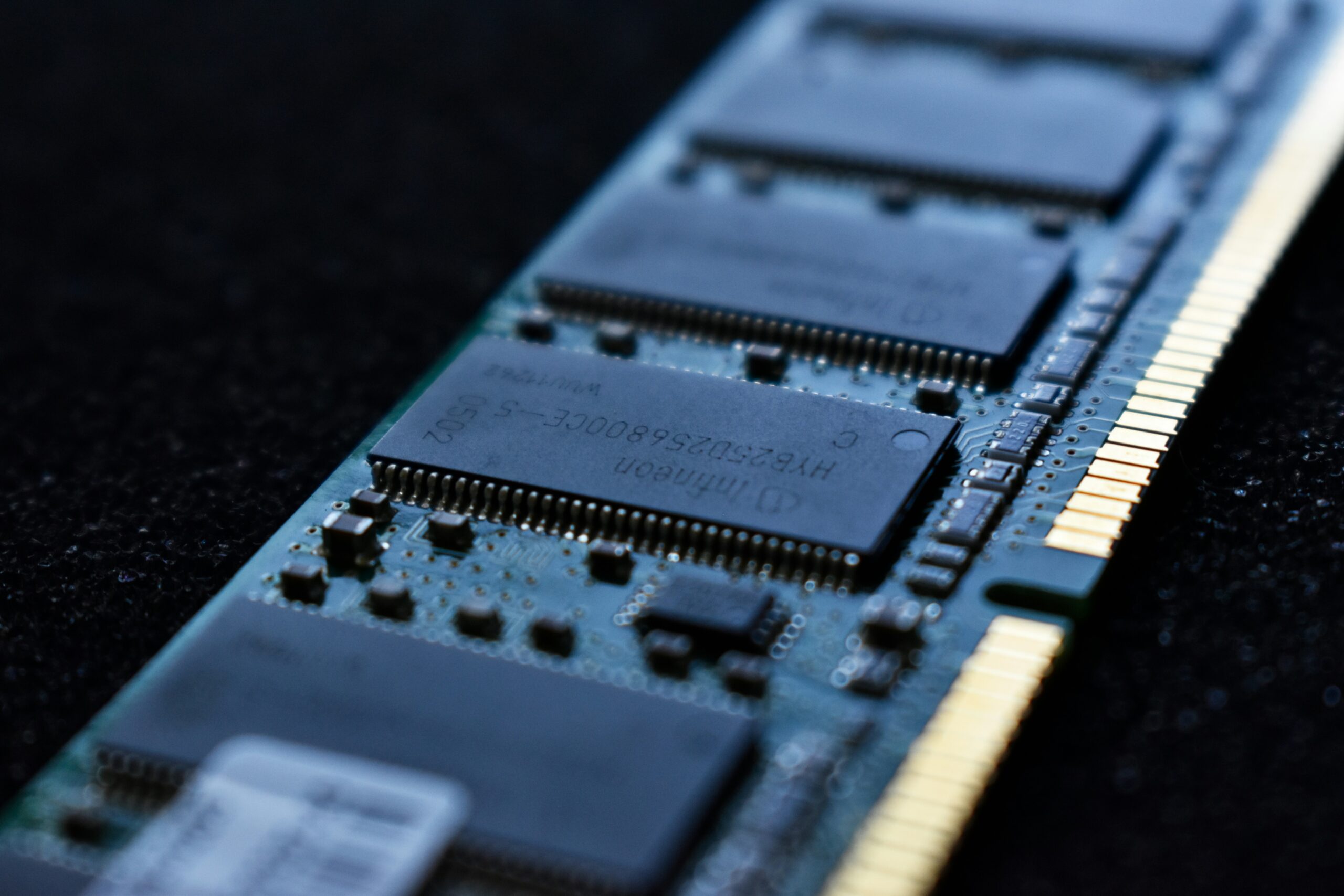
Soldered memory instead appears as memory chips attached directly to the motherboard.
Important Safety Note
Opening a laptop can damage components or affect warranty coverage depending on the manufacturer and region.
If you’re uncomfortable opening the system, use the service manual or have a qualified technician perform the inspection.
14. Don’t Assume Every Laptop Can Be Upgraded
One of the biggest mistakes people make is aiming that laptop RAM is always replaceable.
That was more common with older laptops.
Modern designs can use soldered memory to reduce motherboard space and improve power efficiency.
Kingston specifically points out that modern thin laptops use soldered memory and that newer modular technologies such as LPCAMM2 are emerging as an alternative for some systems.
The result is that RAM upgradeability should be considered before buying a laptop, not only after the laptop is feeling slow.
This is especially important if you plan to keep your laptop for several years.
Related article:
15. What If Your RAM Isn’t Upgradeable?
If your laptop uses entirely soldered RAM, you still have several options.
Reduce Memory Usage
Close unnecessary applications and browser tabs.
Optimize Startup Applications
Disable programs you don’t need running automatically.
Upgrade Storage
Related articles:
16. How Much RAM Should You Have?
The ideal amount depends heavily on what you do with your laptop.
8GB RAM
Suitable for lighter workloads, such as:
- Wewb browsing
- Basic documents
- Streaming
- Light productivity
However, 8GB can become restrictive for heavier multitasking.
16GB RAM
A strong general-purpose target for many users.
Suitable for:
- Office productivity
- Large numbers of browser tabs
- Programming
- Photo editing
- General multitasking
- Many mainstream applications
32GB RAM
Worth considering for heavier workloads such as:
- Software development
- Virtual machines
- Video editing
- Large creative projects
- Professional multitasking
- Some AI development workflows
64GB or More
Generally targets toward specialized workloads including:
- Multiple virtual machines
- Professional content creation
- Large development environments
- Data-intensive workloads
- Local AI and machine-learning workloads
RAM requirements vary significantly by application, so don’t buy additional memory simply because a larger number sounds better.
Related articles:
Laptop RAM Upgradeability Checklist
Before purchasing RAM, answer all of these questions:
- What is my exact laptop model?
- Does it use soldered RAM?
- Does it have SO-DIMM slots?
- Hoe many slots are there?
- How many slots are currently occupied?
- What type of RAM does it use?
- Is it DDR4 or DDR5?
- What speed does the laptop support?
- What Is the maximum supported RAM?
- What capacity models are supported?
- Do I need to replace existing RAM?
- Is the new RAM compatible with my existing module?
- Does the manufacturer’s documentation confirm the upgrade?
- Is the upgrade worth the cost?
If you can answer these questions, you’re in a much better position to purchase the correct memory.
Common Laptop RAM Upgrade Mistakes
Buying the Wrong DDR Generation
DDR4 and DDR5 aren’t interchangeable.
Buying Desktop RAM
Desktop DIMMs are physically different from laptop SO-DIMMs.
Ignoring Soldered Memory
A laptop may advertise 16GB of RAM without telling you that the memory is permanently soldered.
Assuming “1 of 2 Slots” Guarantees and Upgrade
Task Manager can provide useful clues, but verify the physical configuration through manufacturer documentation.
Ignoring Maximum Capacity
An available slot doesn’t necessarily mean the laptop supports any capacity you install.
Buying Before Checking Compatibility
Always identify your exact laptop model before purchasing RAM.
Assuming More RAM Automatically Makes the Laptop Faster
If RAM isn’t your actual bottleneck, adding memory may provide little noticeable improvement.
Final Thoughts: Is Your Laptop Upgradeable?
The best way to determine whether your RAM is upgradeable is to combine several sources of information.
Start with Windows Task Manager to identify your current memory configuration. Then confirm the information using your laptop’s exact model number, manufacturer specifications, service manual, or a reputable compatibility scanner.
The most important things to establish are whether the RAM is soldered, whether your laptop has accessible SO-DIMM slots, how much RAM the system supports, and which memory specifications are compatible.
If your laptop has an available memory slot and supports a larger capacity, a RAM upgrade can be a relatively straightforward way to extend the useful life of the machine.
If the memory is completely soldered, however, upgrading RAM may not be an option-which is exactly why checking RAM upgradeability before buying a laptop can be so important.
Continue learning: Return to the Ultimate Guide to Laptop Performance: CPUs, GPUs, RAM, and Storage for a broader look at how RAM, processors, graphics, and storage work together to determine laptop performance.
Related article: