
Laptop Upgrades: The Complete Guide to Upgrading Your Laptop
Upgrading your laptop can be an excellent way to improve performance, increase storage, and extend the useful life of an existing computer without buying an entirely new machine. Depending on your laptop’s design, you may be able to upgrade the RAM, SSD, Wi-Fi card, or battery-but modern laptops vary considerably in how much hardware can actually be replaced.
Before buying an upgrade, it’s important to determine exactly what your laptop supports. Some models provide accessible RAM and M.2 storage slots, while others use soldered components that cannot be replaced. Manufacturer documentation and service manuals should therefore be your starting point.
For a broader look at how individual components affect performance, see Gear and Code’s The Ultimate Guide to Laptop Performance: CPUs, GPUs, RAM, and storage.
Can You Upgrade a Laptop?
The short answer is: sometimes.
Unlike desktop PCs, laptops are designed around compact motherboards, tightly integrated components, and limited internal space. As a result, upgradeability depends heavily on the particular laptop model.
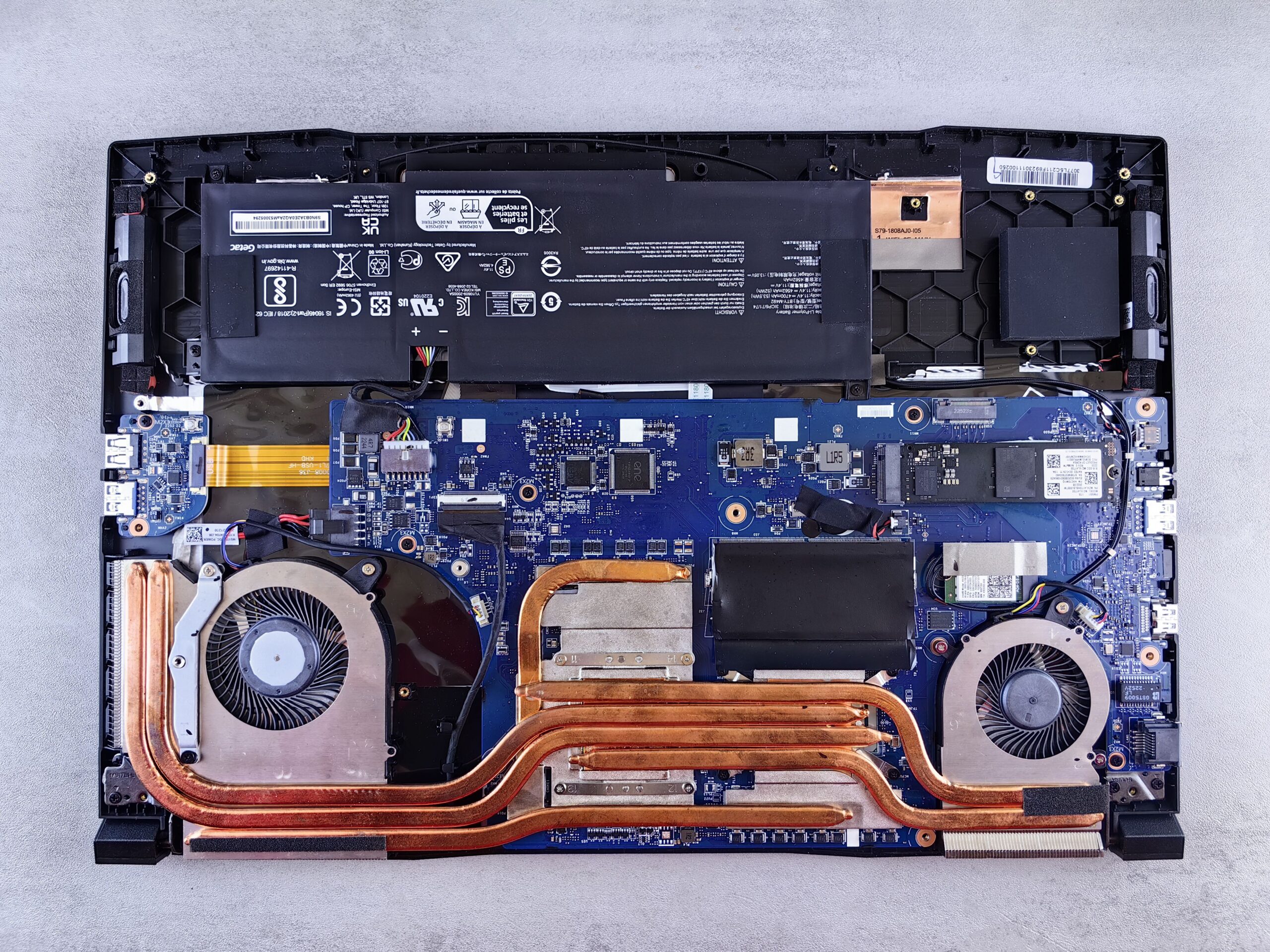
Commonly upgradeable components include:
- RAM
- SSD storage
- Battery on some models
- Wi-Fi cards on some models
Components that are generally difficult or impossible to upgrade in modern laptops include:
- CPU
- Dedicated GPU
- Soldered RAM
- Soldered storage
HP, for example, identifies RAM and storage as common laptop upgrade possibilities while noting that CPUs and GPUs in most modern laptops are soldered to the motherboard.
Suggested products for upgrades:
Why Upgrade a Laptop Instead of Buying a New One?
A laptop upgrade can make financial sense when the computer is otherwise still capable of handing your workload.
For example, adding RAM may improve multitasking, while replacing an aging or undersized SSD can provide additional capacity and, depending on the original drive, substantially improve storage performance.
Windows itself identifies insufficient storage, background applications, outdated software, and aging hardware as potential causes of poor performance.
A laptop upgrade may be worthwhile when:
- Your laptop still has a capable CPU
- You need more RAM for multitasking
- Your storage drive is nearly full
- Your laptop uses an older HDD
- Your SSD has insufficient capacity
- The laptop supports a faster or larger replacement drive
- You otherwise like the laptop and don’t need dramatically mode CPU or GPU performance
On the other hand, upgrading may not make sense if the CPU, GPU, display, battery, and other major components are all outdated.
Upgrade vs Replace
Situation
Laptop has too little RAM
Storage is nearly full
Laptop still uses an HDD
Battery no longer holds a charge
CPU is too slow
GPU is insufficient
RAM is soldered
Multiple components are outdated
Consider
RAM upgrade
Larger SSD
SSD upgrade
Battery replacement
New laptop may make more sense
New laptop may make more sense
Replacement or external workflow
Compare upgrade cost with a new laptop
Upgrade Steps
Step 1: Determine What Your Laptop Can Upgrade
Before ordering anything, identify your exact laptop model.
Do not rely solely on the product family name. A manufacturer may sell several configurations under the same model line., and the upgrade options can differ between them.
Look for:
- Exact model number
- CPU
- Current RAM
- Number of RAM slots
- RAM type
- Current storage type
- Number of M.2 slots
- SATA compatibility
- Maximum supported storage
- Maximum supported RAM
Your laptop manufacturer’s service manual is one of the best places to start.
For example, Dell’s current RAM installation guidance recommends checking the service manual and confirming memory compatibility before installing a module.
Where to Find Your Laptop Specifications
Check:
- 1. Manufacturer’s support website
- 2. Laptop service manual
- 3. Original documentation
- 4. BIOS/UEFI
- Windows System Information
- Task Manager
- Existing component labels
The Most Common Laptop Upgrades
1. Upgrade Laptop RAM
A laptop RAM upgrade can be one of the simplest ways to improve multitasking performance-provide your laptop uses removable memory.
RAM temporarily holds information that active applications need. Increasing available memory can allow a system to handle more applications and browser tabs without relying as heavily on slower storage. Microsoft explains that additional memory allows a device to do more simultaneously without performance slowdowns.
When Should You Upgrade RAM?
Consider a RAM upgrade if you regularly experience:
- Slowdowns when multitasking
- Browser tabs reloading
- Performance problems with large applications
- Video editing slowdowns
- Virtual machine limitations
- Memory usage consistently approaching your installed capacity
How Much RAM Do You Need?
The right amount depends on your workload.
A general guideline:
User
Basic browsing and documents
General productivity
Programming
Photo/video editing
Heavy professional workloads
Specialized workloads
Suggested RAM
8GB
16GB
16GB-32GB
16GB-32GB+
32GB+
64GB+ where supported
These are workload guidelines rather than universal requirements. Application requirements should always take priority.
Check Whether RAM is Upgreadeable
Some laptops use removable SO-DIMM modules. Others have memory soldered directly to the motherboard.
Dell’s 2026 RAM guide notes that laptops commonly use SO-DIMM memory and that thin laptops increasingly use soldered memory instead.
Check your laptop’s supported RAM before purchasing. Shop compatible laptop memory.
Products to consider:
2. Upgrade Your Laptop Storage
A laptop SSD upgrade can provide one of the mots useful improvements when your existing drive is too small or when you’re replacing an older mechanical hard drive.
Modern SSDs are smaller and faster than traditional HDDs, and SSDs are now the standard storage technology in most current PCs.
Possible upgrades include:
- Larger SATA SSD
- Larger M.2 NVMe SSD
- Replacement of older HDD
- Secondary SSD where an additional slot exists
Why Upgrade Laptop Storage?
A storage upgrade can give you:
- More available space
- Faster file transfers
- Faster application loading
- More room for games
- More room for video files
- More room for development environments
- Additional space for large project files
Windows also notes that low available storage can contribute to performance problems and can interfere with installing updates.
3. NVMe SSD Ugrades
If your laptop supports an M.2 NVMe drive, replacing a smaller drive with a larger compatible NVMe SSD can be an attractive upgrade.
However, don’t assume that every M.2 drive will work in every laptop.
Check:
- M.2 form factor
- Drive length
- NVM2 vs SATA compatibility
- PCIe generation supported
- Maximum supported capacity
- Number of available M.2 slots
Looking for more storage? Compare compatible laptop SSDs.
Suggested products:
4. Replace Your Laptop Battery
Battery replacement is another potential way to extend the life of a laptop.
However, battery accessibility varies substantially between models. Older laptops may have removable batteries, while many newer machines use internal batteries.
Before purchasing a replacement battery:
- Identify the exact laptop model
- Find the battery part number
- Verify voltage and capacity
- Purchase from a reputable source
- Follow the manufacturer’s service instructions
5. Upgrade the WI-FI Card
Some laptops have replaceable WI-Fi modules, although this is increasingly dependent on the laptop’s design.
A WI-FI upgrade may be worthwhile if:
- Your existing wireless adapter is outdated
- Your router supports newer WI-FI standards
- The laptop supports a compatible replacement module
- Drive and operating-system compatibility are confirmed
Don’t assume that a newer WI-Fi card will automatically work. Check the laptop’s service documentation and compatibility requirements first.
What About Upgrading the Laptop CPU?
For most modern consumer laptops, CPU upgrades are not practical.
Laptop processors are commonly soldered directly to the motherboard. HP similarly notes that CPUs in most laptops are soldered and therefore cannot be upgraded like desktop processors.
Older laptops sometimes offered socketed processors, but this is not representative of most current designs.
If your primary problem is insufficient CPU performance, compare the cost of a major motherboard-level upgrade against purchasing a bnewer laptop.
Can You Upgrade a Laptop GPU?
In most laptops, the internal GPU is not upgradeable.
Dedicated laptop graphics processors are commonly integrated or soldered onto the motherboard. HP’s current laptop upgrade guidance identifies GPUs as generally non-upgradeable in modern laptops.
Tis is particularly important for:
- Gaming laptops
- Video editors
- 3D artists
- CAD users
- AI developers
- Machine-learning workloads
If GPU performance is the primary limitation, a RAM or SSD upgrade won’t transform the laptop into a significantly more powerful graphics workstation.
Laptop Upgrade Safety: What You Need Before Starting
Before opening your laptop, gather the appropriate tools.
Recommended tools:
- Precision Phillips screwdriver
- Torx screwdriver set if required
- Plastic pry tool
- Anti-static wrist strap
- Small parts container
- Clean work surface
- Laptop service manual
Safety Checklist
Before beginning:
- 1. Backup important files
- 2. Shut down the laptop completely
- Disconnect the charger
- Disconnect the internal battery if the service manual requires it
- Ground yourself against electrostatic discharge
- Keep track of every screw
- Never force a connector or component
- Verify component orientation before installation
Dell specifically recommends attention to electrostatic discharge protection when installing laptop RAM.
Related article:
How to Upgrade Laptop RAM
The exact procedure varies by model, but the general process is straightforward when the laptop has accessible SO-DIMM slots.
Step 1: Shut down the laptop
Our the computer off completely and disconnect the charger.
Step 2: Remove the bottom panel
Use the appropriate screwdriver and carefully remove the screws.
Keep each screw organized because different screw lengths may be used.
Step 3: Locate the RAM
Look for the SO-DIMM modules.
Step 4: Remove existing memory
Release the retaining clips and allow the module to rise at an angle.
Step 5: Install the new RAM
Align the notch on the module with the slot and insert it at the correct angle.
Press it down until. the retaining clips lock into position.
Step 6: Reassemble the laptop
Replace the bottom cover and screws.
Step 7: Verify the installation
Start the laptop and verify that the operating system recognizes the new memory.
How to Upgrade a Laptop SSD
Replacing the primary SSD requires additional planning because the existing drive contains your operating system and files.
You generally have two approaches:
Option 1: Clone the Existing Drive
Clone your existing drive to the new SSD before physically replacing it.
This approach can preserve:
- Windows installtion
- Applications
- Personal files
- Settings
- Boot configuration
Option 2: Perform a Clean Installation
Install the new SSD and reinstall Windows and your applications.
This can provide a cleaner starting point but requires more setup.
Don’t Forget Your Backup
Before replacing a primary storage drive, make sure your important files exist somewhere other than the laptop.
Consider using:
- External SSD
- External HDD
- Cloud storage
- Network storage
- Multiple backup locations
Microsoft recommends backing up important data when preparing for major Windows changes.
Laptop Upgrade Mistakes to Avoid
Buying Incompatible RAM
Don’t purchase memory based solely on capacity.
Verify:
- DDR generation
- Form factor
- Maximum capacity
- Number of slots
- Manufacturer specifications
Buying the Wrong SSD
An M.2 slot doesn’t automatically mean every M.2 SSD is compatible.
Verify whether the laptop supports:
- NVMe
- SATA M.2
- Specific physical dimensions
- Particular PCIe generations
Forgetting to Backup
A hardware upgrade is not the time to discover that your important files exist only on one laptop.
Assuming Every Laptop is Upgradeable
Some modern laptops have soldered RAM or storage.
Spending Too Much on an Old Laptop
A $300 upgrade isn’t necessarily a good investment in a laptop that has am aging CPU, poor battery, outdated display, and limited remaining service life.
How to Decide Which Laptop Upgrade You Need
Use your actual performance problem to determine the upgrade.
Problem
Too many apps cause slowdowns
Storage nearly full
Very slow HDD
Poor battery life
Slow Wi-Fi
CPU constantly maxed out
GPU constantly maxed out
Laptop overheats
System feels slow despite adequate hardware
Potential Upgrade
More RAM
Larger SSD
SSD
Battery replacement
Compatible Wi-Fi upgrade
Consider replacement
Consider replacement
Cleaning/coolling investigation
Software/storage investigation
Before purchasing hardware, diagnose the bottleneck.
For example, if Task Manager shows the CPU constantly running at high utilization while RAM remains comfortable, adding RAM may not solve the problem.
Likewise, if storage capacity is the problem rather than storage performance, buying an extremely high-end SSD may provide little practical benefit beyond additional capacity.
Laptop Upgrades for Different Users
Students
Prioritize:
- RAM
- SSD capacity
- Battery condition
A reasonable equipped laptop can often remain useful for schoolwork fr years if storage and memory are adequate.
Developers
Developers can benefit from:
- More RAM
- Larger SSD
- Fast secondary storage
- Better external backup
Development environments, containers, virtual machines, IDEs, and local databases can consume substantial memory and storage.
Best High-Performance Laptops for Programming
Gamers
For gaming laptops, RAM and storage are often the realistic upgrade paths.
A larger SSD can provide room for additional games, whole more RAM can help when the existing configuration is limiting multitasking or certain workloads.
However, upgrading RAM or storage cannot replace a weak GPU.
Everything You Need to Know About Gaming Laptops
Creative Professionals
Video editors, photographers, designers, and other creators can benefit from:
- Additional RAM
- Larger SSDs
- Fast external storage
- Better backup solutions
However, CPU and GPU limitations can become significant bottlenecks.
Best Laptops for Creative Professionals
Laptop Upgrade vs Buying a New Laptop
The most important question isn’t simply whether a component can be upgraded.
It’s whether the upgrade meaningfully improves the computer for your particular workload.
An upgrade may make sense when:
- The laptop’s CPU is still adequate
- The display meets your needs
- The battery is still acceptable or replaceable
- RAM is upgradeable
- Storage is upgradeable
- The upgrade cost is relatively low
- You otherwise like the laptop
A new laptop may make more sense when:
- The CPU is significantly outdated
- The GPU is inadequate
- RAM is soldered and insufficient
- Storage cannot be upgraded
- The battery and other components are also aging
- Multiple expensive repairs are needed
- The upgrade cost approach the price of a suitable replacement
The goal isn’t to maximize the number of components you replace. It’s to get the most useful performance and usability improvement for the money.
Related article:
Frequently Asked Questions
Is upgrading a laptop worth it?
It can be, particularly when the laptop supports inexpensive RAM or storage upgrades and the rest of the machine still meets your needs.
What is the easiest laptop upgrade?
For laptops with accessible slots, RAN and storage are generally among the most straightforward upgrades.
Can I upgrade my laptop’s RAM?
It depends on the laptop. Some models use removable SO-DIMM modules, while others have soldered memory.
Can I upgrade my laptop’s SSD?
Many laptops support SSD replacement or expansion, but the exact drive type, form factor, interface, and capacity limits must be checked first.
Can I upgrade my laptop’s CPU?
Usually not on modern consumer laptops because the processor is commonly soldered to the motherboard.
Can I upgrade my laptop’s GPU?
Usually not. Laptop GPUs are generally integrated or soldered to the motherboard.
Should I upgrade RAM or SSD first?
It depends on the bottleneck. If memory is consistently exhausted, consider RAM. If storage is nearly full or you’re replacing. slow HDD, storage may be the more useful upgrade.
Final Thoughts: Get More Life From Your Laptop
Upgrading your laptop can be a practical way to extend the useful life of a computer without immediately replacing it. RAM and storage are the most important upgrade paths to investigate, while battery and Wi-Fi upgrades may also be possible depending on the model.
The key is compatibility.
Before purchasing anything, identify your exact laptop model, consult its documentation, determine which components are replaceable, and compare the total upgrade cost with the price of a new computer.
For a deeper understanding of how RAM, storage, CPUs, and GOUs influence performance, return to Gear and Code’s The Ultimate Guide to Laptop Performance article.
And if your laptop’s fundamental limitations come from a non-upgradeable CPU or GPU, and upgrade may not be the most effective long-term solution.