Why Does My Laptop Display Flicker? How to Diagnose and Repair
A laptop display flicker problem can make it difficult to work, browse the web, or enjoy your favorite content. You screen might flash intermittently, develop horizontal lines, change brightness unexpectedly, or go black for a second before returning to normal. Although the problem can indicate a failing display or loose internal connection, it can also result from outdated graphics drivers, incompatible applications, or incorrect display settings.
The key to fixing a flickering laptop screen is identifying the underlying cause before spending money on replacement parts. This guide explains how to diagnose laptop display flicker, try practical fixes, distinguish software problems from hardware failures, and determine when professional repair is the best option.
For more information check out Gear and Code’s “Laptop Performance and Hardware” article.
Quick Answer: Why is My Laptop Display Flickering?
A laptop. display can flicker because of:
- An outdated, corrupted, or incompatible graphic driver
- n application that conflicts with your display settings
- An incorrect or unstable screen refresh rate
- Automatic brightness or power-management settings
- A damaged diiisplay cable or loose internal connection
- A failing LCD or OLED panel
- A graphics processing unit (GPU) or motherboard problem
- An external monitor, docking station, adapter, or cable issue
Start with a restart, disconnect external accessories, and check whether the flickering affects the entire operating system or just one application. These simple checks can help you avoid unnecessary repairs.
What Does Laptop Display Flicker Look Like?
Laptop display flicker can appear in several different ways. Recognizing the pattern can help narrow down the likely cause.
Screen flashes or briefly goes black
If your screen repeatedly turns black and returns, the issue could involve the graphics driver, display connection, refresh rate, or power delivery.
Brightness changes unexpectedly
A screen that repeatedly becomes brighter and darker may be affected by automatic brightness, adaptive display settings, power management, or a hardware fault.
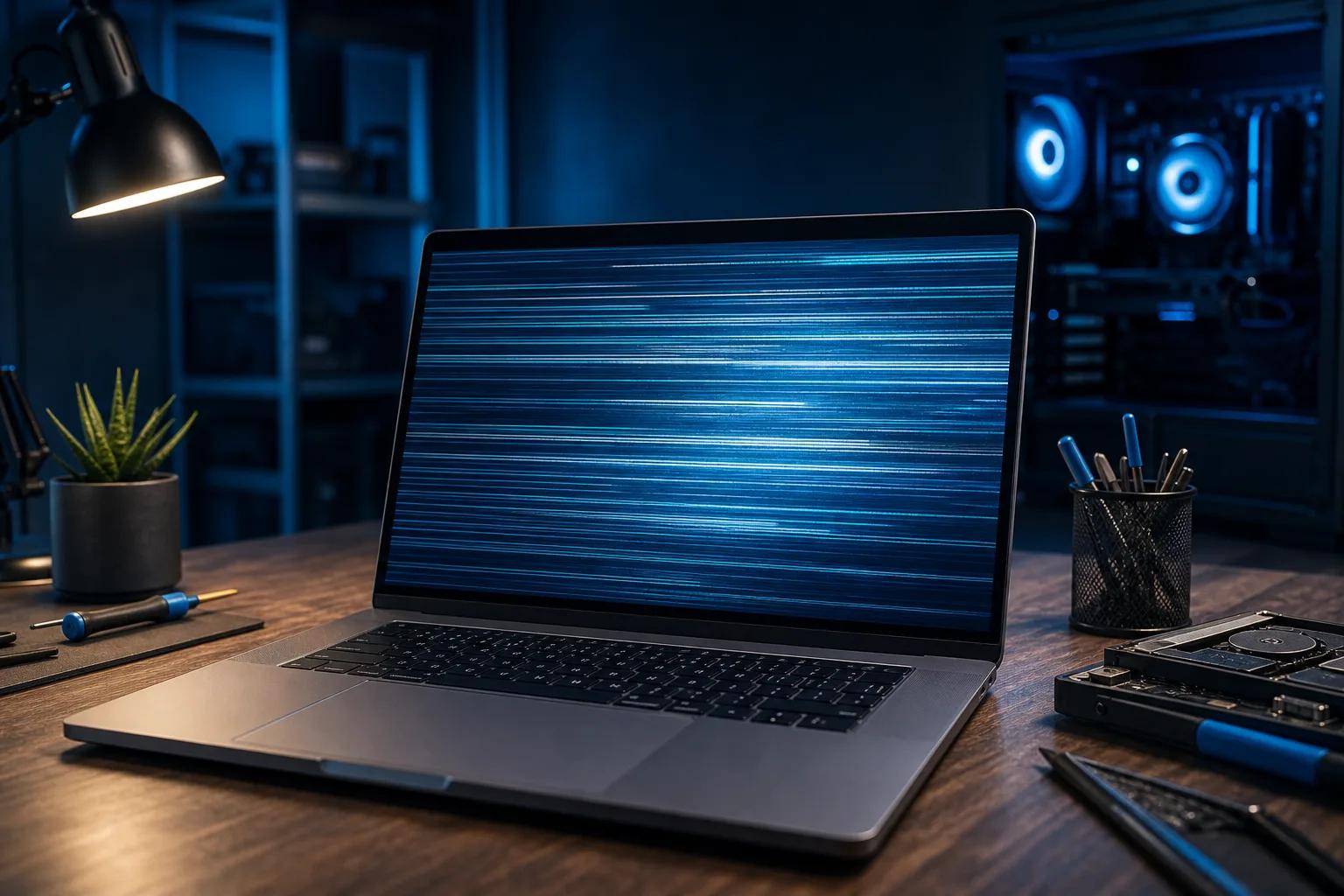
Horizontal lines or distorted images
Horizontal lines, colored artifacts, or distorted sections of the display can indicate a display-panel problem, cable damage, or graphics-related issue.
Flickering when moving the laptop lid
If the screen flickers when you open, close, or adjust the lid, a damaged display cable or hinge-area connection is a possibility. Avoid repeatedly flexing the lid to reproduce the fault.
Flickering in only one application
If the desktop and most applications appear normal but one browser, game, or program flickers, the application, its hardware acceleration settings, or a compatibility issue may be responsible.
What Causes Laptop Display Flicker?
Understanding the likely causes helps you choose the right troubleshooting steps.
Additional troubleshooting articles:
1. Outdated or incompatible graphics drivers
Graphics drivers allow your operating system to communicate with the laptop’s integrated or dedicated GPU. A faulty driver or an update that introduuces a compatibility issue can cause flashing, black screens, or visual artifacts.
This is one of the first things to investigate when the problem begins after a software update or driver installation.
2. Incompatible applications
Some applications conflict with graphics drivers, hardware acceleration, or display features. If flickering happens only while using a particular browser, video editor, or game, test that application before making system-wide changes.
3. Incorrect refresh-rate settings
The refresh rate determines how many times per second the display updates the image. An unsupported or unstable refresh-rate configuration can cause display problems, particularly when using external monitors or variable-refresh-rate features.
4. Automatic brightness and power settings
Adaptive brightness, battery-saving features, and manufacturer-specific display utilities can change screen brightness based on ambient light, power source, or workload.
These settings can sometimes resemble flickering. Temporarily adjusting then can help determine whether the behavior is software-related.
5. Loose or damaged display cable
The cable connecting the laptop’s motherboard to its display travels through the hinge area on many laptop designs. Wear, damage, or a poor connection can cause intermittent image problems.
A display that flickers when the lid moves is a useful warning sign, but it does not conclusively prove that the cable is faulty.
6. Failing display panel or GPU
A damaged display panel, failing graphics hardware, or motherboard fault may produce persistent flickering, lines, discoloration, or intermittent loss of image.
Hardware failures generally require professional diagnosis, particularly when the problem continues outside the operation system.
How to Diagnose and repair a Flcikering Laptop Display
Work through the following steps in order. Test the screen after each change so you can identify which action, if any, resolves the problem.
Step 1: Restart Your Laptop and Disconnect Accessories
Save your work and restart the computer.
Disconnect unnecessary USB devices, docking stations, external display, adapters, and other accessories. The check whether the screen continues to flicker.
If the problem disappears, reconnect the accessories one at a time to identify a possible source of interference or incompatibility.
Step 2: Reset the Graphics Driver in Windows
On many Windows laptops, you can reset the graphics driver without restarting the computer.
Press:
Windows + Ctrl + Shift + B
The screen may briefly go dark or beep as Windows attempts to reset the graphics driver.
If the flickering stops, a temporary graphics-related issue may have been involved. If it returns, continue with the remaining steps.
This shortcut is a diagnostics measure, not a permanent fix for a damaged display or defective component.
Step 3: Check Whether Task Manager Also Flickers
This is a useful way to distinguish a graphics-driver problem fro an incompatible application.
- 1. Press Ctrl + Shift + Esc to open Task Manager
- 2. Leave Task Manager visible while the flickering occurs
- 3. Observe whether the Task Manager window flickers along with the rest of the display
If Task Manager flickers too, investigate the graphics driver first.
If Task Manager remains stable while other content flickers, investigate incompatible applications, particularly software that was installed or updated shortly before the problem began.
The test is a diagnostic clue rather than a definitive hardware test.
Step 4: Update or Roll Back the Graphics Driver
If the problem started after an update, rolling back the driver may be more appropriate than installing another version immediately.
To inspect the driver in Windows:
- 1. Open the Start menu and search for Device Manager
- 2. Expand Display adapters
- 3. Right-click the listed graphics adapter and select Properties
- 4. Open the Driver tab
- 5. If the issue began after a driver update, choose Roll Back Drive if applicable
- 6. Otherwise, consider Update driver and follow the manufacturer’s recommendations
For laptops with Intel, AMD, or NVIDIA graphics, check the laptop manufacturer’s support page for drivers approved for your specific model. Some laptops use customized graphics and configurations.
Avoid downloading drivers from unfamiliar third-party websites.
If the issue persists, consult the manufacturer’s instructions before uninstalling or reinstalling the graphics driver.
Step 5: Check the Screen Refresh Rate
On Windows 11:
- 1. Open Settings
- 2. Select System, then Display
- 3. Open Advanced display
- 4. Select the affected display if more than one is connected
- 5. Review the available refresh rates and select a supported setting
If the flickering began after changing display settings, return to the manufacturer’s recommended configuration.
Do not assume that a higher refresh rate is always better. Use a setting supported by both the display and the current resolution.
Step 6: Test Brightness and Power Settings
If the screen appears to pulse between bright and dim, temporarily disable adaptive brghtness or similar automatic display adjustments if your laptop offers them.
Also test the laptop while plugged in to its original or manufacturer-approved power adapter.
Compare behavior on battery power and AC power, but stop using a charger that is damaged, overheating, or producing unusual electrical symptoms.
If the flickering happens only on battery power, the result may help a technician investigate power-management settings, the battery, or the power-delivery system. It does not automatically mean that the battery needs replacement.
Step 7: Check for an Incomaptible Application
If only one program appears to be flickering:
- 1. Update the application
- 2. Restart ehe program
- 3. Check its display or hardware acceleration settings
- 4. Temporarily disable hardware acceleration if the application provides that option
- 5. Test an alternative application or browser
If the issue started after installing new software, temporarily removing or disabling that software may help establish whether it is responsible.
Change one setting at a times you cannn reverse any change that does not help.
Step 8: Connect an External Monitor
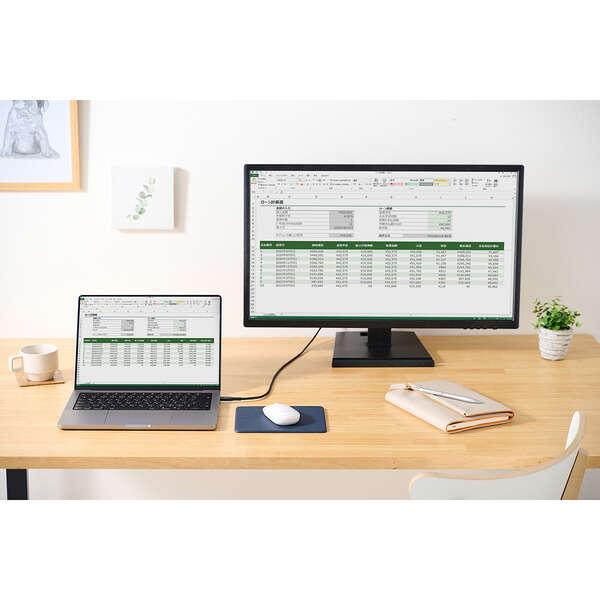
External monitors:
Connecting an external monitor is one of the most useful ways to investigate a suspected built-in display problem.
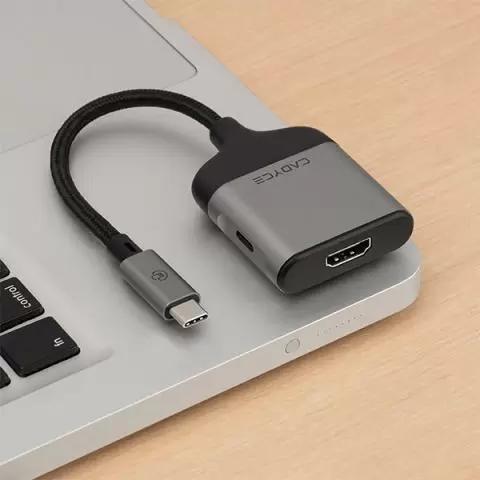
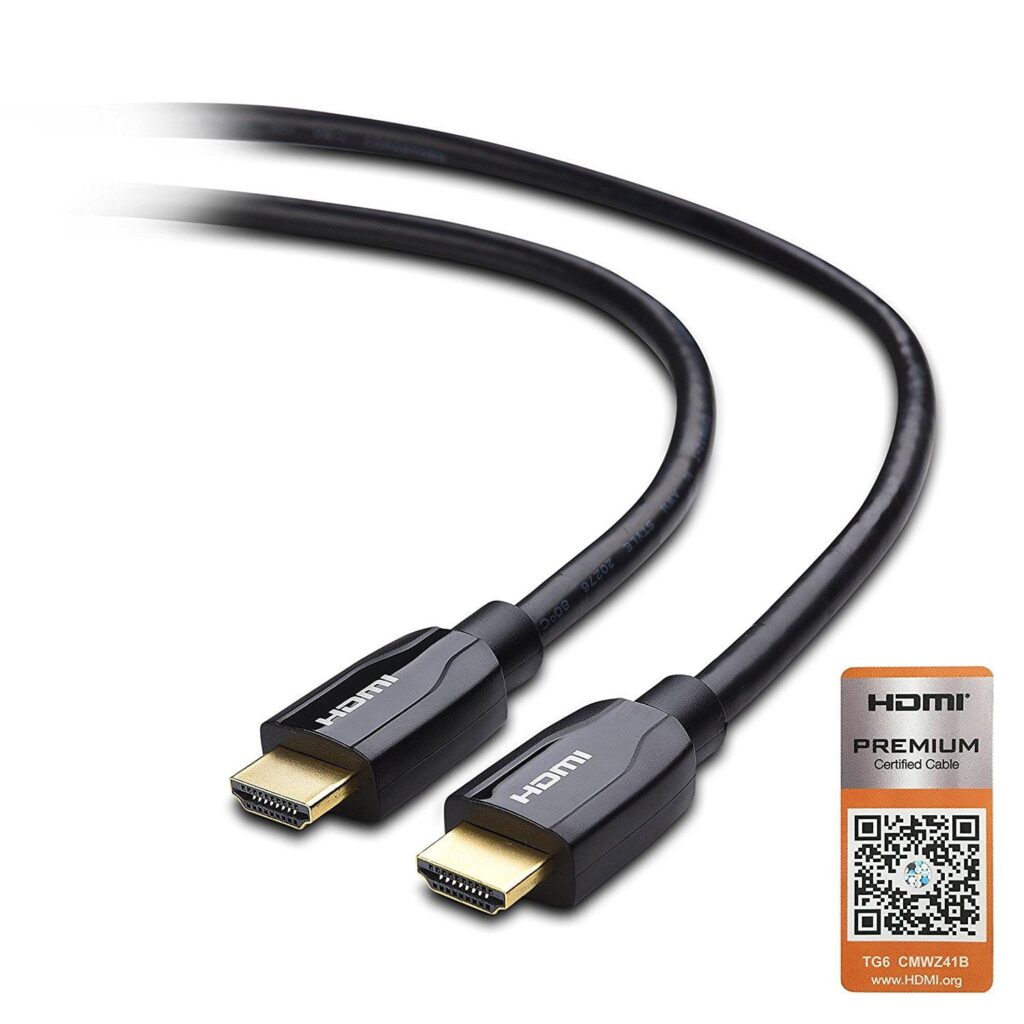
Use a known-good HDMI or USB-C display connector and, where possible, a monitor and cable that have been tested with another device.
Interpret the results carefully:
- External monitor is stable, built-in display flickers: The internal panel, display cable, hinge connection, or panel-specific directory becomes more suspect
- Both display flicker: Investigate graphics driver, applications, the GPU, display settings, and other system-level causes
- External monitor flickers but built-in display is stable: Investigate the external monitor, cable, adapter, dock, and output configuration
These results narrow the possibilities but do not establish a definitive diagnosis.
USB-C Adapters:
Step 9: Check Whether Flickering Happens Before Windows Loads
Observe the display during startup or in the manufacturer’s firmware setup screen, if accessible.
If flickering I present before Windows loads, an ordinary Windows application is less likely to be the cause. Hardware, firmware, or low-lwvwl graphics issues become more plausible.
However, some hardware problems appear only after the laptop warms up or when a particular display mode is active. A normal startup screen does not rule out hardware failure.
Step 10: Seek Professional Hardware Diagnosis
If the problem persists after software troubleshooting, a technician may need to inspect the display panel, internal display cable, hinge area, GPU, or moteherboard.
Stop troubleshooting and seek service if you notice:
- Cracked display glass or visible liquid damage
- Burning smells, unusual heat, or signs of electrical damage
- Flickering that worsens when the hinge moves
- Persistent lines, discoloration, or image distortion
- A screen that repeatedly loses its image despite software checks
Do not open the laptop or disconnect internal display cables unless you have the appropriate repair experience and model-specific instructions. Disconnect power and follow the manufacturer’s safety procedures before any internal service.
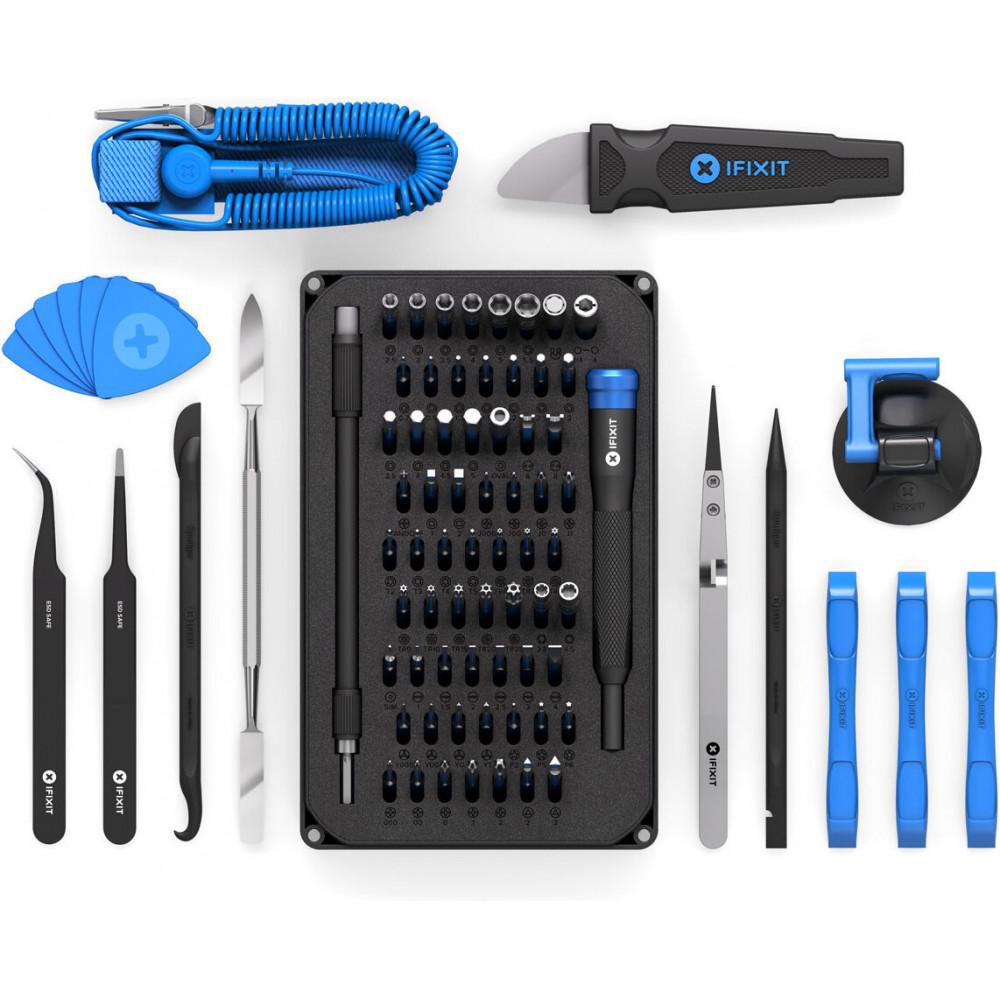
Precision electronics repair toolkits:
- STREBITO Electronics Repair Kit
- iFixit Essential Electronics Toolkit
- iFixit Pro Tech Toolkit – Electronics
When is Laptop Screen Repair Necessary?
Not every flickering laptop needs a replacement screen.
Software-related issues may be resolved by changing settings, correcting an application conflict, or installing the appropriate driver. A damaged display panel or cable, on the other hand, may require replacement or repair.
Before authorizing a repair, ask the technician to explain the diagnosis and provide an itemized estimate. Compare the total cost with the laptop’s age, condition, specifications, and replacement value.
If the laptop is under warranty, contact the manufacturer before paying for an independent repair. Unauthorized disassembly may affect warranty coverage depending on the warranty terms and circumstances.
How Much Does a Laptop Screen Repair Cost?
Repair prices vary substantially by laptop model, screen size, panel technology, parts availability, and labor rates.
A basic panel replacement may cost considerably less than repairing a premium OLED to high-refresh-rate display. Cable repairs and motherboard-level repairs have different labor and parts requirements, so a universal price estimate can be misleading.
Before purchasing parts, identify the exact laptop model and compatible screen assembly. Similar-looking panels may use different connectors, resolutions, mounting points, or refresh rates.
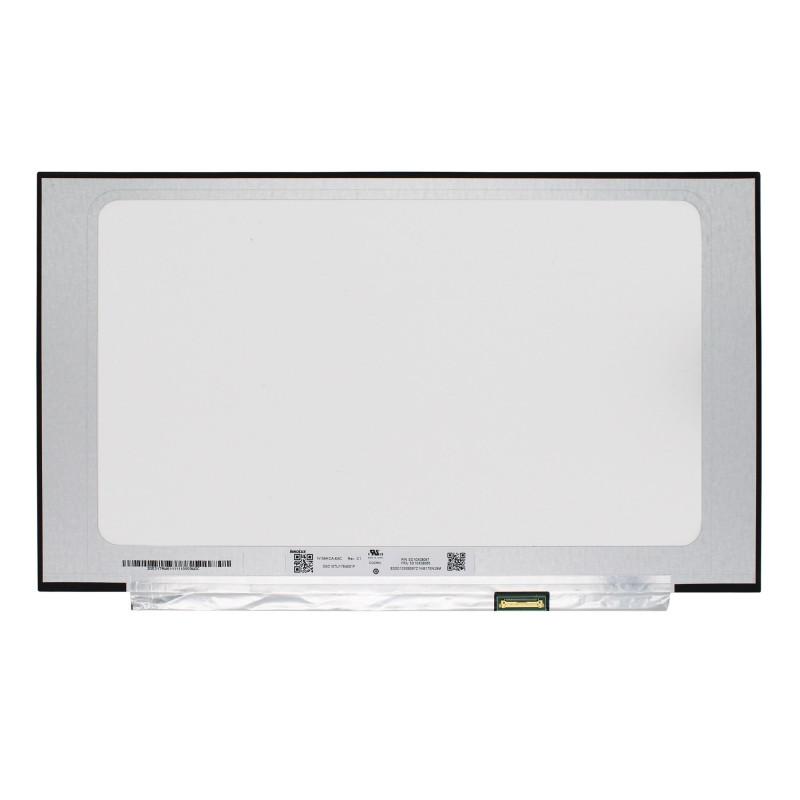
If you’re considering a repair check out Gear and Code’s “Explore Your Laptop Upgrade Options” article.
How to Prevent Laptop Display Flickering
You can reduce the likelihood of future display problems by following a few basic practices:
- Install graphics drivers and firmware recommended by your laptop manufacturer
- Keep your operating system and applications updated
- Avoid forcing the laptop lid beyond its normal range of movement
- Use compatible chargers, docks, adapters, and display cables
- Keep liquids away from the keyboard and display
- Avoid excessive pressure on the lid or screen when transporting the laptop
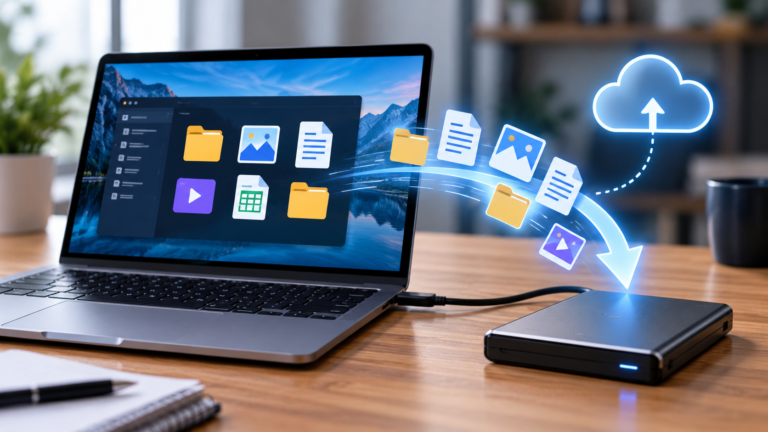
- Back up important files before major system changes or hardware service
These practices cannot prevent every hardware failure, but they can reduce avoidable problems and make troubleshooting easier.
Frequently Asked Questions
Why does my laptop scree flicker but work normally on an external monitor?
This pattern suggests that the built-in display panel, internal display cable, or panel-specific circuitry may be involved. However, differences in resolution, refresh rate, and display configuration can also affect the result. A technician can confirm the cause.
Why does my laptop display flicker after a Windows update?
A driver change, application incompatibility, or altered display configuration may be responsible. Check whether Task Manager flickers, then consider updating or rolling back the graphics driver if the timing points to a recent driver change.
Can a loose laptop screen cable cause flickering?
Yes. A damaged or poorly connected display cable can cause internmittent flickering, image loss, or distortion. If the issue changes when the lid moves, arrange a hardware inspection rather than repeatedly fixing the hinge.
Is a flickering laptop screen dangerous?
Flickering itself is usually a sign of a display or software issue, but persistent screen problems can cause discomfort. Stop using the device and seek professional assistance if you notice burning smells, excessive heat, electrical damage, or liquid exposure.
Should I replace my laptop screen or buy a new laptop?
Compare the repair estimate with the laptop’s overall condition, air, performance, and replacement cost. Replacing a screen may make sense for an otherwise capable laptop, while extensive motherboard damage or multiple aging components may make replacement more practical.
Final Verdict
A laptop display flicker problem does not automatically mean your screen is failing. Begin with simple checks, reset or troubleshoot the graphics driver, insect refresh-rate settings, and test an external monitor. These steps can help separate common software problems from issues that may require professional hardware repair.
If flickering persists, becomes worse when moving the lid, or appears alongside lines and distortion, get the laptop inspected before purchasing replacement components. A confirmed diagnosis is the best way to avoid spending money on parts that will not fix the problem.
For further insight in laptop performance check out Gear and Code’s “Benchmark Your Laptop’s Performance.”