
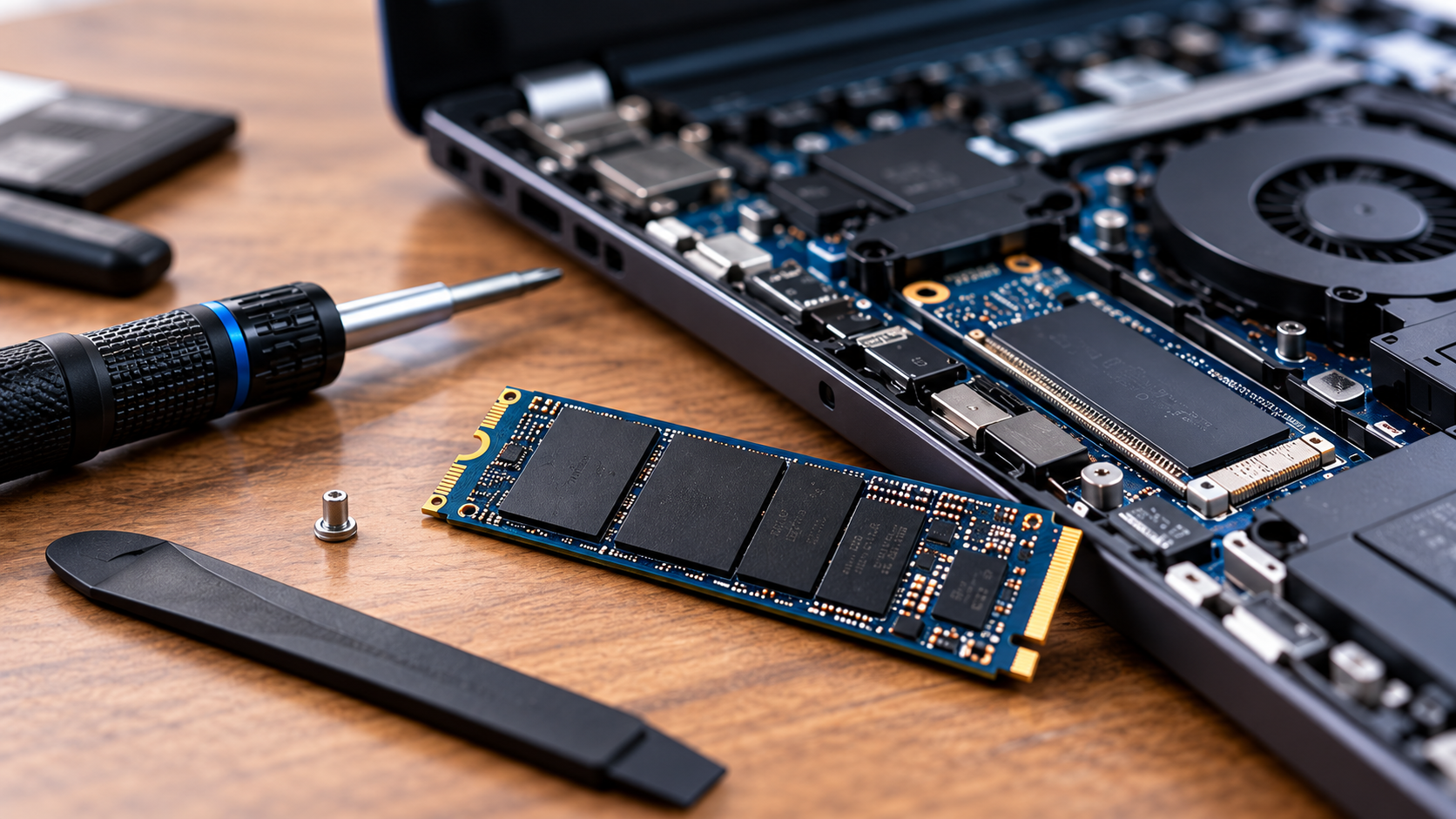
How to Check Laptop SSD Compatibility Before Buying
Before buying a new drive, checking laptop SSD compatibility is one of the most important steps you can take.An SSD can have the right capacity and impressive performance specifications and still be incompatible with your laptop because of the wrong interface, form factor, connector, length, or physical clearance.
The good news is that determining compatibility usually doesn’t require advanced technical knowledge. You simply need to identify what type of storage your laptop supports and then match the SSD’s specifications to your laptop.
In this guide, we’ll show you how to check your laptop’s SSD compatibility before spending money on a new drive.
Related articles:
Why SSD Compatibility Matters
Buying Ann SSD isn’t as simple as choosing the largest or fastest drive you can afford.
A compatible SSD must match several characteristics of your laptop. including:
- Storage interface
- SSD protocol
- Physical form factor
- M.2 length
- Connector/key configuraation
- PCIe generation
- Available physical clearance
- Laptop manufacturer limitations
- Supported storage capacity
For example. an M.2 SSD isn’t automatically compatible with every M.2 laptop slot. M.2 is a physical form factor, while SATA and NVMe describe different interfaces/protocols.
Some laptops support M.2 NVMe drives, some support M.2 SATA drives, and some support both.
Related article:
Step 1: Find Your Exact Laptop Model
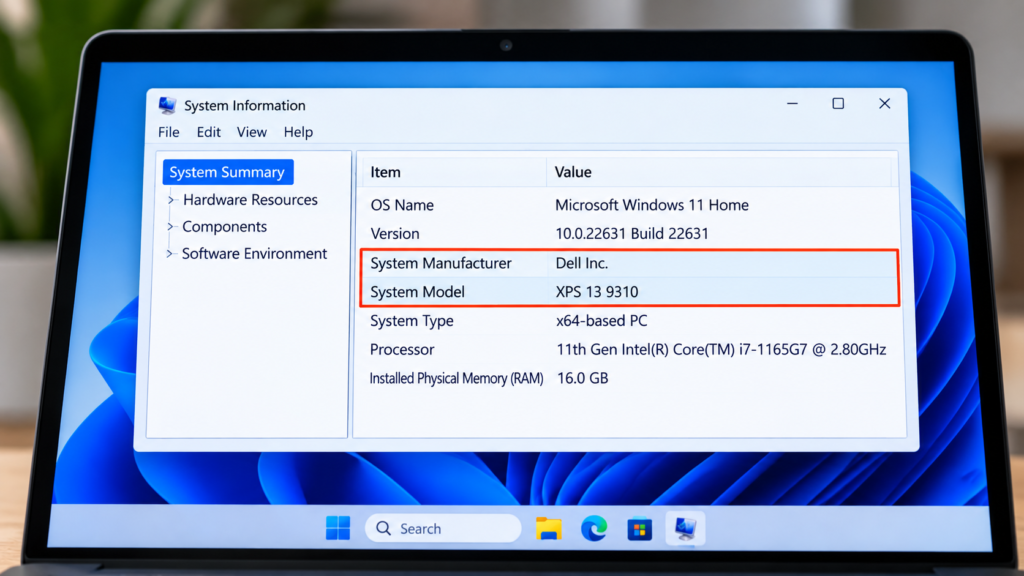
The first step in checking SSD compatibility is identifying your exact laptop model.
Don’t rely solely on the brand.
Knowing that you have a Dell, HP, Lenovo, ASUS, Acer, or another brand isn’t enough. Manufacturers often produce several configurations of the same laptop series.
For example, two laptops with nearly identical names may use completely different storage configurations.
Look for the exact:
- Manufacturer
- Model name
- Model number
- Product number
- Service tag
- Serial/model identifier
You can usually find this information:
- On the bottom of the laptop
- On the original packaging
- In the BIOS/UEFI
- In Windows System Information
- In the manufacturer’s support application
- In the original purchase documentation
Windows System Information
In Windows, press:
Windows Key + R
Then type:
msinfo32
Press Enter.
Look for:
System Manufacturer
and
System Model
Record both before researching your SSD upgrade.
Why the Exact Model Matters
Storage configurations can vary between laptop configurations.
The exact model number gives you a much better starting point for finding the manufacturer’s service manual and storage specifications.
Tools you’ll need:
Step 2: Check the Manufacturer’s Documentation
Once you know the exact model, visit the manufacturer’s support website and look for:
- Service manual
- Maintenance manual
- Hardware maintenance guide
- User manual
- Technical specifications
- Storage specifications
Search for phrases such as:
[your laptop model] SSD upgrade
or:
[your laptop model] service manual
The service manual is particularly useful because it may show exactly where the storage drive is located and which drive types are supported.
Manufacturers sometimes specify storage compatibility more precisely than general product listings.
Step 3: Determine Whether Your Laptop Uses M.2 or 2.5-inch SATA
One of the first compatibility questions is determine which physical type of SSD your laptop accepts.
There are several possibilities.
M.2 SSD
M.2 SSD are small circuit boards that connect directly to a motherboard slot.
Common M.2 lengths include:
- 2230
- 2242
- 2260
- 2280
The number refers to the approximate dimensions.
M.2 2280 = 22mm wide x 80mm long
M.2 2280 is a particularly common size in laptops, but you should never assume that your laptop supports it without checking.
2.5-inch SATA SSD
Older laptops mau=y use a traditional 2.5-inch SATA drive.
These drives are physically larger than M.2 SSDs and normally conneccy=t using a SATA interface and cable or drive connector.
If your laptop has a 2.5-inch drive bay, you need to make sure there is sufficient space and that the appropriate mounting hardware or connector is available.
Soldered Storage
Some thin laptops use storage that is soldered directly to the motherboard.
In these systems, the storage may not be user-upgradeable at all.
This is especially important to check before purchasing an SSD.
Step 4: Determine Whether Your Laptop Supports SATA or NVMe
This is one of the most important parts of laptop SSD compatibility.
An M.2 SSD can use either SATA or PCIe/NVMe technology.
These are not automatically interchangeable.
M.2 SATA
An M.2 SATA communicates using the SATA interface.
M.2 NVMe
An M.2 NVMe SSD communicates over PCIe and uses the NVMe protocol.
The physical appearance can be similar, which is why simply seeing an M.2 slot isn’t enough.
Some laptop M.2 slots support only NVMe.
Others support only SATA.
Some support both.
Always verify the laptop’s documentation before purchasing.
M.2 SATA vs NVMe Comparison Table
SSD Type
M.2 SATA
PCIe Gen 3 NVMe
PCIe Gen 4 NVMe
PCIe Gen 5 NVMe
Best For
Compatible older laptops
Older and budget NVMe systems
Most modern performance laptops
Compatible newer high-performance systems
Step 5: Check the M.2 Key
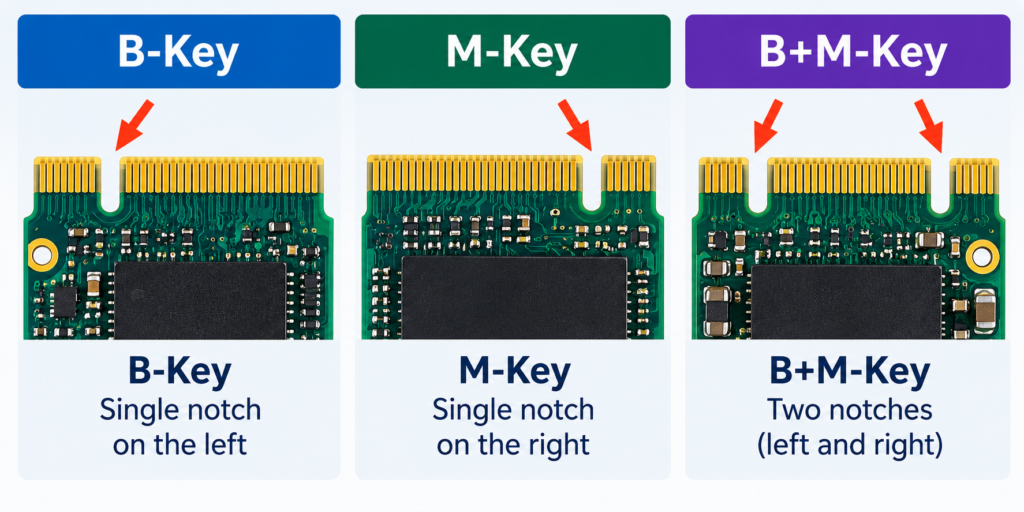
If your laptop uses an M.2 SSD, inspect the connector and documentation for the key configuration.
The notch in the connector is called a key.
Common SSD key configurations include:
- B-key
- M-key
- B+M-key
M.2 keying helps prevent incompatible devices from being inserted into the wrong socket, although keying alone does not tell you everything about electrical compatibility.
M-Key
M-key SSDs are commonly associated with PCIe/NVMe drives.
B+M-Key
B+M-key SSDs have two notches and are commonly associated with SATA-based M.2 drives, although the key configuration should not be used as the only compatibility check.
Important: Don’t determine compatibility based solely on the notch.
You also need to verify the supported protocol and interface.
Step 6: Check the M.2 SSD Length
Even if your laptop supports NVMe, the SSD can still be physically incompatible if it’s the wrong length.
Common sizes include:
M.2 Size
2230
2242
2260
2280
Dimensions
22 x 30 mm
22 x 42 mm
22 x 60 mm
22 x 80 mm
For example, a laptop desinged for an M.2 2242 drive may not have a mounting point for an M.2 2280 SSD.
Check the service manual or motherboard mounting positions before ordering.
Step 7: Check the PCIe Generation
If your laptop supports an NVMe SSD, determine which PCIe generation its storage interface supports.
You may encounter:
- PCIe Gen 3
- PCIe Gen 4
- PCIe Gen 5
PCIe generations are generally backward compatible. For example, a newer-generation NVMe SSD can operate in a compatible older-generation interface, but it will operate according to the capabilities of the system rather tan automatically delivering the new generation’s maximum performance.
That means buying an extremely expensive Gen 5 SSD for a laptop limited to Gen 3 may provide little practical benefit.
Example
Suppose your laptop supports:
PCIe Gen 3 NVMe
You could potentially install a newer NVMe SSD, provided the laptop supports it electrically and mechanically.
However, the drive won’t magically turn the laptop’s storage interface into PCIe Gen 4 or Gen 5.
Step 8: Check the Maximum Supported SSD Capacity
Capacity is another consideration.
You may see SSDs available in:
- 500GB
- 1TB
- 2TB
- 4TB
- 8TB or larger
But don’t automatically assume your laptop supports every available capacity.
Check the manufacturer’s specifications and documentation.
Also consider whether the laptop’s BIOS/UEFI, operating system, and storage controller have any limitations.
For most modern systems, capacity compatibility is less restrictive than it once was, but verifying before purchase is still worthwhile.
Step 9: Check Physical Clearance
An SSD can technically fir into the M.2 slot while still creating a physical installation problem.
Check for:
- Heat shields
- SSD heatsinks
- Bottom-panel clearance
- Mounting screws
- Thermal pads
- Nearby components
This is especially important when buying high-performance NMe drives with large heatsinks.
A desktop-style SSD heatsink may simply be too large for a laptop.
Important Tip
For laptop upgrades, choose an SSD designed for the physical constraints of your system rather than assuming a large aftermarket heatsink is beneficial.
Step 10: Check Whether the Laptop Has a Second SSD Slot
Don’t automatically assume that replacing your existing SSD is the only option.
Some laptops provide:
- One M.2 slot
- Two M.2 slots
- One M.2 slot plus a 2.5-inch bay
If a second slot exists, you may be able to add storage without replacing the original drive.
This can be particularly useful if your current SSD contains Windows and your applications.
Check the service manual to determine whether your laptop provides an additional storage slot.
Step 11: Use an SSD Compatibility Tool
If you’re uncertain about the specifications, compatibility tools can provide another way to verify an upgrade.
For example, Crucial provides an Upgrade Selector and System Scanner deigned to identify compatible memory and storage upgrades.
These tools can be useful, but they shouldn’t necessarily replace checking the manufacturer’s documentation.
Use them as a second verification method.
Step 12: Check Your Current SSD Before Buying
Windows can provide useful information about your current storage hardware.
Open:
Task Manager → Performance → Disk
You can also use:
Device Manager → Disk Drives
For more detailed information, third-party hardware utilities can identify the drive model and interface.
Once you know the exact model number of your current SSD, search for its specifications.
This can reveal:
- Form factor
- Interface
- Capacity
- PCIe generation
- Manufacturer
- Model number
Step 13: Don’t Confuse M.2 With NVMe
This deserves its own section because it’s one of the most common SSSD buying mistakes.
M.2 is not synonymous with NVMe.
M.2 describes the physical form factor.
NVMe describes a storage protocol commonly used over PCIe.
SATA describes another interface.
Therefore:
M.2 ≠ automatically NVMe
An M.2 SSD can be SATA or PCIe/NVMe depending on the drive and the system.
This distinction is one of the most important things to understand before buying an SSD.
Step 14: Check the SSD’s Power and Thermal Requirements
High-performance NVMe SSDs can generate significant heat during sustained workloads.
That’s not necessarily a problem in a desktop with plenty of airflow, but laptop cooling systems are more restrained.
Before buying a high-end SSD, check:
- Power requirements
- Termal specifications
- Manufacturer recommendations
- Laptop cooling design
- Whether the laptop includes an SSD heatsink or thermal pad
For a typical laptop upgrade, maximum benchmark speed isn’t always the most important consideration.
Sustained performance, thermals, power efficiency, and compatibility may matter more.
Related article:
Step 15: Verify Before You Buy
Before clicking Buy, run through this checklist.
Laptop SSD Compatibility Checklist
Laptop
- Exact alptop model identified
- Manufacturer specifications checked
- Service manual reviewed
- Existing storage type identified
- Upgradeability confirmed
SSD
- Correct interface
- Correct protocol
- Correct form factor
- Correct M.2 length
- Correct key configuration
- Compatible PCIe generation
- Capacity supported
- Physical clearance confirmed
- Thermal requirements considered
If all of these boxes are checked, you have significantly reduced the risk os buying the wrong drive.
Common Laptop SSD Compatibility Mistakes
Mistake #1: Assuming Every M.2 SSD is Compatible
M.2 only describes the form factor.
Always verify whether the laptop support SATA, NVMe, or both.
Mistake #2: Buying Based Only on SSD Speed
A drive advertised at extremely high sequential read speeds doesn’t mean your laptop can take advantage of those speeds.
Your laptop’s storage interface determines the performance ceiling.
Mistake #3: Ignoring SSD Length
An M.2 SSD isn’t guaranteed to fit a laptop designed around a shorter drive.
Mistake #4: Buying a Desktop Heatsink SSD for a Laptop
Large heatsinks may prevent the laptop’s bottom cover from closing.
Mistake #5: Assuming the Same Laptop Model Always Has the Same Storage
Manufacturers frequently sell multiple configurations.
Check the exact model and configuration.
Mistake #6: Forgetting to Backup Your Data
If you’re replacing the boot drive, back up important files before opening the laptop.
A complete backup should be performed before starting the upgrade process.
What SSD Should You Buy for Your Laptop?
Once compatibility has been confirmed, choosing the SSD becomes much easier.
For a compatible laptop, consider the following factors.
For Basic Everyday Computing
Look for:
- Reliable SATA or NVMe interface
- 500GB-1TB capacity
- Good warranty
- Reasonable price
For Developers and Power Users
Look for:
- 1TB-2TB capacity
- NVMe PCIe interface
- Strong sustained performance
- Good endurance
- Efficient thermal characteristics
Related article:
For Content Creators
Consider:
- 2TB or larger capaciity
- High sustained write performance
- Strong endurance
- Adequate thermal management
For Gamers
Consider:
- 1TB-2TB capacity
- NVMe PCIe interface
- Good random performance
- Strong sustained performance
- Reasonable thermals
How to Install You New Laptop SSD
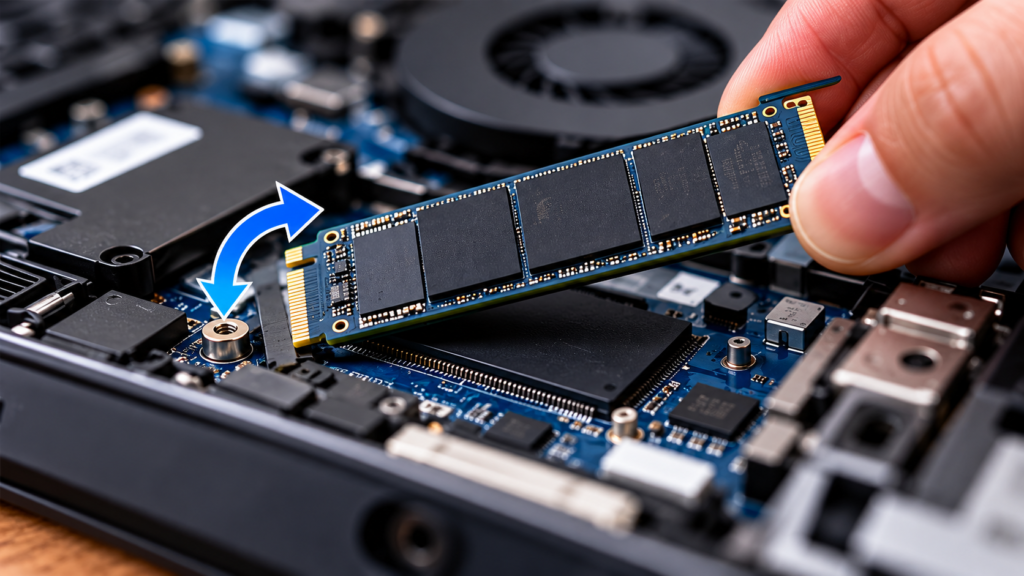
Once you’ve verified compatibility, the physical installation is usually straightforward.
The general process is:
- 1. Back up your data
- 2. Shut down the laptop
- 3. Disconnect the power
- 4. Remove the bottom cover
- 5. Disconnect the battery if required by the manufacturer’s procedure
- 6. Locate the SSD
- 7. Remove the retaining screw
- 8. Carefully remove the existing SSD
- 9. Insert the replacement SSD at the appropriate angle
- 10. Secure the. SSD
- 11. Reassemble the laptop
- 12. Boot the computer
- 13. Initialize or format the drive is necessary
- 14. Clone or reinstall the operating system if replacing the boot drive
Crucial’s installation documentation similarly recommends verifying compatibility and backing up data before installation.
Related articles:
What if Your New SSD Isn’t Recognized?
If Windows doesn’t recognize the new SSD, don’t immediately assume the drive is defective.
Check:
- SSD seating
- Connector alignment
- BIOS/UEFI detection
- Disk Management
- Firmware
- BIOS updates
- Compatibility specifications
- Mounting hardware
Crucial recommends checking connections, reseating the drive, confirming firmware BIOS status, and verifying that the drive is compatible with the system when troubleshooting an SSD that isn’t recognized.
Final Thoughts
Checking laptop SSD compatibility before buying is much easier when you break the process into a few basic checks.
Start with your exact laptop model and manufacturer’s documentation. Then determine whether your laptop uses a 2.5-inch SATA drive or M.2 storage. If it uses M.2, verify the supported protocol, form factor, length, keying, PCIe generation, capacity, and physical clearance.
Most importantly, don’t assume that every M.2 SSD will work in every M.2 slot.
A few minutes of research before purchasing can prevent the frustration and expense of buying an SSD that doesn’t fit or isn’t electrically compatible with your laptop.
If you’re planning a laptop upgrade, this guide should be used alongside Gear and Code’s broader Ultimate Guide to Laptop Performance: CPUs, GPUs, RAM, and Storage.
Related article: