Laptop Maintenance 101: How to Keep Your Laptop Running Smoothly
You can keep your laptop running smoothly for many years if you take care of it properly. Whether you use your computer for work, school, programming, gaming, or everyday browsing, a few simple habits can help protect its performance, extend it’d useful life, and delay the need for an expensive replacement.
Keeping a laptop viable isn’t necessarily about upgrading every component or performing complicated maintenance. The fundamentals are simple: keep the software updated, manage storage, protect the battery, control heat, clean the hardware, and avoid unnecessary wear.
This does not necessarily mean maintaining the same performance it had when it was new. Over time, software becomes more demanding, batteries lose capacity, and newer hardware becomes faster. The goal is to keep your laptop useful for as long as reasonably possible.
For many users, this means maintaining a laptop for four to seven years or longer, depending on the original hardware, workload, and level of maintenance.
The Basic Steps
1. Keep Your Operating System Updated
One of the easiest ways t maintain a laptop is to keep the operating system current.
Windows, macOS, and Linux distributions regularly receive:
- Security updates
- Bug fixes
- Driver improvements
- Performance improvements
- Compatibility updates
Ignoring updates for long periods can leave your computer vulnerable to security problems and compatibility issues.
However, there’s an important distinction between security updates and major operating-system upgrades. An older laptop may eventually struggle with a newer OS even if it technically supports it.
Before installing a major operating-system upgrade, check whether your laptop meets the recommended hardware requirements.
Related Article:
2. Keep Your Storage Under Control
A nearly full storage drive can make maintaining a laptop more difficult.
Modern operating systems need availability;able storage for temporary files, updates, caches, and other system operations. Keeping some free space available can help your computer remain responsive.
A good general target is to avoid routinely filling your primary drive beyond roughly 80-90% capacity.
Start by removing:
- Unused applications
- Old downloads
- Temporary files
- Duplicate files
- Unneeded installers
- Large video files
- Old backups
Cloud storage or an external SSD can be useful for files you don;t need to keep locally.
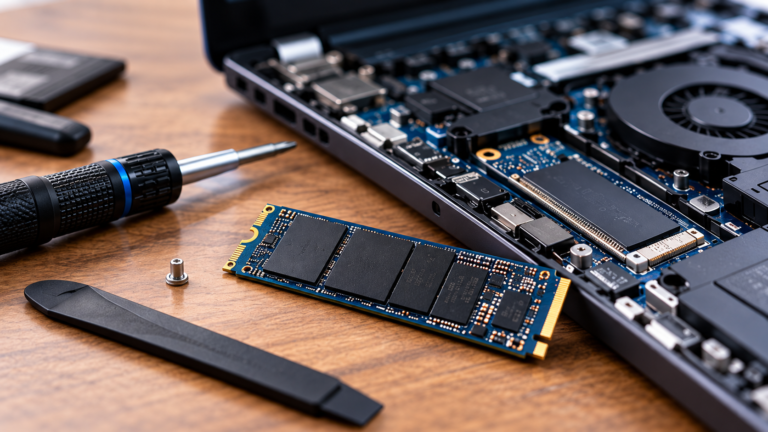
If your laptop supports an SSD upgrade, replacing a small or aging drive with a larger SSD can be one of themes worthwhile upgrades available.
Internal SSD Pricing:
External SSD Pricing:
3. Take Care of the Battery
Laptop batteries naturally lose capacity over time. You can’t prevent battery aging completely, but you can avoid unnecessary stress.
Modern laptops generally handle charging much better than older systems, but good habits still help.
Try to:
- Avoid regularly exposing the battery to extreme heat
- Use the manufacturer’s battery-health or charging-management features when available
- Avoid repeatedly running the battery completely flat
- Use the original charger or a properly rated replacement
- Don’t leave a damaged or swollen battery in the computer
Many laptops include a battery protection mode that limits charging to something below 100% when the computer spends most of its time plugged in.
That’s particularly useful for a laptop that functions primarily as a desktop replacement.
4. Keep the Laptop Cool
Heat is one of the biggest enemies of electronic components.
You laptop’s processor and graphics processor generate significant heat under heavy workloads. The cooling system is designed to move that heat away from the components and out of the chassis.
Make sure ventilation openings aren’t blocked.
Avoid using a laptop on:
- Beds
- Blankets
- Sofas
- Carpeting
- Other soft surfaces that can restrict airflow
A hard, flat surface is generally better.
If you regularly perform demanding tasks such as gaming, video editing, 3D rendering, or software development, keeping temperatures under control becomes even more important.
5. Clean the Cooling System
Dust gradually accumulates inside laptops.
Over time, dust can restrict airflow and coat cooling fans and heatsinks. The result can be higher temperatures, louder fans, and reduced performance.
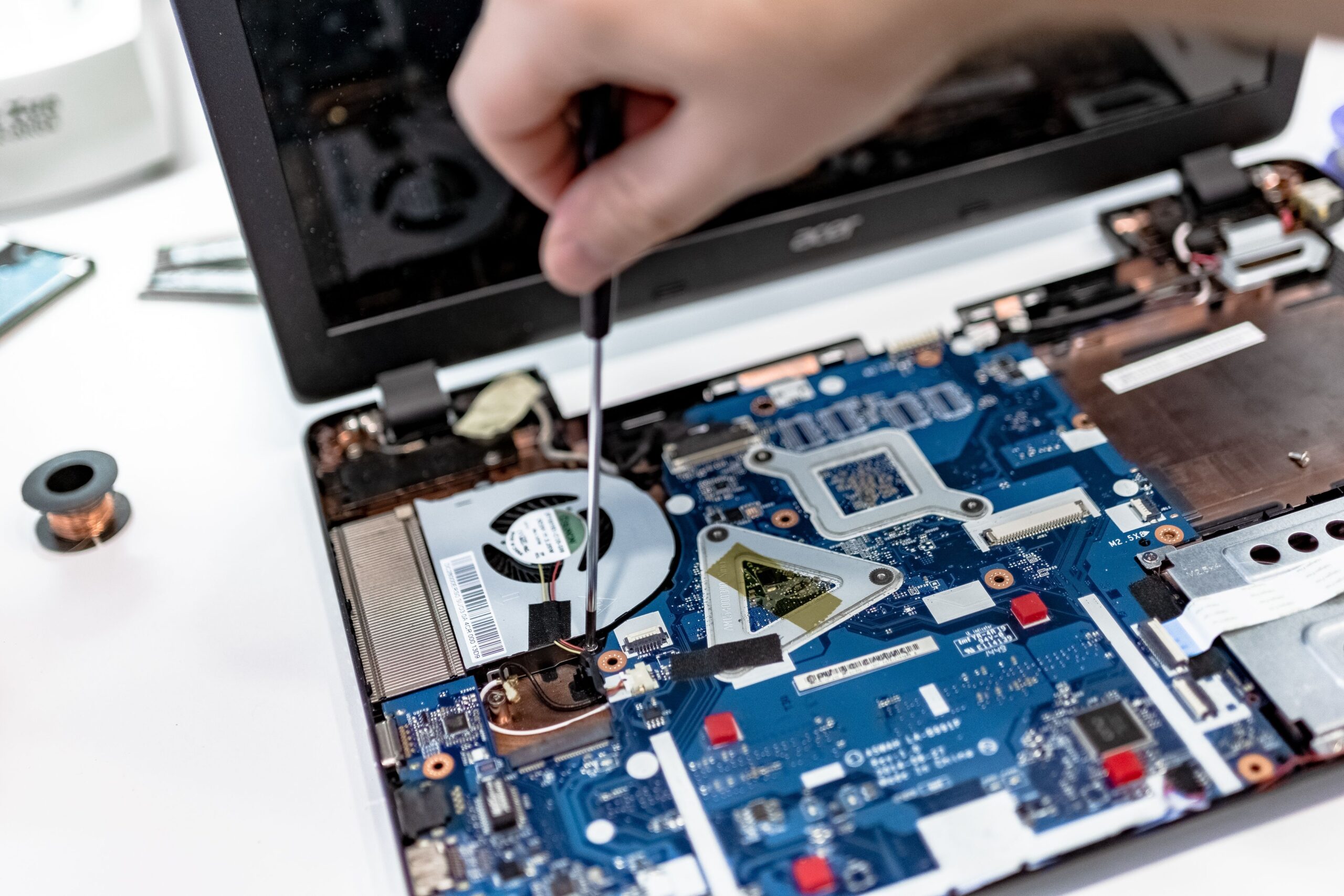
Depending on the laptop, cleaning may involve:
- 1. Turning the computer completely off
- 2. Disconnecting the charger
- 3. Opening the bottom panel if apporpriate
- 4. Carefully removing accumulated dust
- 5. Checking that the cooling fans can spin freely
- 6. Reassembling the laptop securely
Not every laptop is designed to be easily opened. Some have delicate clips, proprietary screws, or components that are difficult to access.
If you’re uncomfortable opening the machine, professional cleaning may be a better option.
Related Products:
6. Don’t Ignore Strange Noises or Temperatures
A laptop often gives you warning signs before something fails.
Pay attention to:
- Fans that suddenly become extremely loud
- Grinding or clicking noises
- Unexpected shutdowns
- Excessive heat
- Sudden performance drops
- Frequent crashes
- Battery swelling
- A key board or trackpad that begins lifting
These symptoms shouldn’t automatically be ignored as “old laptop problems.”
A failing fan, degraded battery, overheating system, or failing storage drive may be repairable before it causes more serious damage.
7. Protect the Laptop Physically
Physical damage is one of the easiest ways to shorten a laptop’s useful life.
When transporting your computer, use a properly padded laptop sleeve or bag.
Avoid placing heavy objects on top of it, and don’t carry the laptop by the display.
When opening the computer, use the center of the display when possible and avoid forcing the hinge.
Small habits matter because hinges, screens, keyboards, and ports can be expensive to repair.
Laptop Protectors:
8. Keep Malware and Unnecessary Software Away
Software clutter can gradually make a laptop harder to manage.
Install applications from reputable souurces and avoid questionable downloads.
You should also periodically review the applications installed on your computer.
Remove programs you no longer use, especcially software that automatically launches when the computer starts.
A clean startup environment can make an older laptop feel considerably more responsive.
Be particularly cautious with:
- Unknown browser extensions
- Pirated software
- Suspicious downloads
- Fake driver utilities
- Unnecessary “PC cleaner” applications
- Programs that request excessive permissions
You don’t need a collection of third-party optimization utilities to maintain a healthy laptop..
9. Back Up Important Data
Keeping the laptop viable isn’t only about keeping the hardware working.
You also need to protect the information stored on it.
A laptop can fail suddenly because of a damaged mother board, failed SSD, liquid spill, theft, or accidental damage.
Important files should therefore exist somewhere other than your laptop.
Consider using a combination of:
- Cloud backup
- External SSD
- Network storage
- Automated operating-system backups
Remember the basic rule: a backup isn’t truly useful until you’ve confirmed that you can restore your data from it.
10. Upgrade Before Replacing
One of the best ways to extend a laptop’s life is to determine whether an upgrade can solve the problem.
Depending on the model, possible upgrades include:
- RAM
- SSD storage
- Battery Wi-Fi card
- Sometimes the display or other components
RAM and storage upgrades can make a particularly noticeable difference on older systems.
However, many modern thin laptops have soldered RAM and storage, making upgrades impossible or impractical.
Before buying replacement hardware, check your exact laptop model and determine which components are actually upgradeable.
Related Article:
11. Manage Performance Expectations
Eventually, every laptop reaches a point where maintenance can;t compensate for aging hardware.
A five-year-old laptop may still be excellent for web browsing, Microsoft Office, streaming, programming, or schoolwork but struggle with modern games or demanding creative applications.
That’s normal.
The goal isn’t to make an aging laptop perform like a brand-new machine. The goal is to keep it performing well enough for the jobs you actually need it to perform.
Before replacing it, ask:
Is the laptop actually too slow, or does it simply feel old?
If the machine still fits your requirements, continuing to use it can be much more economical than upgrading unnecessarily.
12. Know When It’s Time to Replace the Laptop
Maintenance has limits.
Replacement may make more sense when:
- The battery no longer provides acceptable runtime
- The laptop overheats despite proper cleaning
- Repairs cost a significant percentage of a replacement computer
- The operating system is no longer supported
- The hardware con;t run the software you need
- The display, keyboard, mother board, or hinge has a significant damage
- The laptop lacks upgrade options that would solve its performance problems
At that point, keeping the machine alive may become more expensive than moving to newer hardware.
When replacing it, don’t simply buy the cheapest available model. Consider the type of processor, amount of RAM, srorage capacity, display quality, battery life, upgradeability, and expected lifespan.
A Simple Laptop Maintenance Routine
You don’t need to spend hours maintaining your laptop every week.
A simple routine is usually enough.
Every Month
Check:
- Available storage
- Installed applications
- Browser extensions
- Operating-system updates
- Backup status
Every Few Months
Check:
- Fan noise
- Temperatures
- Battery health
- Charging behavior
- Physical condition
- Ports and cables
Once or Twice a Year
Consider:
- Cleaning the exterior and ventilation areas
- Cleaning the internal cooling system if appropriate
- Revieing backup procedures
- Checking whether your software requirements have changed
- Evaluating whether an upgrade would extend the laptop’s useful life
Final Thoughts
Keeping a laptop viable doesn’t require complicated maintenance. The fundamentals are straightforward: keep it cool, keep it clean, keep the software updated, manage storage, protect the battery, back up your data, and address problems before they become major failures.
Perhaps most importantly, don’t assume that an older laptop automatically needs to be replaced.
A well-maintained computer can remain perfectly capable long after newer models have arrived. If it continues to perform the tasks you need, a little maintenance and a strategic upgrade may be all that’s necessary to keep it useful for years longer.
For Gear and Code readers, that means the best laptop isn’t necessarily the newest laptop. It’s the laptop that continues to deliver the performance, reliability, and features you actually need.