How to Stop a Laptop From Overheating: 12 Proven Fixes
A laptop that feels unusually hot, has fans running constantly, or suddenly slows down may be suffering from excessive heat. If you’re trying to stop a laptop from overheating, the solution may be as simple as improving airflow or cleaning the cooling vents. In other cases, software, thermal throttling, an aging. fan, or degrades thermal paste could be responsible.
Laptop heat isn’t something you should automatically ignore. Occasional warmth is normal, particularly when you’re gaming, editing video, compiling code, or running demanding applications. But persistent high temperatures can reduce performance, shorten component lifespan, and cause unexpected shutdowns.
The good news is that many laptop overheating problems can be addressed without replacing the computer.
In this guide, we’ll walk through 12 proven ways to cool down a laptop, starting with the easiest solutions and progressing to more advanced fixes.
What Causes a Laptop to Overheat?
Before trying to fix an overheating laptop, it’s useful to understand what’s generating the heat.
Modern laptops produce heat primarily from their:
- CPU
- GPU
- Battery
- Storage components
- Voltage regulators
- Other internal electronics
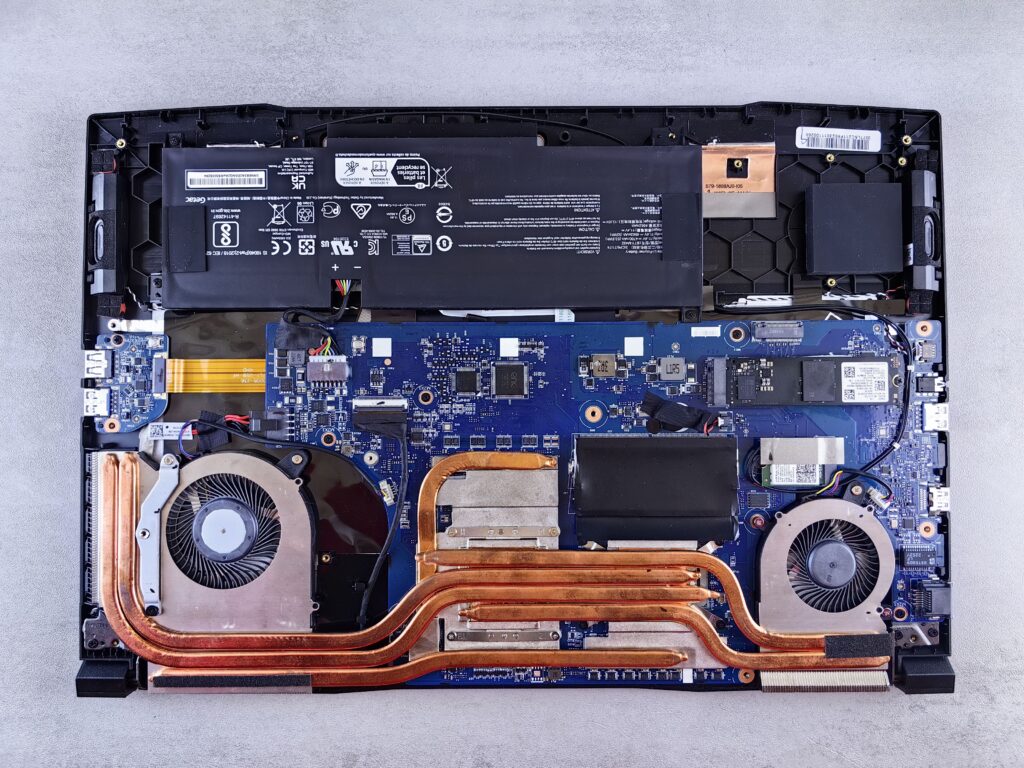
The cooling system typically uses heat pipes, fans, vents, and heatsinks to move that heat away from critical components.
Problems occur when the laptop generates more heat than its cooling system can effectively remove.
Common causes include:
- Blocked ventilation
- Dust buildup
- Poor laptop placement
- Heavy CPU or GPU woekloads
- Too many background applications
- High ambient room temperatures
- Failing or dirty fans
- Aging thermal paste
- Malware or unwanted processes
- Outdated drivers
- Aggressive performance settings
12 Proven Ways to Stop a Laptop From Overheating
1. Use Your Laptop on a Hard, Flat Surface
One of the easiest laptop cooling tips is also one of the most frequently overlooked: don’t block the laptop’s ventilation openings.
Using a laptop on a bed, couch, blanket, or pillow can restrict airflow underneath the computer. Soft surfaces can effectively cover intake vents and make it much herder for the cooling system to operate efficiently.
Instead, use you laptop on:
- A desk
- A table
- A laptop stand
- A cooling pad
- Another hard, stable surface
If your laptop’s intake vents are located on the bottom, raising the rear of the computer slightly can also improve laptop airflow.
Improve airflow: An adjustable laptop stand can raise your laptop off the desk and provide better ventilation while creating a more comfortable viewing angle.
Products to consider:
2. Clean the Laptop’s Vents
Dust is one of the most common causes of laptop overheating.
Over time, dust and debris can accumulate around intake vents, exhaust vents, fans, and heatsinks. The airflow becomes restricted, heat has nowhere to go.
If your laptop is several years old-or you’ve never cleaned its ventilation system-this should be one of your first troubleshooting steps.
How to Clean Laptop Vents
- 1. Shut down the laptop
- 2. Disconnect the power adapter
- 3. Allow the computer to cool
- 4. Locate the intake and exhaust vents
- 5. Use compressed air appropriately to remove loose dust
- 6. Avoid forcing debris deeper into the laptop
- 7. If necessary, have the internal cooling system professionally cleaned
Important: Always follow your laptop manufacturer’s maintenance instructions. Some laptops have specific procedures for cleaning fans and opening the bottom panel.
Suggested cleaning products:
- Electronics-safe compressed air
- Electric air duster
- Soft electronics cleaning brush
- Microfiber cloth
For a more detailed walkthrough check out How to Clean a Laptop.
3. Make Sure the Laptop’s Fans Can Breathe
Cleaning the vents isn’t enough if the laptop is positioned in a way that restricts airflow.
Check both the intake and exhaust areas.
You should be able to identify:
Intake: Where cool air enters the laptop.
Exhaust: Where hot air exits the laptop.
Don’t place objects directly against exhaust vents.
If hot air is being expelled against a wall, monitor stand, or other obstruction, the laptop may have difficulty maintaining appropriate temperatures.
4. Close Unnecessary Background Applications
Sometimes the problem isn’t physical-it’s workload.
A laptop performing CPU-or GPU-intensive tasks continuously will naturally generate more heat.
Open your operating system’s task manager or activity monitor and look for applications consuming unusually high amounts of CPU or GPU resources.
Potential culprits include:
- Web browsers with many tabs
- Video editing software
- Game launchers
- Cloud synchronization tools
- Virtual machines
- Development environments
- Background updates
- Malware or unwanted applications
If you’re experiencing a laptop fan running constantly, check which applications are consuming system resources.
Quick Tip
On Windows, Task Manager can help identify processes consuming CPU resources.
On macOS, Activity Monitor provides similar information.
Closing unnecessary applications can immediately reduce processor workload and reduce laptop temperature.
5. Reduce Your Laptop’s Performance Settings
Maximum performance isn’t always necessary.
If you’re browsing the web, writing documents, watching videos, or performing other relatively light tasks, running your processor at maximum performance can generate unnecessary heat.
Depending on your operating system and laptop manufacturers, look for settings related to:
- Power mode
- Performance mode
- Battery optimization
- Processor performance
- Fan profiles
- Thermal profiles
Switching from an aggressive performance profile to a balanced or optimized mode can be an effective laptop overheating fix.
The trade-off is that demanding applications may run slightly slower.
For everyday work, however, that performance difference may be difficult to notice.
6. Reduce Heavy CPU and GPU Workloads
Gaming, 3D rendering, AI workloads, video editing, and software compilation can generate substantial heat.
If your laptop becomes extremely hot during these activities, consider reducing the workload.
For gaming you can:
- Lower graphics settings
- Reduce resolution
- Limit frame rates
- Enable a balanced performance mode
- Reduce background applications
For creative applications, consider reducing preview quality or rendering settings when possible.
For developers, closing unnecessary virtual machines, containers, browser tabs, and development tools can reduce CPU utilization.
This doesn’t mean your laptop shouldn’t be used for demanding tasks, instead, you’re managing the workload so the cooling system can keep up.
7. Use a Laptop Cooling Pad
A laptop cooling pad can be a worthwhile accessory if your computer regularly runs hot.
Cooling pads generally use one or more fans to move additional air underneath the laptop.
They’re particularly useful for:
- Gaming laptops
- High-performance laptops
- Older laptops
- Long gaming sessions
- Video editing
- 3D rendering
- Other sustained workloads
However, a cooling pad isn’t a magic solution.
If the laptop’s internal fans are clogged with dust or failing, adding an external fan won’t necessarily solve the underlying problem.
Shop laptop cooling solutions: If your laptop regularly runs hot during demanding workloads, a quality cooling pad can improve airflow and help manage temperatures.
Products to consider:
- Adjustable laptop cooling. pad
- USB-powered cooling stand
- Gaming laptop cooling pad
- Quiet laptop cooling pad
8. Update Your Operating System and Drivers
Software can sometimes contribute to thermal problems.
Operating-system updates and manufacturer driver updates may include:
- Performance improvements
- Power-management changes
- Fan-control improvements
- Graphics optimizations
- CPU efficiency improvements
- Bug fixes
Pay particular attention to graphics drivers if your laptop has a dedicated GPU.
Laptop manufacturers may also provide utilities that control:
- Fan speeds
- Performance modes
- Power profiles
- Thermal settings
Check your manufacturer’s support software for available updates.
9. Check for Malware or Unwanted Processes
A laptop that si=uddenly starts running hot may have a software problem.
Malware, unwanted programs, cryptocurrency-mining software, or poorly behaves applications can consume significant processor resources.
If the laptop is hot even if you’re not doing anything demanding, check your system’s resource monitor.
Look for:
- Unexpectedly high CPU usage
- Unknown applications
- Process that repeatedly restart
- Unusual network activity
- Programs that launch automatically
Running a reputable security scan can help rule out malware.
This is particularly important when the overheating problem appeared suddenly rather than gradually.
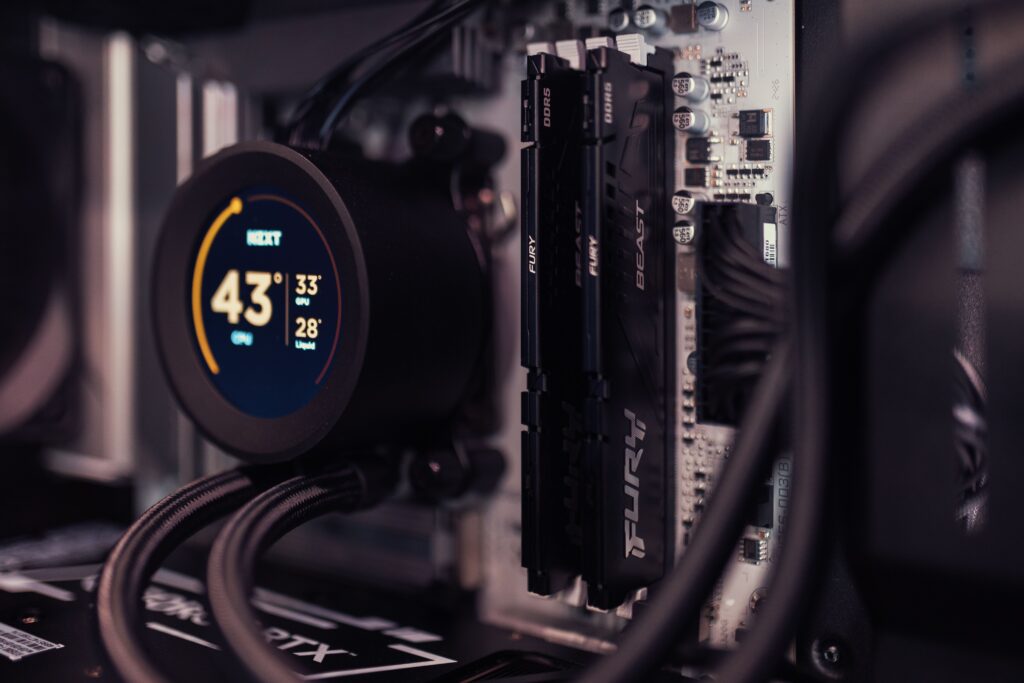
10. Monitor Your Laptop’s Temperature
You can’t effectively troubleshoot thermal problems if you don’t know how hot the laptop is getting.
Temperature-monitoring software can provide useful information about CPU and GPU temperatures.
Look for patterns rather than focusing on one isolated temperature reading.
For example:
Normal workload: Laptop remains reasonably cool.
Heavy workload: Temperatures rise but stabilize.
Potential problem: Temperatures continue climbing, performance drops, or the laptop shuts down.
This can also hep identify laptop thermal; throttling.
Thermal throttling occurs when the system reduces performance to prevent components from exceeding safe temperature limits.
11. Check the Laptop’s Fans
If you’ve cleaned the vents and improves airflow but the computer is still overheating, the cooling fans may need attention.
Signs of a possible fan problem include:
- Fan never spins
- Fan runs constantly
- Grinding or clicking sounds
- Intermittent fan operation
- Sudden temperature spikes
- Shutdowns under load
Some laptops allow users to inspect fan operation through manufacturer software.
If a fan is physically failing, replacing it may be necessary.
Important
Don’t open your laptop unless you’re comfortable working with electronics and the manufacturer permits user servicing. Opening some laptops can affect warranty coverage or cause accidental damage.
For expensive or difficult-to-service laptops, professional repair may be the safer option.
12. Consider Replacing the Thermal Paste
If your laptop is several years old and consistently runs hotter than it used to, degraded thermal interface material may be contributing to the problem.
Thermal paste-or thermal compound-helps transfer heat between the processor and heatsink.
Over time, thermal paste can degrade.
Replacing it can potentially improve thermal performance, but this is an advanced laptop maintenance procedure.
It requires:
- Opening the laptop
- Removing the heatsink
- Cleaning the old thermal compound
- Applying new thermal compound
- Reassembling the cooling system correctly
Because laptop designs vary significantly, this isn’t a universal DIYY recommendation.
If you’re inexperienced, professional service may be preferable.
How to Tell If Your Laptop is Actually Overheating
A warm laptop isn’t necessarily an overheating laptop.
Some high-performance laptops are designed to operate at relatively high temperatures under heavy workloads.
Instead of relying exclusively on how the chassis feels, watch for symptoms such as:
- Severe performance drops
- Sudden shutdowns
- Unexpected restarts
- Fans running continuously
- Extreme fan noise
- System freezes
- Applications crashing
- Thermal throttling
- Extremely hot exhaust air
A combination of high temperatures and declining performance is more concerning than simply having a warm chassis.
Why Does My Laptop Get Hot When I’m Not Doing Anything?
If your laptop is running hot while apparently idle, investigate background activity.
Potential causes include:
Background updates
Operating systems may download and install updates automatically.
Browser activity
Modern websites can use significant CPU and GPU resources, particularly when many tabs are open.
Cloud synchronization
Services syncing large numbers of files can temporarily increase processor and storage activity.
Malware
Malicious software can consume resources without obvious user interaction.
Poor ventilation
Even an idle computer can become warm if its cooling system can’t move enough air.
Failing hardware
A malfunctioning fan or other cooling component can cause temperatures to rise regardless of workload.
How to Prevent Laptop Overheating
Fixing an overheating laptop is important, but preventing the problem is even better.
Follow these simple laptop cooling tips.
Keep vents clean
Inspect your laptop’s ventilation openings periodically.
Avoid soft surfaces
Use your laptop on a desk or another hard surface.
Don’t block exhaust vents
Give her air somewhere to escape.
Keep software updated
Install operating-system, firmware, and driver updates when appropriate.
Avoid unnecessary workloads
Close applications you aren’t using.
Keep your environment cool
A laptop operating in a host room has less ability to dissipate heat.
Monitor unusual behavior
Don’t ignore persistent fan noise, shutdowns, or performance degradation.
Maintain your laptop regularly
Regular cleaning and maintenance can help extend its useful life.
This advice fits naturally into the broader Gear and Code pillar article, “Laptop Maintenance 101.”
When Should You Be Concerned About Laptop Overheating?
Not every instance of high temperature requires professional repair.
However, persistent symptoms shouldn’t be ignored.
Consider professional serive if:
- The laptop shuts down repeatedly because of heat
- The fan doesn’t appear to operate
- The fan makes grinding or clicking noises
- Temperatures reman unusually high at idle
- Cleaning the vents doesn’t help
- Performance consistently groups during normal workloads
- The laptop is several years old and has never received internal maintenance
- You suspect a failing battery or other hardware problem
If the battery is swollen, stop using the laptop and seek professional assistance immediately. A swollen battery is a hardware safety issue, not simply a cooling problem.
Laptop Overheating Troubleshooting Checklist
Use this checklist if your laptop is getting too hot:
Problem
Blocked vents
Dust buildup
High CPU usage
High GPU usage
Poor airflow
Gaming heat
Constant fan noise
Sudden overheating
Thermal throttling
Old laptop
Persistent overheating
What to Try
Move laptop to a hard surface
Clean ventilation openings
Close unnecessary applications
Reduce graphics workload
Use a laptop stand
Consider a cooling pad
Check CPU usage and fan condition
Check software and malware
Monitor CPU/GPU temperatures
Consider professional internal cleaning
Have cooling system inspected
FAQ: Laptop Overheating
Why is my laptop overheating?
Common causes include blocked vents, dust buildup, restricted airflow, demanding workloads, high ambient temperatures, software problems, and failing cooling components.
How can I cool down my laptop quickly?
Move it to a hard, flat surface, close demanding applications, improve airflow around the vents, and allow the system to cool. A cooling pad may help during sustained workloads.
Does a cooling pad really help?
A good laptop cooling pad can improve airflow underneath a laptop and may reduce temperature, particularly during demanding workloads. It won’t fit a blocked or failing internal cooling system.
Can dust cause a laptop to overheat?
Yes. Dust can restrict airflow and accumulate around fans and heatsinks, reducing the cooling system’s effectiveness.
Is it normal for a laptop to run constantly?
Not necessarily. Fans can run frequently during demanding workloads, but a fan that runs continuously during light use may indicate high background CPU usage, restricted airflow, aggressive performance settings, or a cooling-system problem,=m.
Can overheating damage a laptop?
Persistent excessive heat can contribute to component degradation and performance problems. Modern laptops generally include thermal protections, but repeated overheating should’t be ignored.
Does laptop overheating slow down performance?
Yes. Laptop thermal throttling can cause the CPU or GPU to reduce performance when temperatures become too high.
Final Thoughts
Learning how to stop a laptop from overheating doesn’t necessarily require expensive repairs. In many cases, better airflow, regular cleaning, sensible performance settings, and reduced background workloads can make a noticeable difference.
Start with the simple fixes: put the laptop on a hard surface, clean its vents, close unnecessary applications, and make sure nothing is blocking the exhaust. If the problem persists, investigate temperature readings, fan operation, drivers, and the internal cooling system.
For users who regularly game, edit video, develop software, or perform demanding tasks, a laptop stand or laptop cooling pad can be a worthwhile addition to the setup.
And is an older laptop continues to overheat despite proper maintenance, it may be time to evaluate whether repair-or replacement-is the better investment.