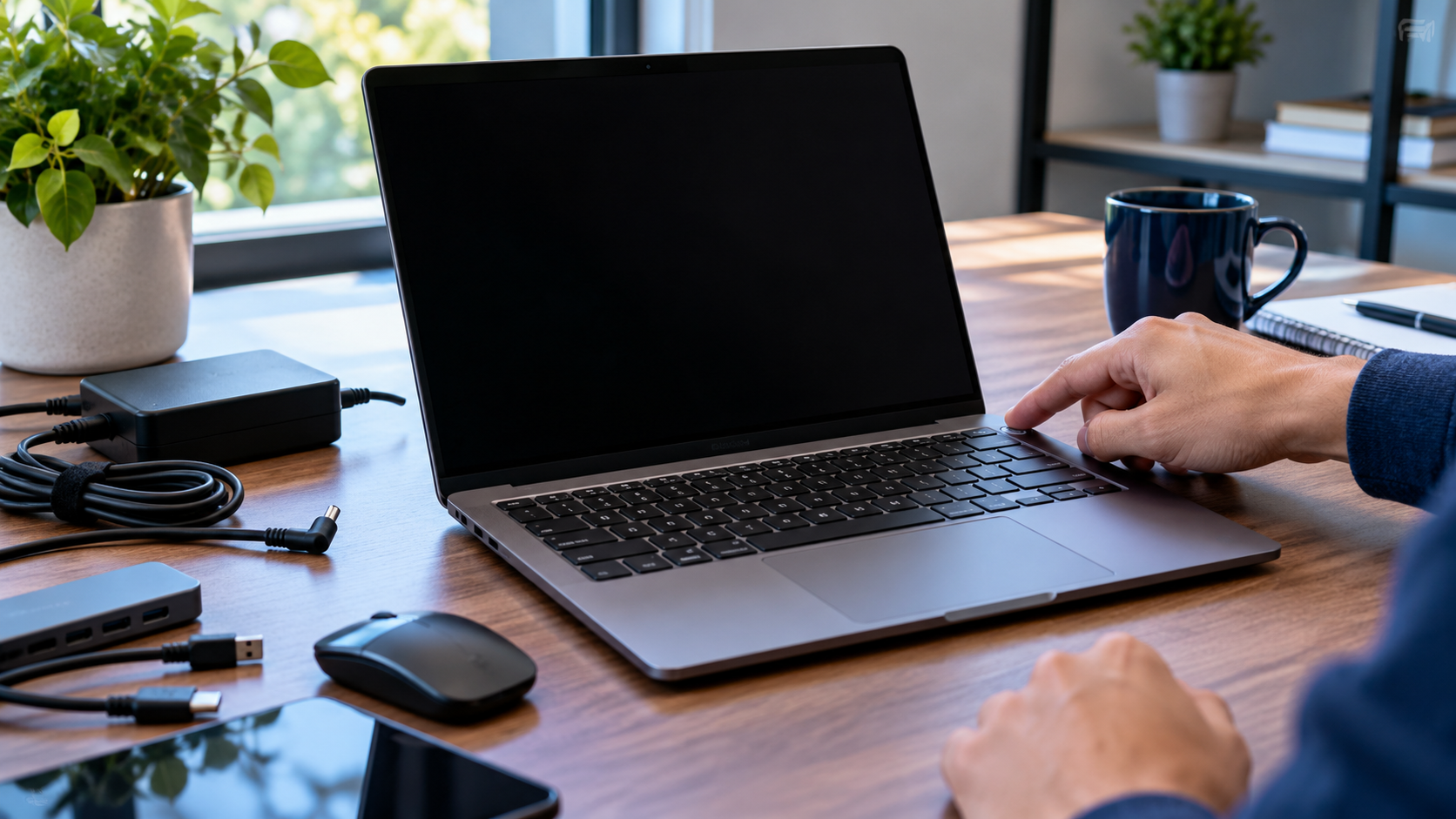
Laptop Appears to Be Dead: What Steps to Try First?
When your laptop appears to be dead, it can be difficult to know whether you are dealing with a drained battery, a faulty charger, a display problem, or a more serious hardware failure. Before spending money on repairs or replacing your computer, work through a few basic troubleshooting steps to identify what is happening.
The good news is that some apparent power failures have simple explanations. A loose charging connection, a defective outlet, a connected peripheral, or a temporary power-management problem may prevent your laptop form starting normally.
This guide walks you through the safest checks to perform first, explains how to distinguish a completely unresponsive laptop from one that powers on without displaying an image, and helps you decide when professional repair is the better option.
Related article:
What to Do First When Your laptop Appears to Be Dead
Before opening the laptop or purchasing replacement parts, follow these initial checks.
- 1. Look for signs of power. Check the power button, charging indicator, keyboard backlight, fan noise, and any blinking LEDs.
- 2. Disconnect accessories. Remove USB drives, docks, external monitors, memory cards, printers, and other peripherals.
- 3. Check the power source. Verify that the wall outlet works and that the charger is connected securely.
- 4. Inspect the charger and cable. Look for fraying, bent connectors, unusual heat, to other visible damage.
- 5. Try a model-appropriate power reset. Follow you laptop manufacturer’s instructions before attempting any reset procedure.
If the laptop was exposed to liquid, smells burnt, has a swollen battery, or becomes unusually hot, stop troubleshooting and disconnect external power if it is safe to do so. Do not attempt to charge or turn it on again until it has been accessed by a qualified technician.
Step 1: Check the Outlet, Charger, and Charging Cable
A laptop that will not turn on may not be receiving power at all. Start with the simplest explanation before assuming the battery or motherboard has failed.
Test the electrical outlet
Plug a lamp or another working device into the same outlet. If you are using a power strip, temporarily connect the charger directly to a known-working wall outlet.
Make sure any power strip switch is on and inspect the charger connection. at both ends.
Inspect the laptop charger
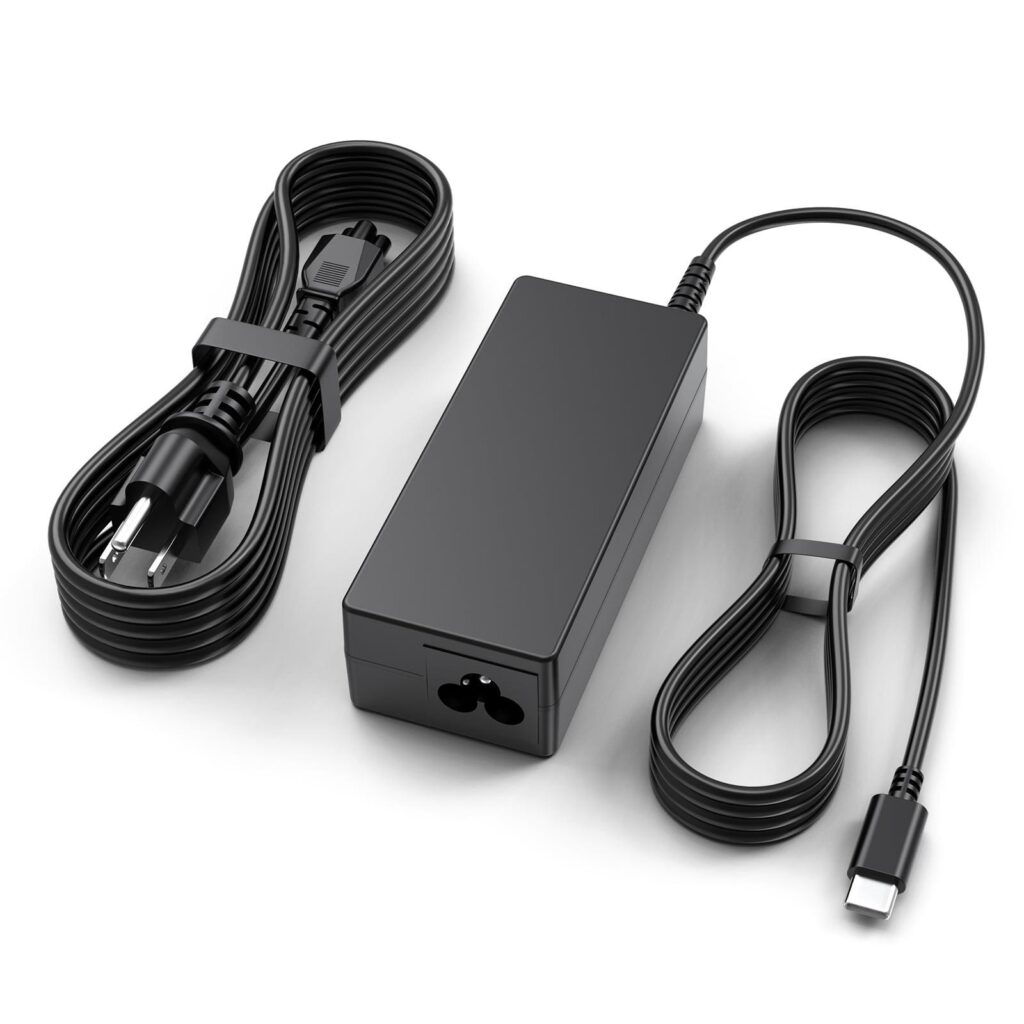
Check the power adapter, cable, connector, and laptop charging port for visible damage. If he charger has an indicator light, see whether it illuminates when connected to the outlet.
If the adapter’s light turns off when you connect it to the laptop, disconnect it and consult the manufacturer’s support guidance. A short circuit or other electrical fault may be present.
If you have access to a replacement charger, use only one that is confirmed compatible with your laptop. For USB-C charging, verify that the charger’s wattage and power-delivery capabilities meet the computer’s requirements. A connector that physically fits is not sufficient proof of compatibility.Laptop chargers on Amazon:
- 65W 45W USB C Laptop Power Replacement for Lenovo Chromebook/Yoga/ThinkPad/HP Chromebook/Dell Laptop USB Type C
- Charger Compatible with HP Laptop Computer 65W 45W
- MacBook Pro Charger
Step 2: Allow the Laptop to Charge
A deeply discharged battery may need time connected to a working charger before the laptop responds.
Connect the laptop to its compatible power adapter and leave it charging for approximately 20-30 minutes before trying again, provided there are no signs of electrical damage or battery swelling.
Check for a charging indicator or other signs of activity. If nothing changes, try another known-working outlet and inspect the charging connection again.
Some laptops can operate from the adapter even when the battery id depleted, but behavior varies by model. Do not assume that a completely unresponsive laptop automatically needs a new battery.
For more information about battery performance and long-term care, see Laptop Battery Health.
Additional reading:
Step 3: Disconnect All External Devices
A connected accessory can sometimes interfere with startup, particularly if it is faulty or draws power unexpectedly.
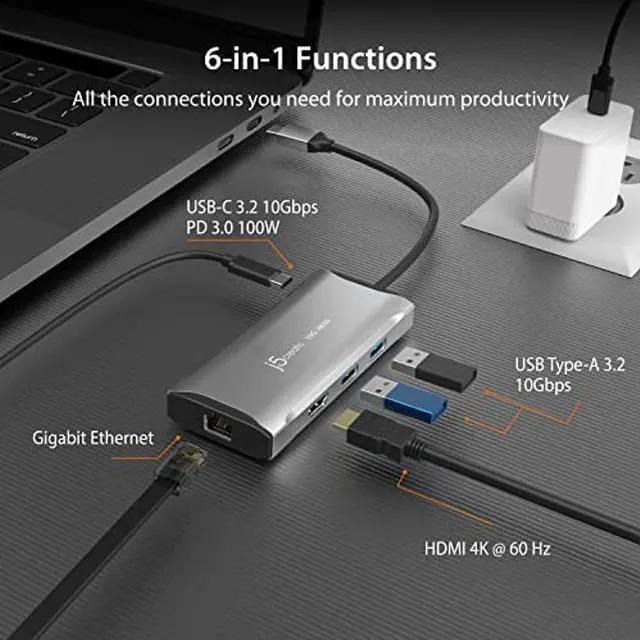
Disconnect everything that is not required to power the laptop, including:
- USB hubs and docking stations
- External storage drives
- USB flash drives and memory cards
- External monitors
- Printers and other accessories
- Nonessential USB-C devices
Leave the laptop connected to its compatible charger and try turning it on again.
If it starts, reconnect accessories one at a time. If the issue returns after connecting a particular device, test that accessory and its cable separately.
This step is especially useful for laptops regularly connected to a desk setup with multiple peripherals.
Compare compatible docking stations:
- Acer Docking Station 12-in-1 USB C
- Docking Station 12-in-1 Triple Display Dual 4K
- MOKIN Laptop Docking Station Dual Monitor
Step 4: Perform a Safe Power Reset
A temporary power-management problem can occasionally leave a laptop unresponsive. Some manufacturers provide a power-reset or residual-power-discharge procedure.
The exact process depends on the model.
For laptop with an externally removable battery, the manufacturer”s instructions may permit disconnecting the charger, removing the battery, holding the power button for a specified period, and then reconnecting power.
For laptops with internal batteries, do not open the case simply to disconnect the battery. Consult the manufacturer’s official support instructions for your exact model. Some models have a dedicated battery-reset pinhole or a documented reset procedure; other do not.
Important: A power reset is not the same as a BIOS reset or factory reset. Do not use an unfamiliar key combination or reset procedure that could change firmware settings or erase data.
After completing the approved procedure, reconnect the charger and try powering on the laptop normally.
Step 5: Determine Whether the Laptop is Actually Turning On
A laptop may appear dead even when the computer itself is running.
Press the power button once and listen carefully. Look for:
- Fan noise or air movement
- Keyboard backlighting
- Power or charging indicator lights
- Startup sounds
- Screen illumination
- Any manufacturer logo appearing briefly
If there are no lights, sounds, or other signs of activity, continue investigating the power source, charger, battery, and possible internal hardware faults.
If the lights or fans come on but the display remains black, the problem may involve the scree, graphics system, memory, or startup process rather than a complete loss of power.
Avoid repeatedly pressing the power button or holding it down for long periods unless your manufacturer’s troubleshooting instructions call for that action.
Step 6: Check for a Clack Screen or Display Failure
If the laptop seems to turn on but noting appears on the screen, increase the brightness and look closely for a faint image. Check whether the display responds when you open and close the lid.
If you have access to a compatible external monitor, connect it and select the correct input. Follow your laptop’s instructions for switching displays.
If the external monitor works, the built-in display, its backlight, cable, or related components may need attention. If both displays remain blank, the issue may involve startup, memory, graphics hardware, or the motherboard.
A black screen does not necessarily mean your files are lost. Avoid reinstalling the operating system or replacing the SSD until you have a better understanding of the failure.
Step 7: Look for Battery or Charging-Port Problems
If the laptop starts only when the charger is connected, or if the battery indicator behaves unusually, the battery or charging circuit may be involved.
Watch for symptoms such as:
- The laptop shutting down immediately when unplugged
- A battery that never reaches a normal charge level
- A charging connector that feels loose
- Charging that works only when the cable is held at a certain angle
- An adapter that repeatedly disconnects
- Unexpected shutdowns despite an indicated charge
Do not wiggle a damaged connector aggressively or continue using a charger with exposed wiring. A loose charging port may require professional repair, and replacing the battery will not solve every charging problem.
For battery-related guidance, refer to Laptop Battery Health.
Step 8: Check Whether the Laptop is Showing Signs of Hardware Failure
If the basic checks do not restore power, a hardware fault becomes more likely.
Possible causes include:
- A failed AC adapter or charging port
- A win-out or defective battery
- A damaged power button
- A motherboard or power-management fault
- Memory-related startup problems
- Liquid damage or impact damage
Some laptops provide diagnostic lights, beep codes, or manufacturer-specific startup tests. Record the exact pattern and check your model’s official documentation rather than interpreting the signals using a generic guide.
If the laptop shows lights or fan activity but cannot complete startup, it may be experiencing a failure different from a true no-power condition.
Do not remove internal components unless you have the correct service documentation, tools, and experience. Internal batteries, delicate connectors, and other components can be damaged during unnecessary disassembly.

Explore Laptop Repair Tools:
- Professional Electronics Opening Pry Tool Repair Kit
- JOREST 52-in–1 Precision Screwdriver Set with Torx
- iFixit Essential Electronics Toolkit
Related article:
Step 9: Protect Your Data Before Attempting Repairs
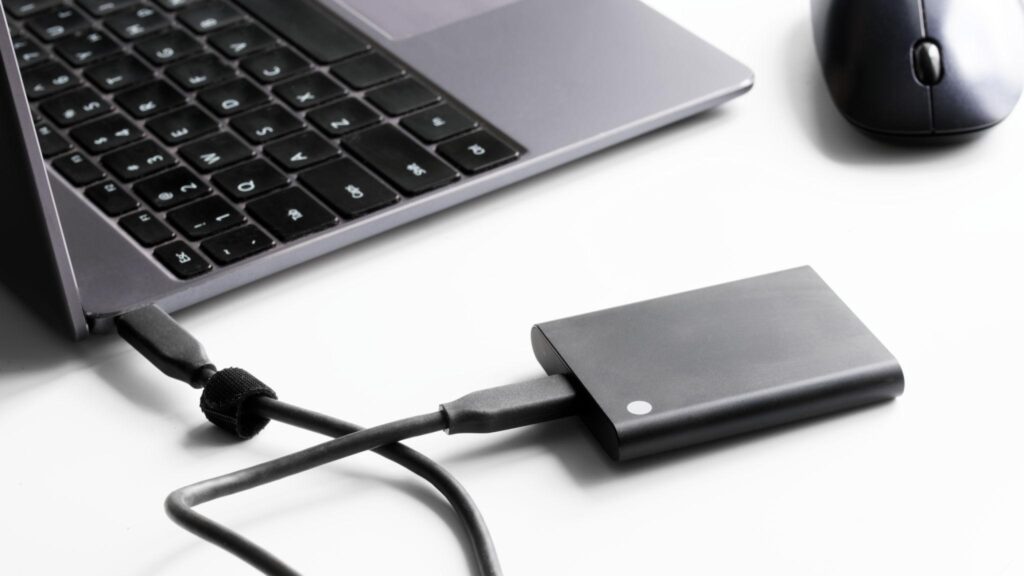
If the laptop contains important files, avoid unnecessary troubleshooting that could put the storage drive or data at risk.
A laptop that will not power on does not automatically have a failed SSD. In many cases, the storage device may remain intact even if another component has failed.
Before authorizing a repair, explain whether you need the existing data preserved. Ask the technician to avoid wiping, reinstalling, or replacing storage without your approval.
If the laptop becomes operational again, back up important files before attempting upgrades or further repairs. See [How to Back Up Your Laptop] and [How to Clone a Laptop SSD] for related guidance.
Compare external SSDs:
When Should You Stop Troubleshooting and Seek Professional Repair?
Seek professional help if:
- The laptop remains completely unresponsive after the safe checks
- The charger, connector, or charging port is visibly damaged
- The laptop was exposed to liquid or suffered a significant impact
- You notice a swollen battery, burning smell, smoke, or excessive heat
- The laptop repeatedly shuts down or displays diagnostic fault codes
- The device is still under warrant and opening. it could affect coverage
Before paying for a repair, compare the estimated cost with the laptop’s age, performance, warranty status, and replacement value. A charging-port repair may be worthwhile, while extensive motherboard damage on an older laptop may not be economical.
For help evaluating the condition and remaining useful life of your computer, read [When Should You Replace Your Laptop].
Frequently Asked Questions
Why won’t my laptop turn on even when it is plugged in?
Possible causes include a faulty outlet, incompatible or damaged charger, defective charging port, depleted or failed battery, or internal hardware failure. Check the outlet and charger first, then follow the manufacturer’s troubleshooting procedure.
How do I know if my laptop battery is completely dead?
A laptop that works with a compatible charger but shuts down immediately when disconnected may have a battery problem. However, charging circuitry and other faults can produce similar symptoms, so confirm the cause before purchasing a replacement battery.
Can a laptop be repaired if it has no lights or fan activity?
Yes, depending on the cause. A defective adapter or charging port may be repairable, as may certain internal power faults. A technician can diagnose the problem and estimate the repair cost.
Will a power reset erase my files?
A standard manufacturer-approved power reset generally is not intended to erase personal files. However, BIOS resets, operating-system recovery procedures, and factory resets are different processes. Confirm which procedure you are performing before proceeding.
Should I replace the laptop if it will not turn on?
Not necessarily. First establish whether the problem is a replaceable charger, battery, charging port, or a more expensive internal fault. Compare the repair estimate with the laptop’s age, condition, and replacement cost.
Related article:
Final Thoughts
When your laptop appears to be dead, start with the power outlet, compatible charger, charging time, and disconnected accessories. If necessary, use only the power-reset procedure approveddd for your model.
If the laptop still does not respond, or if you notice signs of electrical or battery damage, stop and seek professional diagnosis. Identifying the cause before buying parts or replacing the computer can save money and help protect your data.
For more troubleshooting and upgrade guidance, explore The Ultimate Guide to Laptop Performance article.
Related article: