
How to Back Up Your Laptop Before an Upgrade
Before upgrading your RAM, replacing your SSD, or performing any other hardware upgrade, you would back up your laptop. A laptop upgrade is usually straightforward, but even a simple storage replacement can result in lost files if something goes wrong during the process. A complete backup gives you a safety net and makes it much easier to recover your documents, photos, applications, and other important data.
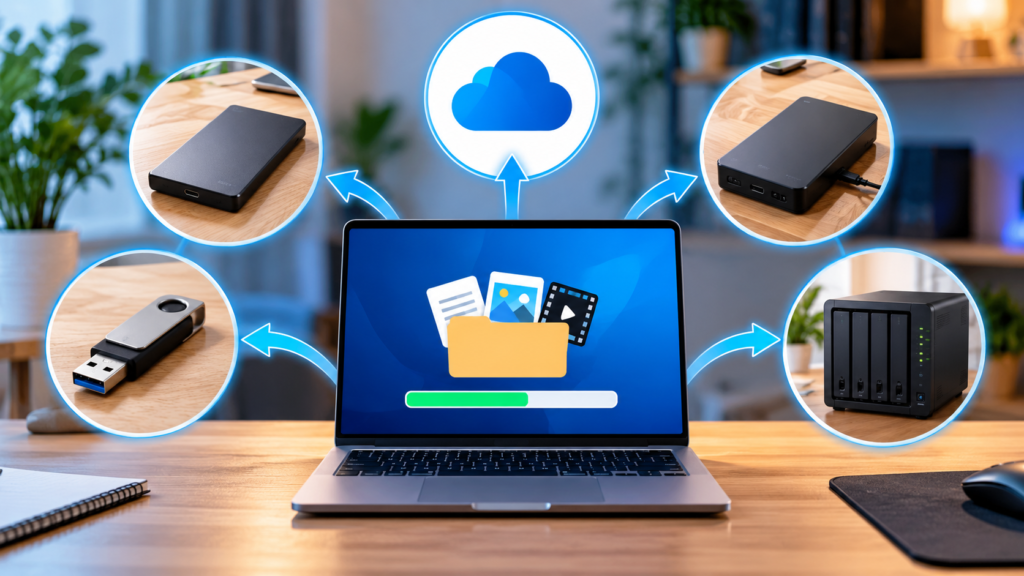
The good news is that backing up a laptop doesn’t have to be complicated. You can use an external SSD or hard drive, cloud storage, built-in Windows backup tools, Time Machine on a Mac, or-ideally-a combination of these methods.
In this guide, we’ll walk through exactly what you should back up, how to choose a backup destination, how to create your backup, and how to verify that your files are actually protected before you open your laptop.
Related article:
Why You Should Back Up Your Laptop Before an Upgrade
Laptop upgrades often involve working with components that contain or interact with your data.
Replacing an SSD is the biggest example. If your operating system and files are stored on that drive, removing it without a reliable backup can potentially leave you without access to your data.
Even upgrades that don’t involve storage can create risks.
For example:
- A screw could accidentally damage a component
- A connector could be damaged during disassembly
- The laptop could fail to boot after the upgrade
- An existing hardware problem could become apparent after opening the system
- You may accidentally delete or overwrite important files during an operating-system reinstall
- An SSD migration or cloning process could fail
A backup gives you an additional layer of protection before you begin.
What Should You Back Up Before a Laptop Upgrade?
Don’t assume that copying your Documents folder is enough.
Before an upgrade, think about everything on the laptop that you would hate to lose.
Important Files
At a minimum, back up:
- Documents
- Photos
- Videos
- Music
- Downloads
- Desktop files
- Work projects
- Spreadsheets
- PDFs
- Presentations
- Tax documents
- Personal records
Also check application-specific folders. Some programs store important information outside the normal Documents folder.
Browser information
Depending on your browser and account settings, you may want to verify that your:
- Bookmarks
- Passwords
- Browser profiles
- Extensions
- Saved preferences
are synchronized or otherwise backed up.
Games saves
Many modern games synchronize saves through services such as Strem Cloud or other cloud systems, but you shouldn’t assume every game does.
Application data
Some application maintain databases, catalogs, project files, or configuration information locally.
This can be especially important for:
- Photo-editing applications
- Video-editing software
- Music-production software
- Development environments
- Accounting applications
- Database applications
- Business software
Don’t Forget Your Software Licenses and Account Information
A backup isn’t just about files.
Before replacing your laptop’s SSD or performing a clean installation, make a list of important applications and services.
Record or verify:
- Microsoft account information
- Apple Account information
- Software licenses
- Preoduct keys where applicable
- Subscription information
- Password-manager access
- Two-factor authentication methods
- VPN credentials
- Important application settings
If you use specialized professional software, make sure you understand how its license can be reactivated after the upgrade.
Choose the Right Backup Method
There are three primary approaches to backing up a laptop before an upgrade.
1. External SSD or Hard Drive
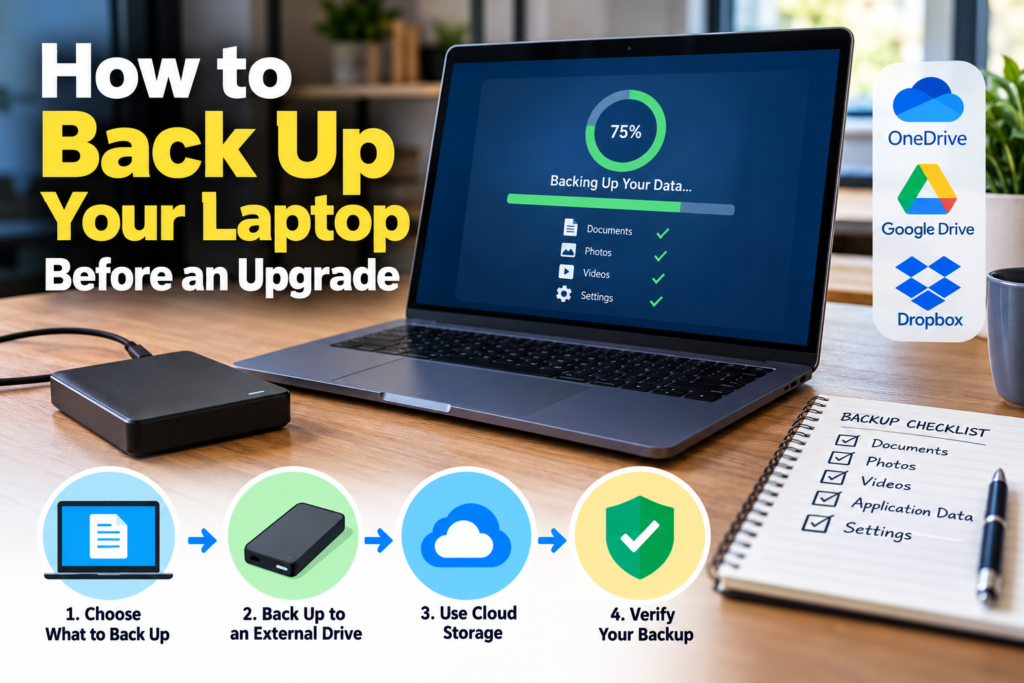
For most laptop upgrades, an external drive is one of the best backup options.
An external SSD offers:
- Fast transfer speeds
- Compact size
- No moving parts
- Excellent portability
An external hard drive can offer:
- More storage for the money
- Large capacities
- Good value for large photo and video collections
For a one-time laptop upgrade, an external SSD is particularly attractive because transferring a large amount of data can be significantly faster than using an older mechanical hard drive.
Recommended products:
- Portable 1TB SSD
- Portable 2TB SSD
- 4TB external hard drive
- USB-C to USB-C cable
- USB-C hub with high-speed storage support
2. Cloud Backup
Cloud storage provides another layer of protection.
Services such as OneDrive, iCloud, Google Drive, Dropbox, and dedicated cloud-backup services can help protect important files.
Cloud storage is particularly useful for files that you need to access from multiple devices.
However, don’t assume that synchronization automatically equals a complete backup.
If you accidentally delete a synchronized file, that deletion may eventually propagate to your other devices.
For an important laptop upgrade, an external physical backup combines with cloud storage is a stronger strategy.
3. A Full System Backup
For more comprehensive protection, consider creating backup that captures substantially more than indovidual documents.
Depending on your operating system and software, this can include:
- Files
- System settings
- User profiles
- Recovery information
- Other system data
Windows provides several backup and recovery options, including Windows Backup and File History. Microsoft describes File History as a method for periodically saving copies of personal files to an external drive or network location.
Mac users can use Apple’s built-in Time Machine for automatic backups of files and other supported data.
How to Back Up a Windows Laptop Before an Upgrade
If you’re using Windows 11, you have several options.
Step 1: Connect Your Backup Drive
Connect your external SSD or hard drive directly to your laptop.
For the most reliable transfer, connect the drive directly rather than relying on a potentially problematic hub or adapter.
Step 2: Identify Your Important Files
Open File Explorer and check:
- Desktop
- Documents
- Downloads
- Pictures
- Videos
- Music
Also check any custom folders you created elsewhere on the internal drive.
Microsoft specifically recommends checking locations such as Documents, Desktop, Downloads, Favorites, Music, Pictures, and Videos when transferring files to an external. storage.
Step 3: Copy Your Files
Copy the important folders to your external backup drive.
Don’t immediately delete anything from the laptop.
The external drive should be treated as a backup-not as a replacement for your original files.
Step 4: Consider Windows Backup
Windows Backup can help backup important files, settings, apps, and other information associated with your Microsoft account.
You can also use File History to maintain versions of personal files on an external drive or network location.
Step 5: Verify the Backup
Open the external drive and confirm that your most important files are actually there.
Don’t skip this step.
A backup isn’t useful if the files you thought you copied aren’t readable or weren’t copied in the first place.
How to Back Up a Mac Before an Upgrade
Mac users have a particularly convenient option with Time Machine.
Apple describes Time Machine as the Mac’s built-in backup feature and recommends using external storage for backups.
Step 1: Connect an External Drive
Connect your external SSD or hard drive to your Mac.
Apple recommends a backup disk with at least twice the storage capacity of the Mac when using Time Machine.
Step 2: Open Time Machine
Go to:
Apple Menu → System Settings → General → Time Machine
Then select your backup disk.
Step 3: Enable Encryption
If your backup contains sensitive information, consider encrypting the backup.
Apple notes that an unencrypted external backup disk can potentially be read by someone who gains possession of the disk.
Step 4: Start the Backup
Allow Time Machine to complete a backup before beginning the hardware upgrade.
The first backup can take considerably longer than subsequent backups because a large amount of data may need to be transferred.
Step 5: Verify the Backup
Before opening the Mac, make sure the backup completed successfully.
If necessary, use Time Machine to browse previous backups and confirm that important files are available.
Should You Clone Your SSD Before an Upgrade?
If you’re replacing the internal SSD, cloning may be an excellent option.
A clone creates a copy of the existing drive that can potentially be transferred to the new SSD.
This can save you from reinstalling everything manually.
However, cloning isn’t a substitute for a separate backup.
A cloning mistake can potentially overwrite data or transfer an existing problem to the new drive.
For that reason, the safest strategy is:
Backup → Verify → Clone → Upgrade → Restore/Test
Backup vs SSD Clone: What’s the Difference?
These terms are sometimes used interchangeably, but they serve different purposes.
Backup
Protects important data
Useful for disaster recovery
Can include selected files
Can use cloud storage
Designed primarily for recovery
SSD Clone
Creates a copy of a drive
Useful when replacing a drive
Usually copies the drive’s contents
Usually requires another physical drive
Designed primarily for migration
If you’re replacing your laptop’s internal SSD, using both can be an excellent strategy.
Related article:
How Much Storage Do You Need for Your Backup?
Your backup should have enough capacity for everything you intend to protect.
For example:
Laptop Storage
256GB
512GB
1TB
2TB
4TB
Suggested Backup Drive
500GB+
1TB
2TB
4TB
8TB+
You don’t necessarily need a backup drive equal to the laptop’s advertised storage capacity if much of the capacity is unused.
Instead, check how much data is actually stored on the laptop.
For a Tie Machine backup, Apple recommends a backup disk with at least twice the Mac’s storage capacity.
Need a Backup Drive?
Related article:
Don’t Forget Your Cloud-Synced Files
One of the most common backup mistakes is assuming that everything stored in the cloud is automatically protected.
Services such as OneDrive, iCloud Drive, Google Drive, and Dropbox may synchronize files across devices, but synchronization and backup aren’t necessarily the same thing.
Before an upgrade, make sure important files have actually finished syncing.
On a Mac, Apple specifically notes that cloud syncing can affet=ct Time Machine backups if files have not finished syncing.
Verify Your Backup Before Opening the Laptop
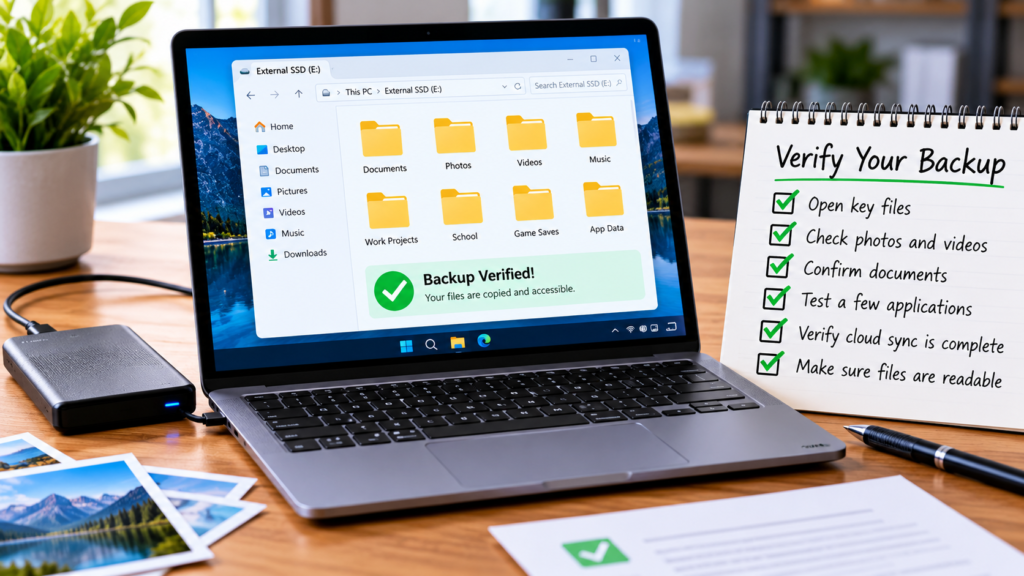
This may be the most important step in the entire process.
Don’t simply assume the backup worked.
Open the backup drive and test several files.
For example:
- Open a few documents
- Open several photographs
- Play a video
- Open an important spreadsheet
- Check a project folder
- Confirm important application data exists
- Confirm your cloud services have synchronized
- Make sure the backup drive disconnects safely
If possible, restore a test file from the backup to another location.
The goal is to make sure you can actually recover your information.
Consider Creating Two Backups
If the information on your laptop is particularly important, consider using two independent backup methods.
For example:
Backup #1: External SSD
Backup #2: Cloud storage
or:
Backup #1: External hard drive
Backup #2: Second external drive stored separately
This provides significantly more protection than relying on one backup device.
Encrypt Sensitive Backups
If your laptop contains financial records, business information, personal documents, or other sensitive data, consider encrypting your backup.
This is especially important if the backup drive could be lost or stolen.
Apple provides encrypted Time Machine backups, and Microsoft provides account and device security features that can complement a broader Windows backup strategy.
Recommended products:
Safely Disconnect the Backup Drive
Once the backup is complete, don’t simply pull. the cable.
Use the operating system’s eject function before disconnecting the drive.
Microsoft specifically recommends safely ejecting an external storage device after transferring files.
This reduces the risk of file corruption.
What to Do After the Laptop Upgrade
Once your new RAM or SSD is installed, don’t immediately erase your old drive or delete your backup.
First:
- Start the laptop
- Confirm the hardware is recognized
- Check storage capacity
- Confirm the operating system loads correctly
- Test your applications
- Confirm your important files are accessible
- Restore files if necessary
- Run additional hardware tests
- Keep the backup until you’re confident the upgrade worked
If you’ve replaced the internal SSD, this is also a good time to check its health and performance.
Gear and Code Additional Articles:
- How to Check Laptop SSD Compatibility Before Buying
- How to Clone a Laptop SSD Before an Upgrade
- How to Tell if Your Laptop RAM is Upgradeable
- The Complete Guide to Upgrading Your Laptop
Common Laptop Backup Mistakes to Avoid
Mistake #1: Only backing up Documents
Your important data may exist in Downloads, Desktop, Pictures, application folders, or elsewhere.
Mistake #2: Assuming cloud synchronization is a complete backup
Synchronization protects accessibility, but it shouldn’t automatically be considered your only backup.
Mistake #3: Never testing the backup
A backup that cannot be restored isn’t much of a backup.
Mistake #4: Using a backup drive that’s too small
Large photo, video, and project libraries can quickly consume available space.
Mistake #5: Keeping the only backup nest to the laptop
A second backup stored separately provides protection against theft, physical damage, or other localized disasters.
Mistake #6: Erasing the old drive too quickly
Keep your backup and old drive available until you’ve confirmed the upgraded laptop works correctly.
The Ultimate Pre-Upgrade Backup Checklist
Before opening your laptop, make sure you’ve completed these steps:
Files
- Documents backed up
- Photos backed up
- Videos backed up
- Desktop backed up
- Downloads checked
- Music backed up
- Project folders backed up
- Game saves checked
- Application data checked
Accounts
- Microsoft/Apple account information confirmed
- Password manager accessible
- Two-factor authentication available
- Important software licenses documented
Backup
- External backup completed
- Cloud synchronization completed
- Backup files opened and tested
- Backup drive safely ejected
- Second backup created if appropriate
Upgrade
- New hardware confirmed compatible
- SSD cloning completed if needed
- Installation tools ready
- Laptop powered down
- Backup retained until upgrade is confirmed successful
Related articles:
Final Thoughts
Knowing how to backup your laptop before an upgrade is just as important as knowing how to install the new hardware.
Whether you’re upgrading RAM. replacing an SSD, or performing a major system upgrade, taking a few extra minutes to create and verify a backup can protect years of personal files and important work.
For the strongest protection, use an external drive as your primary backup, consider cloud storage as a second layer, and always verify your backup before opening the laptop.
Once your data is protected, you can approach the hardware upgrade with considerably less risk.
Related articles: