
Laptop Keyboard Not Working? How to Diagnose and Repair It
Is your laptop keyboard not working? Don’t assume you need to replace your computer or purchase an expensive repair tight away. A laptop keyboard that stops responding may be affected by a temporary software glitch, incorrect accessibility settings, outdated drivers, debris beneath the keys, or a hardware fault. This guide walks you through nine troubleshooting fixes, explains how to identify the cause, and helps you decide when a repair or replacement is worth the cost.
A malfunctioning keyboard can make every simple tasks frustrating. The good news is that you can often identify the cause with a few straightforward checks before spending any money.
In this guide, you’ll learn how to troubleshoot an unresponsive keyboard on Windows and Mac laptops, test individual keys, address common software problems, and determine when professional repair is the best option.
See Gear and Code’s “Laptop Performance Guide.”
Quick answer: What should you do if your laptop keyboard stops working?
If your laptop keyboard is not working, follow these steps in order:
- 1. Restart your laptop and check whether the problem disappears
- 2. Connect an external keyboard to determine whether the built-in keyboard is the issue
- 3. Check accessibility settings, keyboard layout, and function-key settings
- 4. Inspect and clean the keyboard safely
- 5. Update or reinstall the keyboard driver if you use Windows
- 6. Test the keyboard outside the operating system, if your laptop supports it
- 7. Seek professional help if the keyboard fails hardware tests or has suffered liquid damage
Important: If you have spilled liquid on your laptop, shut it down, disconnect the charger if safe, and arrange professional inspection. Don’t continue powering it on to test the keyboard. Liquid damage can affect other internal components, too.
What is your laptop keyboard not working?
Before trying to fix the problem, identify the symptoms. Different failures point toward different causes.
Symptom
No keys respond
Only certain keys fail
Keys type the wrong characters
Keys respond slowly
Keys repeat or stick
Keyboard stopped working after an update
Keyboard fails after a spill
External keyboard works but built-in keyboard does not
Possible cause
Driver issue, hardware failure, or internal connection problem
Debris, worn key mechanisms, or localized damage
Incorrect keyboard layout or input-language settings
Accessibility settings or software issues
Debris, a damaged mechanism, or an input setting
Driver or operating-system issue
Possible liquid damage
Possible built-in keyboard or internal connection fault
These symptoms are clues rather than definitive diagnoses. For example, an external keyboard working normally makes a built-in keyboard more likely, but it doesn’t prove that the internal hardware is defective.
Fix 1: Restart Your Laptop
A restart is the simplest first step when diagnosing a laptop keyboard not responding.
Temporary operating-system glitches, stalled background processes, and input-device errors can sometime prevent keystrokes from registering.
How to Restart Your Laptop
- 1. Save any work you can access using your mouse, touchpad, or an external keyboard
- 2. Open the Start menu on Windows or the Apple menu on macOS
- 3. Choose Restart
- 4. Wait for the laptop to boot completely
- 5. Open text editor and test several keys
If the keyboard works again, the issue may have been temporary.
If the problem returns frequently, investigate drivers, settings, updates, or possible hardware failure rather than relying on repeated restarts.
Fix 2: Check Whether the Entire Keyboard or Only Certain Keys are Affected
This simple test can help narrow down the cause of a laptop keyboard malfunction.
Open a text editor and test the following:
- Letter and number keys
- Spacebar and Enter
- Backspace and Delete
- Shift, Ctrl, Alt, and other modifier keys
- Function keys and brightness controls
Record which keys fail and whether they fail consistently.
If only a few keys are affected, debris or damaged key mechanisms may be responsible. If every key is unresponsive, consider a broader software, connection, or hardware problem.
Also test the keyboard at the sign-in screen, if practical. If you can enter the required credentials using an external keyboard, you can continue troubleshooting with out relying on the built-i one.
Fix 3: Clean the Keyboard Safely
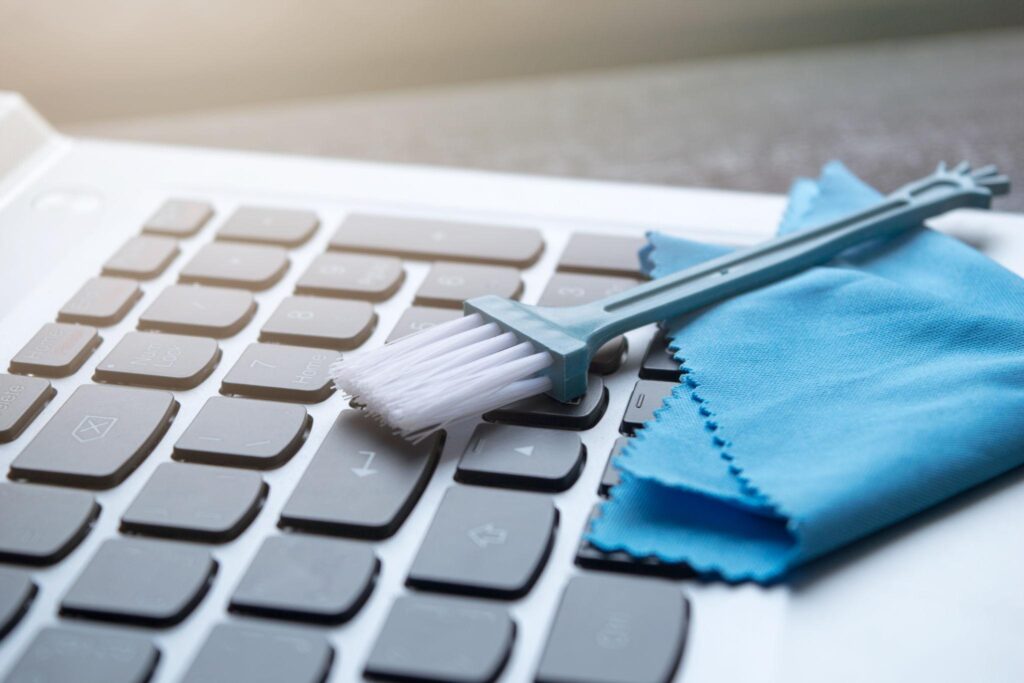
Dust, crumbs, and other debris can interfere with individual keys. Cleaning is particularly worth trying when only a few keys stick or fail intermittently.
How to clean a laptop keyboard
- 1. Shut down the laptop completely
- 2. Disconnect the charger and other accessories
- 3. Use a clean, dry microfiber cloth to wipe the keys
- 4. Use a soft brush to loosen debris around the key edges
- 5. If the manufacturer permits it, use short bursts of compressed air according to its instructions
- 6. Allow the keyboard to remain dry before powering the laptop back on
Avoid spraying liquid directly onto the keyboard. Don’t force keys off their hinges, and don;t use a household vacuum or aggressive cleaning tools that could damage delicate components.
Some laptop keyboards use fragile scissor mechanisms, and key removal can break the clips. Consult your manufacturer’s cleaning instructions before attempting deeper cleaning.
Keep Your laptop Clean With a Keyboard-Sae Cleaning Kit:
Fix 4: Connect an External Keyboard

Testing an external keyboard is one of the most useful ways to distinguish a possible built-in keyboard fault from a wider input problem.
How to perform the test
- 1. Connect a known-working USB keyboard to your laptop
- 2. Wait for the operating-system to recognize it
- 3. Open a text editor and test several keys
- 4. Compare its behavior with the built-in keyboard
If both keyboards fail, the problem could involve the operating system, settings, or another system-level issue.
If the external keyboard works but the built-in keyboard does not, the built-in keyboard, its internal connection, or its controller becomes a stronger suspect.
Try another USB port if the external keyboard also fails. If you’re using a wireless keyboard, check its batteries or charge, Bluetooth connection, and receiver.
Stay productive during troubleshooting with a reliable external keyboard.
Fix 5: Check Keyboard Settings and Accessibility Features
Sometimes a keyboard is physically fine, but an operating-system setting changes how it responds.
Windows 11
- 1. Open Settings
- 2. Select Accessibility
- 3. Choose Keyboard
- 4. Review Sticky Keys, Filter Keys, and other keyboard accessibility options
- ‘5. Turn off any feature you don’t need and test the keyboard again
Filter Keys, for example, can change how Windows handles brief or repeated keystrokes.
Also check the keyboard layout under Settings → Time & language → Language & region. Avoid assuming that a universal keyboard-lock shortcut exists: key combinations vary by model.
macOS
- 1. Open System Settings
- 2. Select Accessibility
- 3. Choose Keyboard
- 4. Check whether Slow Keys is enabled
- 5. Open the keyboard input settings and verify the correct layout
Apple also recommends checking Mouse Keys when keyboard input behaves unexpectedly.
Fix 6: Update or Reinstall the Keyboard Driver in Windows

A corrupted or malfunctioning driver can contribute to a laptop keyboard not working in Windows.
Before changing drivers, save your work and make sure you access the laptop with a mouse, touchpad, or external keyboard.
Update the keyboard driver
- 1. Right-click Start
- 2. Open Device Manager
- 3. Expand the Keyboards category
- 4. Right-click the listed keyboard device
- 5. Select Update driver
- 6. Follow the available prompts
If updating doesn’t help, you can try reinstalling the keyboard device.
Reinstall the keyboard device
- 1. Open Device Manager
- 2. Expand Keyboards
- 3. Right-click the relevant keyboard device
- 4. Select Uninstall device, if available
- 5. Confirm the action
- 6. Restart your laptop so Wndows can attempt to rediscover the device
The precise options depend on the device and Windows version. Don’t uninstall unrelated devices or change firmware settings at random.
If the problem began after an operating-system update, check Windows Update and your laptop manufacturer’s official support page for compatible drivers.
Learn more with Gera and Code’s “Speed Up An Old Laptop.”
Fix 7: Text the Keyboard Outside Windows
If the keyboard remains unresponsive, test it outside the normal operating-system environment when. your laptop supports that option.
Many laptops provide a BIOS or UEFI setup screen, while some manufacturers offer separate hardware diagnostics.
What the results can tell you
- Keyboard works outside Windows: A windows setting, driver, or software issue becomes more likely
- Keyboard fails outside Windows: A hardware fault becomes more likely, although firmware or other low-lwvwl issues may also be involved
- Hardware diagnostics reports a keyboard failure: Follow the manufacturer’s repair recommendations
The procedure for entering BIOS or UEFI differs by manufacturer and model. Consult the laptop’s official instructions rather than repeatedly pressing random function keys.
If you own a Mac, use Apple’s recommended troubleshooting and service procedures rather than applying Windows BIOS instructions.
Fix 8: Check for Liquid Damage or a Loose Internal Connection
Liquid damage is a different situation from ordinary dust or software problems.
Coffee, water, soft drinks, and other liquids can cause corrosion or short circuits. Symptoms may include keys that stop responding, repeated keystrokes, intermittent operation, or a keyboard that fails entirely.
What to do after a spill
- 1. Shut down the laptop immediately if it is safe to do so
- 2. Disconnect the charger and peripherals
- 3. Do not continue powering it on to see whether the keyboard recovers
- 4. Avoid using a hair dryer or placing the laptop in rice
- 5. Arrange professional inspection and explain what was spilled and when
A loose keyboard ribbon can also cause input problems, particularly after a drop, impact, or previous repair. However, accessing that cable may require removing the laptop’s bottom cover or other components.
Don’t open the laptop unless you have the necessary repair knowledge and the manufacturer’s instructions permit it. Some models have integrated keyboards or delicate internal assemblies that make replacement more involved than expected.
If the laptop is under warranty, check the terms before opening it or attempting a repair.
Fix 9: Repair or Replace the Laptop Keyboard
If the previous fixes don;t work, the keyboard may need professional repair or replacement.
A repair shop can inspect the keyboard, test its connections, run hardware diagnostics, and determine whether the keyboard can be replaced separately or is integrated into a larger assembly.
Should You Repair the Keyboard or Replace the Laptop?
Consider these factors:
- Laptop age: A relatively recent laptop may justify a keyboard reapir
- Repair cost: Compare the written repair estimate with the laptop’s current value
- Other damage: A laptop with a failing battery, damaged display, or other expensive faults may not be worth repairing
- Parts availability: Some models are easier and less expensive to service than others
- Warranty coverage: Check the manufacturer’s terms and any applicable accidental-damage coverage
A broken keyboard alone doesn’t necessarily mean the laptop should be replaced.
If the machine works well otherwise, a repair may be the most economical choice. If multiple major components are failing, compare the total repair cost against a replacement laptop.
For additional guidance, read Gear and Code’s “When Should You Replace Your Laptop.”
When Should You Seek Professional Help?
Stop troubleshooting and arrange professional service if:
- Liquid has entered the keyboard
- The keyboard or chassis is visibly damaged
- Keys are physically broken or detached
- The keyboard consistently fails outside the operating system
- Hardware diagnostics identify a fault
- The keyboard remains unresponsive after reasonable software checks
- Opening the laptop would risk damaging fragile components or affecting warranty coverage
If you need to keep working, use a compatible external keyboard as a temporary workaround, provided the laptop itself is safe to operate.
How Much Does Laptop Keyboard Repair Cost?
Repair costs vary by laptop model, location, labor rates, parts availability, and the extent of the damage.
A standalone keyboard replacement can be relatively straightforward on some models. On others, the keyboard may be integrated into the palm rest or top case, increasing labor and parts costs.
Before authorizing a repair, ask the service provider for:
- A diagnosis and written estimate
- The cost of parts and labor
- Any diagnostic fee
- The expected turnaround time
- The repair warranty
- Whether the repair affects remaining manufacturer warranty
Additional reading:
How to Prevent Laptop Keyboard Problems
Regular maintenance can reduce some common keyboard problems.
- Keep food and drinks away from your laptop
- Clean the keyboard with manufacturer-approved methods
- Avoid pressing keys harder than necessary
- Transport the laptop in a protective case
- Keep liquids away from your work area
- Install supported operating-system updates
- Avoid removing keycaps unless the manufacturer permits it
- Use an external keyboard if you frequently type for extended periods and prefer to reduce wear on the built-in keyboard
For a broader maintenance routine, see “Laptop Maintenance 101.”
Frequently Asked Questions
Why is my laptop keyboard not working but my touchpad is?
The touchpad and keyboard use different input components, so one can work while the other fails. Check keyboard settings, restart the laptop, and test an external keyboard. If the built-inn keyboard still doesn’t respond, hardware inspection may be necessary.
Why are only some laptop keys not working?
Individual keys can fail because of debris, worn mechanism’s, physical damage, or liquid exposure. Clean the keyboard using approved methods and test the affected keys again. Avoid prying off keycaps unless the manufacturer provides instructions for your model.
Can a laptop keyboard stop working because of a Windows update?
Yes, an update or a software change can coincide with driver or configuration problems. Check accessibility settings, Windows Update, Device Manager, and the laptop manufacturer’s driver support page before considering hardware replacement.
How can I type if my laptop keyboard is broken?
Connect a compatible USB or Bluetooth keyboard. Windows also offers an on-screen keyboard under Settings → Accessibility → Keyboard. On macOS, you can use the Keyboard Viewer and accessibility options where appropriate.
Is it worth replacing a laptop keyboard?
It can be, especially when the laptop is otherwise in good condition and the repair is reasonable priced. Compare the repair estimate with the cost of replacing the laptop and account for any other faults.
Does a non-working keyboard mean the motherboard is bad?
Not necessarily. Keyboard faults can arise from the keyboard itself, its connection, drivers, settings, or other components. A technicaimn should diagnose the issue before recommending an expensive motherboard replacement.
Final Thoughts
When your laptop keyboard stops working, begin with the simplest checks: restart the machine, identify which keys fail, inspect the keyboard, and test an external keyboard. Then review accessibility settings and, on Windows, investigate drivers and supported diagnositics.
If the keyboard still fails, or if the laptop has suffered liquid damage, seek professional advice before attempting invasive repairs.
For more help maintaining and upgrading your computer, continue to the Gear and Code article, “The Ultimate Guide to Laptop Performance.”