How to Clone a Laptop SSD Before an Upgrade
If you’re planning a laptop storage upgrade, learning how to clone a laptop SSD can save you from reinstalling Windows, applications, drivers, and personal files from scratch. Instead of starting with a blank drive, cloning creates a copy of your existing system on the replacement SSD, allowing you to move to a larger or faster drive with much of your existing setup intact.
SSD cloning is particularly useful when you’re replacing a nearly full drive, moving from a smaller SSD to a larger NVMe model, or upgrading an older storage device.
This guide walks you through the process step by step.
Important: A clone is not a substitute for a backup. Before starting, create a current backup of important files. Cloning can overwrite the destination drive, so selecting the wrong drive can result in data loss. Macrium specifically describes cloning as a destructive operation because partitions on the destination may be overwritten.
Related articles:
What Does It Mean to Clone a Laptop SSD?
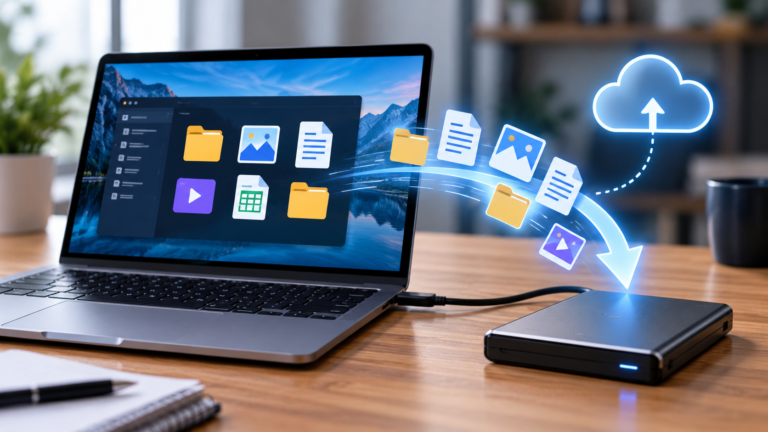
SSD cloning creates a copy of the partitions and data on one storage drive and transfers them directly to another drive.
For example, suppose your laptop currently has a 512GB SSD and you’re upgrading to a 2TB SSD. Instead of reinstalling Windows and your applications, you can clone the existing drive to the new SSD.
The basic process looks like this:
Existing laptop SSD → cloning software → replacement SSD
Depending on your software and configuration, the clone can include:
- Windows
- System partitions
- Applications
- Drivers
- User accounts
- Documents
- Photos and videos
- Settings
- Boot information
Macrium describes a disk clone as complying partitions directly onto the destination drive rather than creating a compressed backup file.
Clone vs Backup: What’s the Difference?
These two concepts are easy to confuse.
Feature
Creates another drive
Intended for drive migration
Creates a bootable replacement
Protects against accidental deletion
Good disaster-recovery solution
Destination can be overwritten
SSD Clone
Yes
Excellent
Often
Limited
Limited
Yes
Backup
Usually no
Possible, but indirect
Depends on recovery process
Yes
Excellent
Usually no
A cone is primarily a migration tool, while a backup is primarily a recovery and protection tool.
For an SSD upgrade, cloning can be extremely convenient. For long-term protection, maintain a separate backup.
Why Clone Your SSD Before an Upgrade?
There are several good reasons to clone your existing drive.
1. Avoid reinstalling Windows
A successful clone can preserve your existing Windows installation rather than requiring a fresh installation.
2. Keep You Applications
Programs that are installed on your current drive can move with the clone, eliminating the needs to reinstall everything individually.
3. Preserve Your settings
Your Windows configuration, user profile, and many application settings can remain intact.
4. Upgrade to a Larger SSD
If your laptop has a 512GB drive that’s running out of space, cloning it to a 1TB, 2TB, or larger SSD can provide a straightforward upgrade path.
5. Upgrade to Faster Storage
Moving from an older SSD to a newer, faster SSD can improve storage performance-provide the laptop supports the newer interface and speeds.
What You Need Before Cloning a Laptop SSD
Before starting the actual cloning process, gather everything you’ll need.
Related article:
1. A Compatible Replacement SSD
The new SSD must be compatible with your laptop.
Depending on your machine, you may need:
- M.2 NVMe SSD
- M.2 SATA SSD
- 2.5-inch SATA SSD
- A specific physical length such as 2280
- A particular interface or protocol
This is why checking compatibility should happen before purchasing the replacement drive.
Suggested products:
Related article:
2. A Way to Connect the New SSD
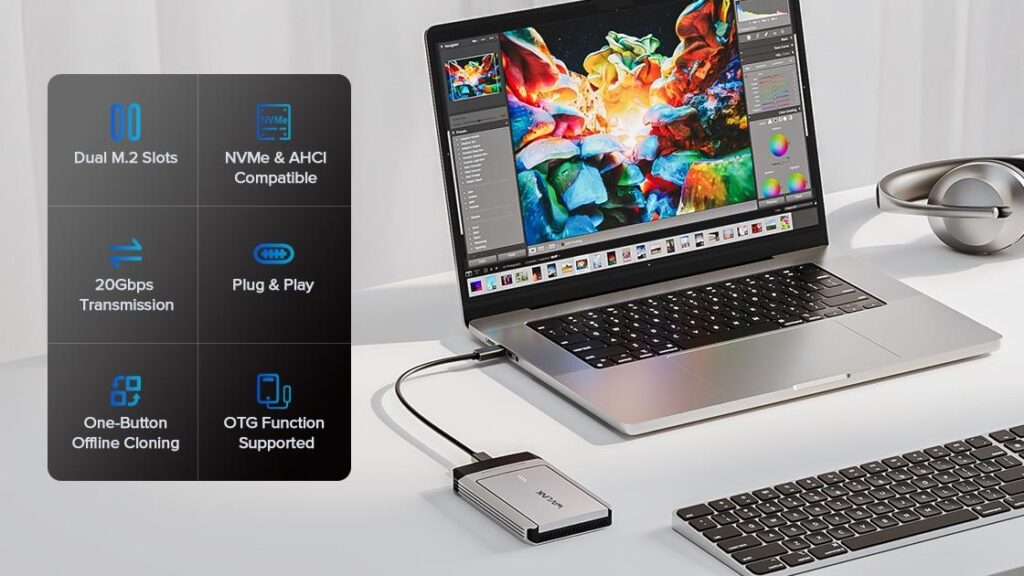
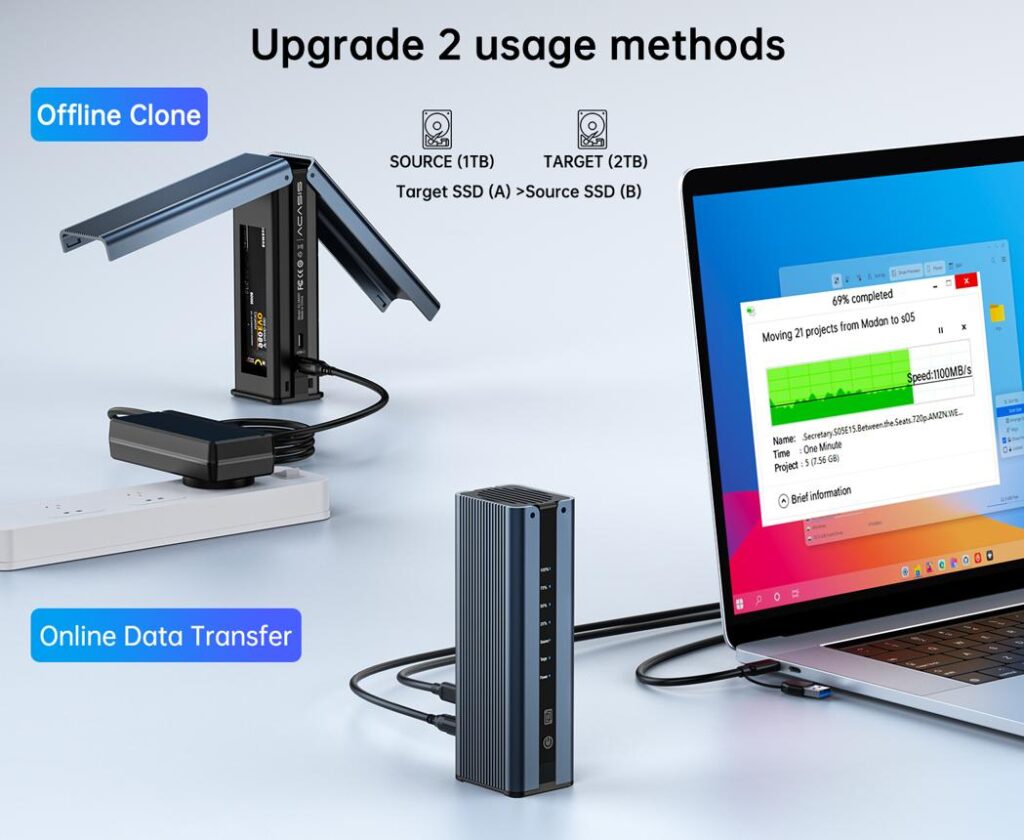
If your laptop has only one internal SSD slot, you’ll need a way to connect the replacement SSD externally.
For an NVMe drive, this typically means using an:
M.2 NVMe-to-USB enclosure
The basic setup becomes:
Laptop → USB cable → NVMe enclosure → replacement SSD
This allows both drives to be accessible simultaneously so the cloning software can copy the source drive to the destination.
Macrium notes that when other source and destination drives cannot be installed internally at the same time, an NVMe-to-USB enclosure can be used to connect the destination drive.
Gear and Code Top Picks:
3. SSD Cloning Software
You’ll need software capable of cloning your existing drive.
One established option is Macrium Reflect X, which provides disk-cloning functionality and tools for handling different destination-drive sizes. Macrium’s current documentation also provides specific cloning options and verification features.
Other cloning solutions are available, including manufacturer-specific migration utilities.
4. A Backup of Your Important Data
Before you begin:
Back up your important files.
Don’t rely on the clone as your only safety net.
Back up:
- Documents
- Photos
- Videos
- Work files
- Password databases
- Project files
- Browser data
- Other irreplaceable information
Ideally, keep the backup on a separate physical drive or trusted cloud-storage service.
Compare Reliable External Backup Drives:
Step 1: Check Your Existing SSD
Before cloning, identify what is currently installed.
In Windows you can use Disk Management to examine your drives and partitions.
Look for:
- Current drive capacity
- Used space
- System partitions
- Recovery partitions
- Boot partitions
- Windows partition
- Additional data partitions
The most important thing is determining which physical drive contains your Windows installation.
Don’t confuse partitions with physical drives
One physical SSD can contain multiple partitions.
For example:
Physical SSD
- → EFI System Partition
- → Windows C: partition
- → Recovery partition
- → Data partition
When cloning a system drive, you generally want o preserve the parititions necessary for Windows to boot-not simply copy the visible C: drive.
Step 2: Check the Replacement SSD
Before connecting the new drive, verify:
- Capacity
- Interface
- Form factor
- Physical dimensions
- Laptop compatibility
- Available storage space
- Manufacturer specifications
Ideally, the destination SSD should have enough capacity to accommodate the data and partitions you’re cloning.
Important distinction: disk size vs data used
You don;t necessarily need a destination SSD that is larger than the entire capacity of your existing SSD if the cloning software can resize partitions appropriately.
For example:
- Existing SSD: 1TB
- Used data: 350GB
- New SSD: 500GB
A clone may be possible if the partitions can be resized to fit the smaller destination.
However, cloning a larger drive is generally much simpler.
Macrium’s cloning process supports resizing partitions when the destination differs in size from the source.
Step 3. Install the New SSD in an External Enclosure
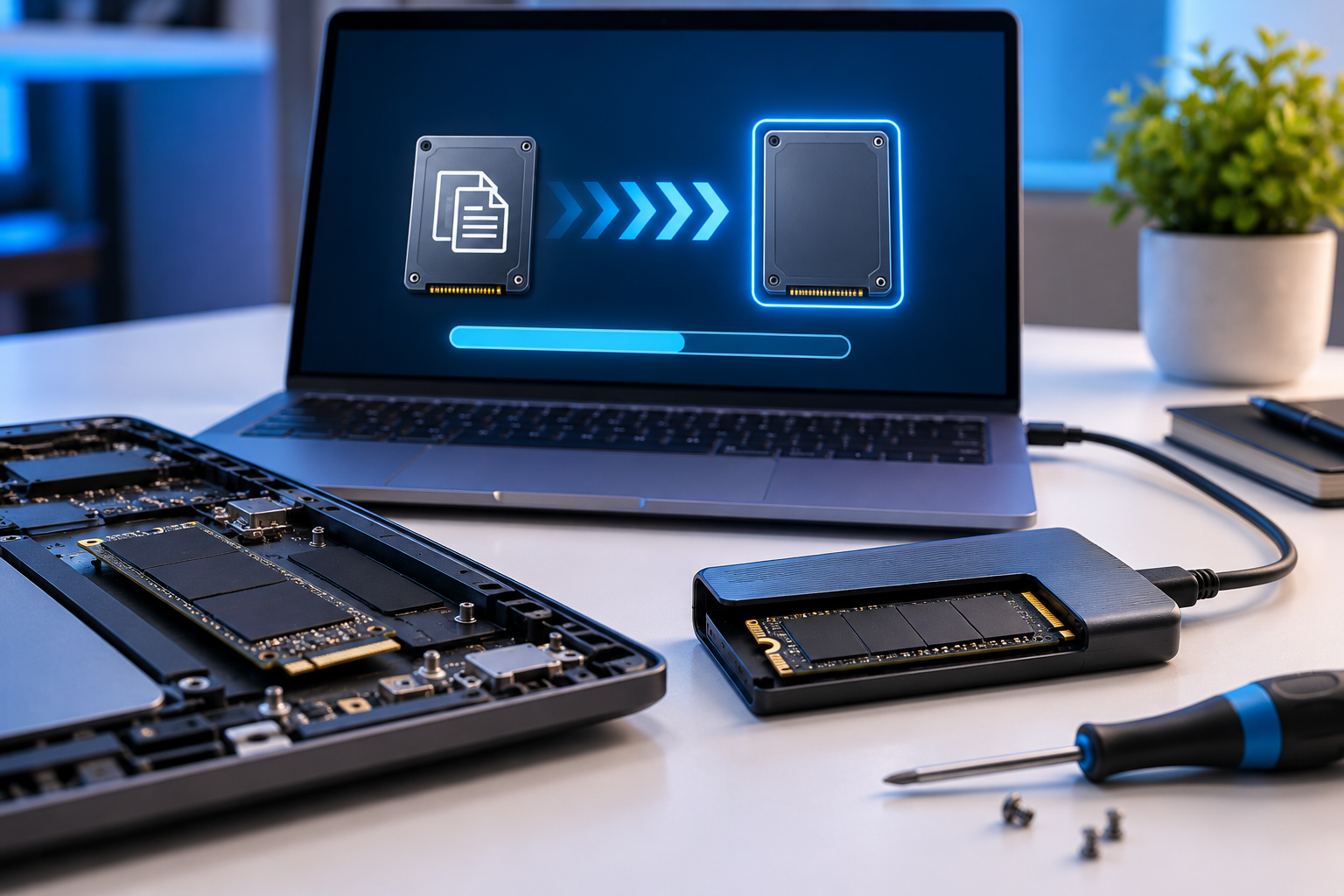
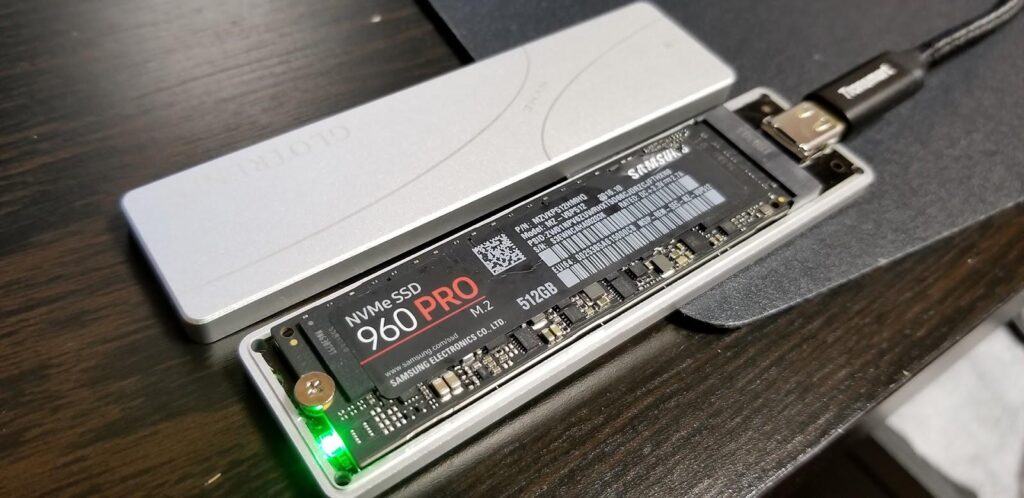
If your laptop has only one internal M.2 slot, install the replacement SSD into a compatible enclosure.
The general process is:
- Open the enclosure
- Insert the M.2 SSD at the appropriate angle
- Secure the SSD
- Close the enclosure
- Connect it to your laptop using USB
- Allow Windows to detect the drive
See Laptop Upgrade Tools:
- Precision Screwdriver Kit
- Laptop pry-tool
- Magnetic Screwdriver set
- Anti-static Wrist Strap
- ESD-Safe Mat
- Laptop Repair Tool Kit
Step 4: Initialize the New SSD if Necessary
When Windows detects a new SSD, it may ask you to initialize it.
Depending on the cloning software and drive configuration, you may need to manually format the destination beforehand.
Don’t start creating partitions unnecessarily.
Your cloning software may handle the destination partition structure itself.
More importantly, make sure you have identified the correct drive.
Never assume that “Disk 1” or “Disk 2” is automatically the new SSD.
Verify the:
- Capacity
- Manufacturer
- Model
- Connection
- Existing data
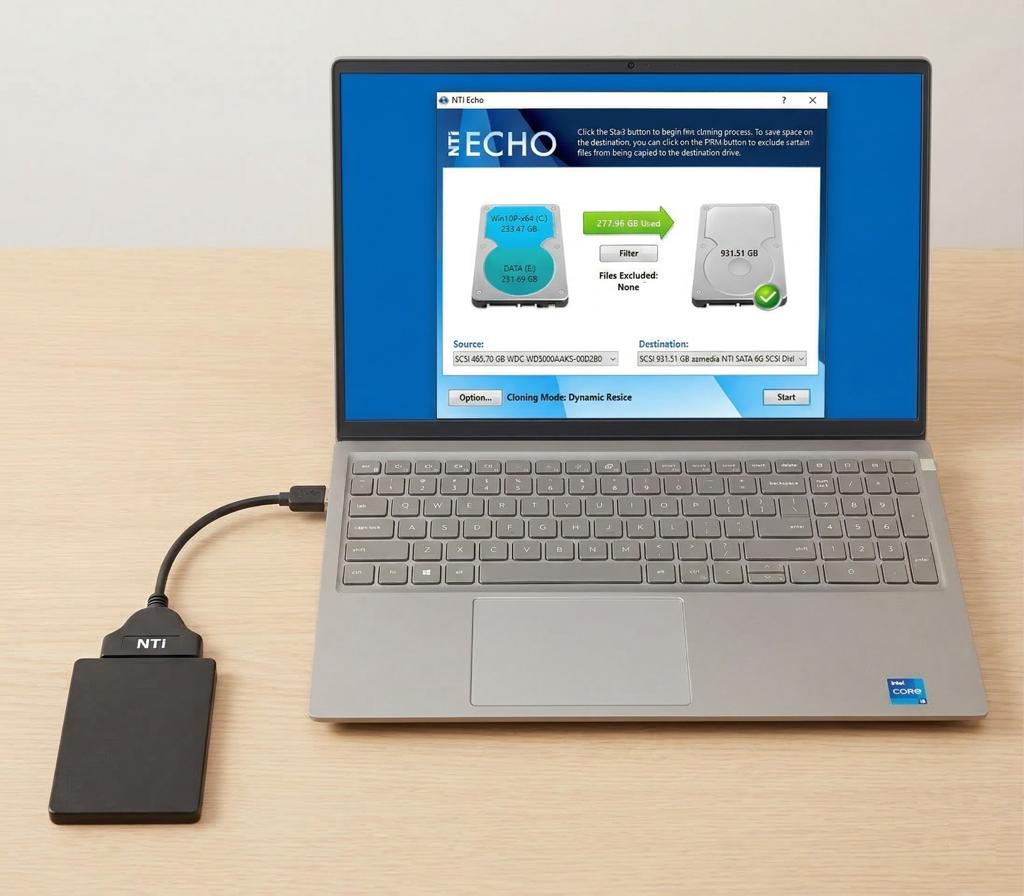
Step 5: Install and Open Your Cloning Software
Launch your chosen cloning application.
The software should display the drives currently connected to your computer.
You’ll typically see something similar to:
You existing laptop SSD
↓
Destination
Your new SSD
The most important decision in the entire process is selecting the correct source and destination.
Step 6: Select the Source SSD
Choose the SSD currently containing your Windows installation.
This is your:
Source Drive
It contains the data you’re trying to copy.
Double check its:
- Capacity
- Model number
- Partition layout
- Used space
If possible, compare the information with what you saw earlier in Windows Disk Management.
Step 7: Select the Destination SSD
Next, select your new SSD.
Destination Drive
Warning: The destination may be erased during cloning.
Macrium explicitly warns that cloning can overwrite partitions on the destination drive.
Before proceeding, ask yourself:
Am I absolutely certain this is the new SSD?
If the destination contains important data, stop and back it up first.
Step 8: Copy the Required Partitions
For a Windows system clone, you generally want to preserve the partitions required for the operating system to boot.
Depending on the system, these may include:
- EFI System Partition
- Microsoft Reserved partition
- Windows partition
- Recovery partition
Don’t blindly select the C: drive.
A bootable Windows installation can depend on additional system partitions.
Step 9: Resize the Partition for the New SSD
If your replacement SSD is larger, you can often expand the Windows partition to take advantage of the additional capacity.
For example:
Old SSD
512GB
↓
New SSD
2TB
You don’t want your new 2TB drive to behave like a 512GB drive simply because the original partition was that size.
Many cloning utilities provide options for expanding partitions during the cloning process. Macrium, for example, provides options to shrink or expand partitions to fit the target drive.
Related article:
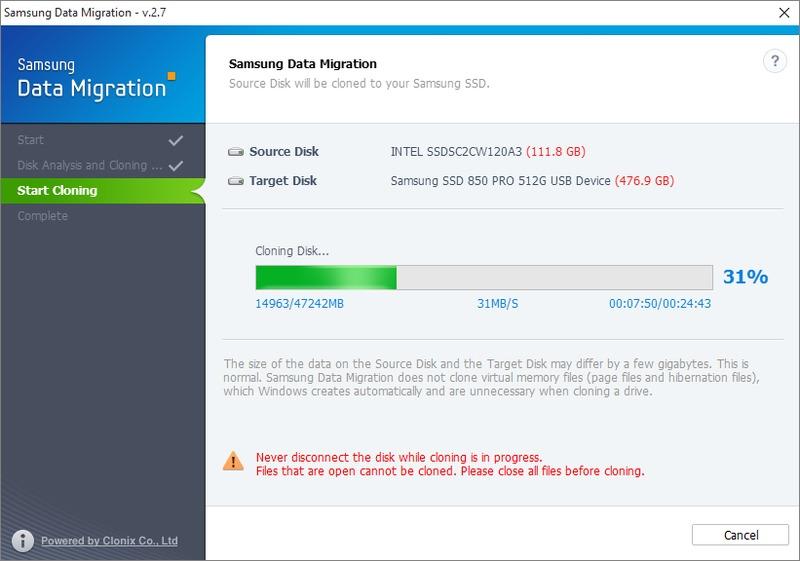
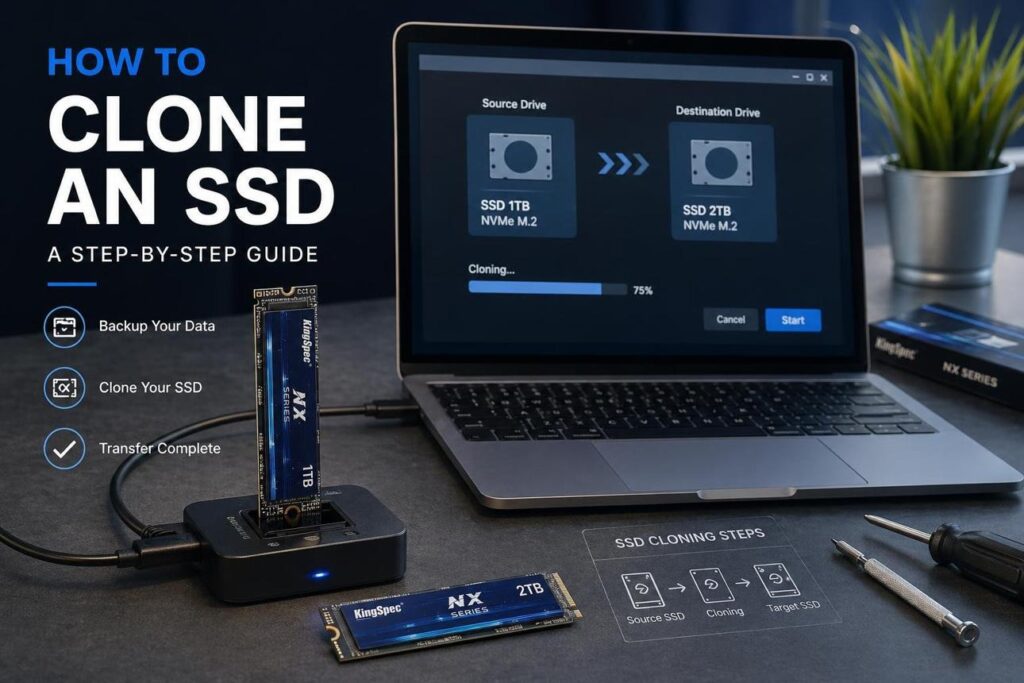
Step 10: Start the Clone
Once you’ve verified everything, begin the cloning process.
The cloning software will copy the selected partitions from the source SSD to the destination SSD.
The process may take:
- Several minutes
- 30-60 minutes
- Several hours
The time depends on:
- Amount of data
- SSD speed
- USB connection
- Enclosure performance
- Laptop performance
- Cloning software
- Source-drive condition
Don’t disconnect the drives while cloning is underway.
Step 11: Verify the Clone
Don’t immediately remove the original SSD and assume everything worked.
First, verify the destination.
Check that:
- The clone completed successfully
- The destination partitions appear correctly
- The Windows partition contains your files
- The expected capacity is available
- The cloning software reports no errors
Some cloning tools also provide file-system verification options. Macrium’s current documentation describes a verification option that checks the integrity of FAT32 and NTFS file systems.
Test important files
Open a few:
- Documents
- Photos
- Videos
- Projects
- Applications
You want to know that your important data made the trip before changing hardware.
Step 12: Shout Down the Laptop
Once the clone has been verified, completely shut down the laptop.
Don’t simply put it to sleep.
Disconnect:
- AC power if appropriate
- USB devices
- External SSD enclosure
Step 13: Replace the Laptop SSD
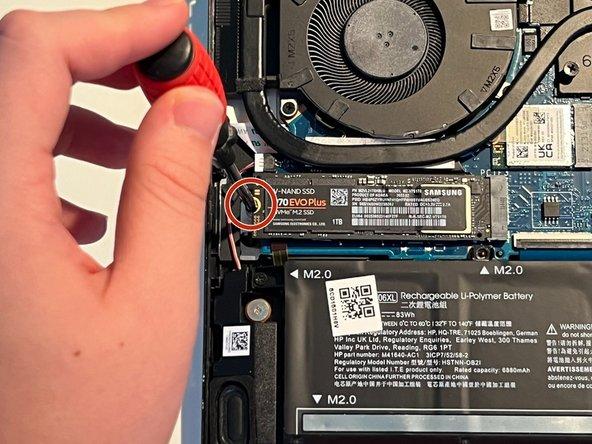
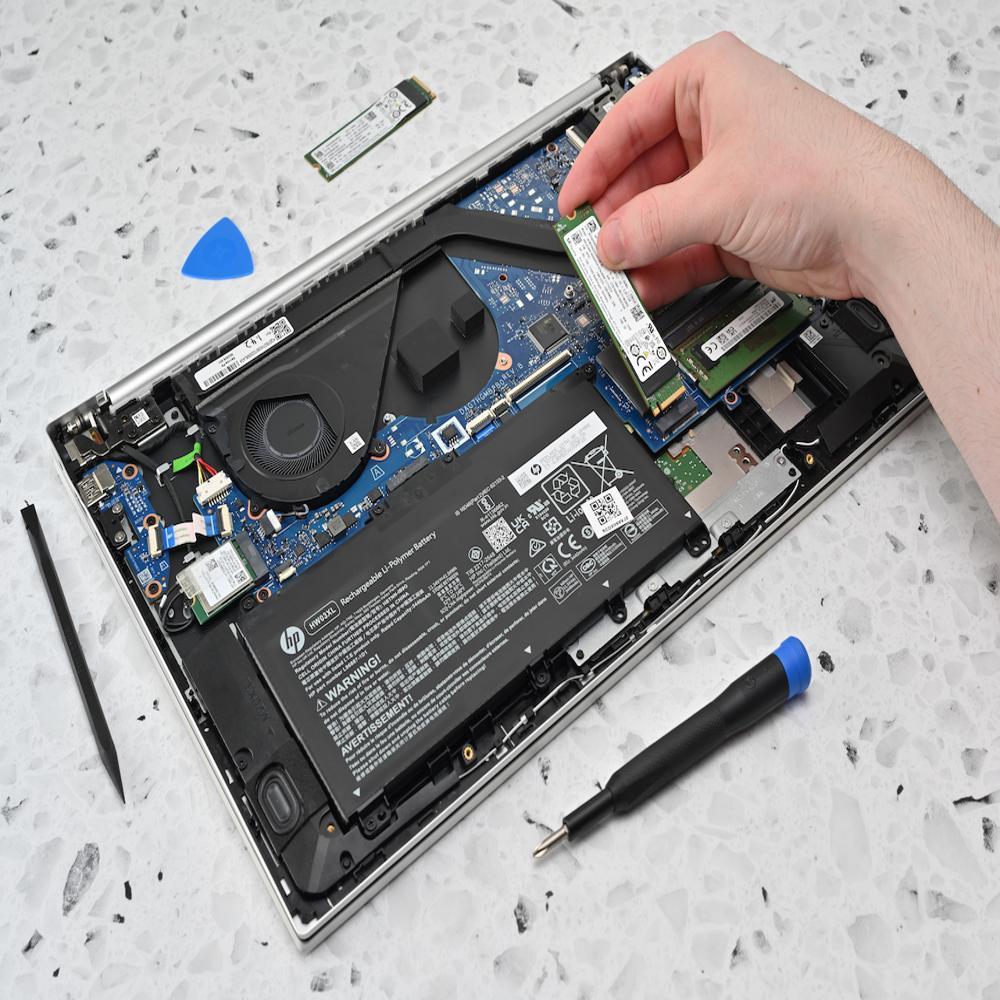
Open the laptop according to the manufacturer’s service instructions.
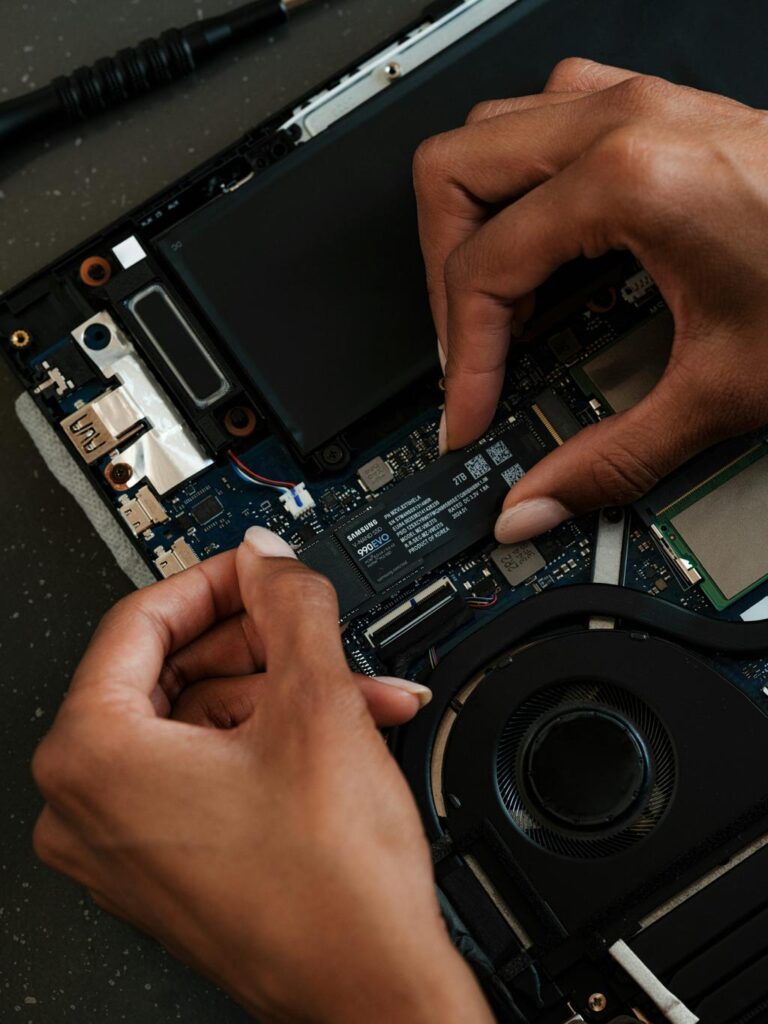
You generally need to:
- Remove the bottom cover
- Disconnect the battery if the manufacturer recommends it
- Locate the existing SSD
- Remove the retaining screw
- Carefully remove the old SSD
- Insert the cloned replacement SSD
- Secure it
- Reassemble the laptop
Step 14: Boot From the New SSD
Turn the laptop on.
Ideally, Windows should boot from the replacement SSD.
If everything worked correctly, you should see essentially the same Windows environment you had before the upgrade.
Check:
- Windows boots normally
- Your desktop appears
- Applications launch
- Files are accessible
- Wi-Fi works
- Audio works
- Display works
- Device Manager shows no unexpected problems
What if the Laptop Doesn’t Boot?
Don’t panic.
A failed boot doesn’t necessarily mean the data is gone.
Possible causes include:
- Incorrect partition selection
- Boot configuration problems
- UEFI/BIOS settings
- Incorrect destination selection
- Encryption-related issues
- Hardware compatibility
- Clone errors
First, reinstall the original SSD if necessary and confirm the original system still works.
If the original SSD boots normally, you have useful fallback while troubleshooting the clone.
Common Laptop SSD Cloning Mistakes
Mistake #1: Not Backing Up Important Files
A clone is not your only safety net.
Create a separate backup first.
Mistake #2: Choosing the Wrong Destination Drive
This is potentially the most serious mistake.
Always verify the drive’s model and capacity before starting.
Mistake #3: Buying an Incompatible SSD
Not every laptop accepts every M.2 SSD.
Check compatibility before purchasing.
Related article:
Mistake #4: Forgetting the SSD Enclosure
If your laptop has only one internal drive slot, you’ll need another way to connect the new SSD during cloning.
Mistake #5: Cloning Without Enough Destination Space
Check the amount of data you’re moving and the partition layout before beginning.
Mistake #6: Removing the Original SSSD Too Quickly
Keep the original SSD until you’ve confirmed the new drive boots correctly and your important data is accessible.
This gives you a fallback.
Should You Keep the Old SSD?
Yes-at least temporarily.
Don’t immediately wipe or sell your old SSD.
Keep it until you’ve:
- Successfully booted from the new drive
- Verified important files
- Tested your applications
- Confirmed the laptop is stable
- Created a new backup
Once you’ve confirmed everything works, you can repurpose the old SSD as external storage if the hardware and enclosure support it.
SSD Cloning vs Fresh Windows Installation
Which approach should you use?
Situation
Upgrade to larger SSD
Keep applications
Keep Windows settings
Clean up years os accumulated software
Starting with a clean system
Minimize setup time
Troubleshooting an unstable Windows Installation
Clone
Excellent
Excellent
Excellent
No
No
Excellent
Not ideal
Fresh Install
Possible
No
No
Excellent
Excellent
No
Better
If your current Windows installation is healthy and you simply want more storage, cloning is often the more convenient approach.
If the laptop has years of accumulated software, corrupted files, malware concerns, or other problems, a fresh installation may be worth considering.
Final SSD Clone Checklist
Before starting:
- Confirm SSD compatibility
- Purchase the replacement SSD
- Get an appropriate USB enclosure
- Back up important files
- Confirm the source SSD
- Confirm the destination SSD
- Install cloning software
During cloning:
- Select the correct source
- Select the correct destination
- Confirm partition layout
- Resize partitions if necessary
- Start the clone
- Don’t disconnect either drive
After cloning:
- Verify the clone
- Shout down the latop
- Replace the SSD
- Boot the laptop
- Verify Windows
- Tasst applications
- Check important files
- Keep the original SSD until everything is confirmed
Related article: