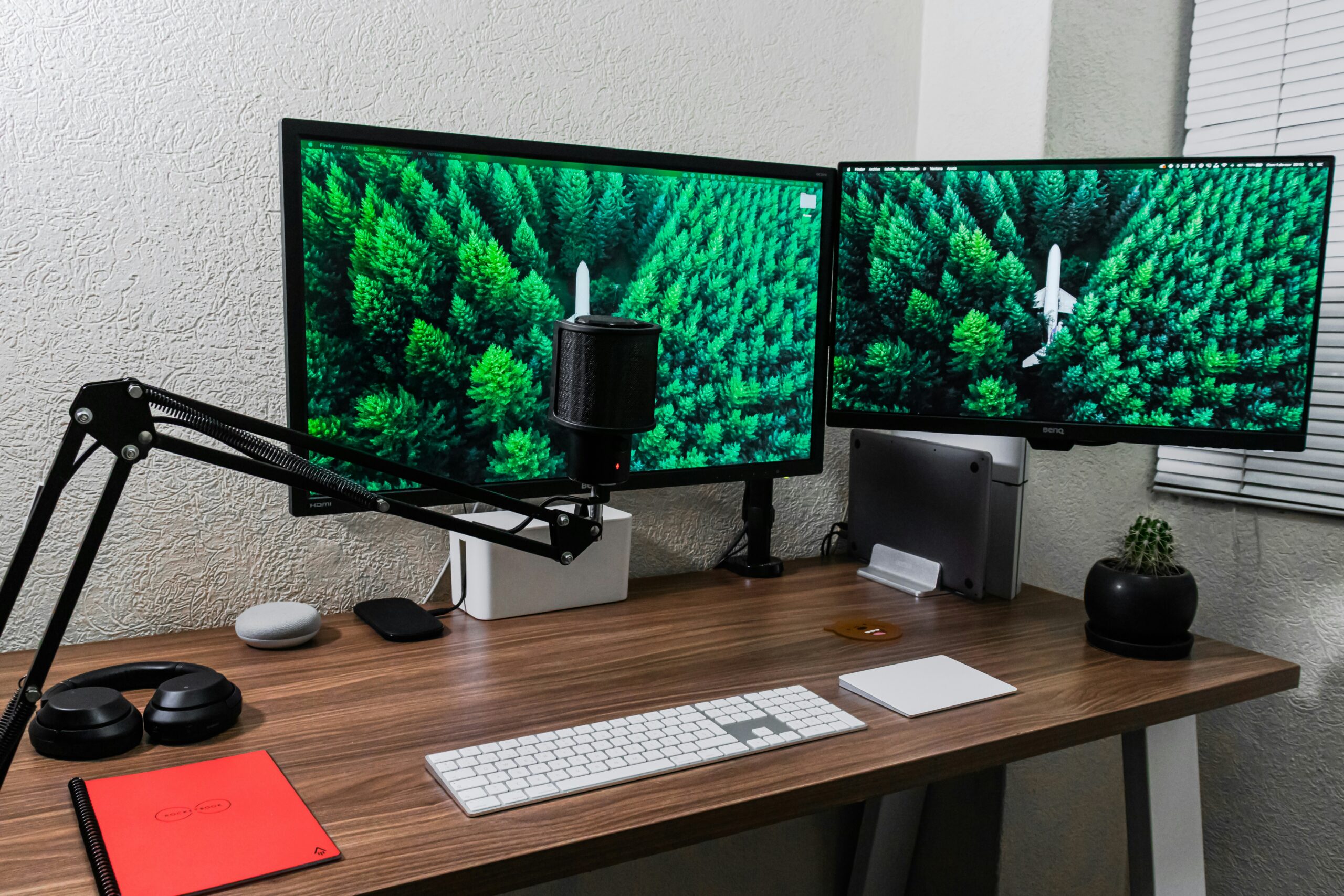
How to Create an Ergonomic Dual-Monitor Setup (2026 Guide)
If you spend your day working on two screens, creating an ergonomic dual-monitor setup should be one of your highest priorities. A properly designed. workstation can reduce neck pain, improve posture, minimize eye strain, and increase productivity throughout the workday. Whether you’re a programmer, designer, analyst, remote employee, or content creator, the right monitor positioning and accessories can dramatically improve both comfort and efficiency.
Related Article:
Why Ergonomics Matters
Poor monitor placement is responsible for many common work-from-home complaints:
- Neck pain
- Shoulder fatigue
- Eye strain
- Headaches
- Wrist discomfort
- Lower back pain
An ergonomic workstation encourages a neutral posture, reducing muscle fatigue while helping you stay comfortable during work sessions.
Benefits of a Dual-Monitor Setup
Using two monitors offers significant productivity improvements.
Benefits include:
- More screen space
- Fewer application switches
- Better multitasking
- Easier research and writing
- Improved coding workflow
- Faster spreadsheet work
- Better video editing timeline management
Many productivity studies have shown that dual monitors can significantly improve task efficiency compared to a single display.
Choosing the Right Monitor Size
Ideal options include:
Size
24-inch
27-inch
32-inch
34-inch Ultrawide
Best For
Budget setups
Most professionals
Large spreadsheets and creative work
Alternative to dual monitors
Related Article:
Best Budget 24-inch Monitors
Best 27-inch Productivity Monitors
Click the above links to see pricing on Amazon.
Premium 4K Monitors
- Dell Ultrasharp U2725QE
- BenQ Pd3225U
- LG Ultrafine 32UN880-B
Click the links to check Amazon
Matching Monitors vs Mixed Monitors
Whenever possible:
- Same size
- Same resolution
- Same refresh rate
- Similar color accuracy
Matching displays:
- Reduce eye fatigue
- Improve alignment
- Create a cleaner workspace
Mixed monitors work well if one is dedicated to email, Slack, or documentation.
Correct Monitor Height
The top of each monitor should sit approximately at or slightly below eye level.
When sitting naturally:
- Eyes should look slightly downward
- Next remains neutral
- Shoulders relaxed
Avoid looking upward for long periods.
Ideal Viewing Distance
A good rule:
20 – 30 inches from your eyes
Larger displays may require additional distance.
Positioning Your Monitors
Equal Usage
If both monitors receive equal attention.
Position them:
- Side-by-side
- Slight inward angle (10-20 degrees)
- Center split aligned with your nose
Primary Monitor Usage
If one monitor is used most often:
- Primary monitor directly in front
- Secondary monitor angled inward
This minimizes neck rotation.
Landscape vs Portrait
Portrait mode works exceptionally well for:
- Programming
- Documentation
- Reading PDFs
- Long web pages
- Coding
Landscape works best for:
- Spreadsheets
- Design
- Video editing
- Meetings
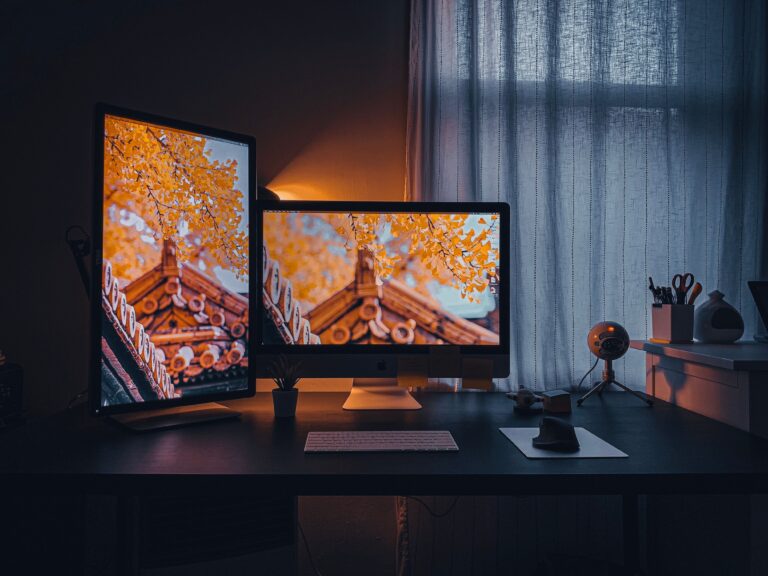
Many professionals combine one landscape with one portrait display.
Invest on a Quality Dual Monitor Arm
Monitor arms provide one of the biggest ergonomic upgrades.
Advantages:
- Better positioning
- Increased desk space
- Easy adjustment
- Better cable management
- Cleaner appearance
Budget Dual Monitor Arms
Click the links to check Amazon.
Mid-Range Dual Monitor Arms
Click links to check Amazon.
Premium Dual Monitor Arms
Click links for Amazon pricing.
Use the Right Desk
Dual monitors require adequate depth.
Recommended:
- 30-inch depth minimum
- 55-72 inch width
- Solid construction
- Cable management
Standing desks work especially well with dual-monitor setups.
Budget Standing Desks
- Flexispot E7
- FEZIBO Electric Standing Desk
Click link to check price.
Mid-Range Standing Desks
- UPLIFT V2
- Branch Standing Desk
Click link to check pricing.
Premium Standing Desks
- Herman Miller Motia
- Secretlab Magnus Pro XL
Related Article:
Select an Ergonomic Chair
Look for:
- Adjustable lumbar support
- Adjustable armrests
- Seat depth adjustment
- Recline tension
- Breathable materials
Budget Ergonomic Chairs
Click links to check pricing on Amazon.
Mid-Range Ergonomic Chairs
Premium Office Chairs
- Herman Miller Aeron
- Steelcase Leap V2
- Steelcase Gesture
- Herman Miller Embody
Click the links to check pricing.
Improve Cable Management
Messy cables:
- Collect dust
- Increase clutter
- Make desk adjustments difficult
Proper Lighting
Avoid glare by positioning monitors:
- Perpendicular to windows
- Away from direct sunlight
Consider:
- Monitor light bars
- Adjustable desk lamps
- Bias lighting
Reduce Eye Strain
Remember the 20-20-20 rule:
Every 20 minutes:
Look 20 feet away
For 20 seconds.
Additional tips:
- Increase text scaling
- Use blue light reduction in the evening
- Match monitor brightness to room lighting
Keyboard and Mouse Placement
Maintain:
- Elbows at 90 degrees
- Wrists straight
- Keyboard centered
- Mouse close to keyboard
Ergonomic keyboards and vertical mice can further reduce strain.
Laptop + Dual Monitor Setup
Many professionals use:
- Laptop
- External keyboard
- External mouse
- Docking station
- Two monitors
Raise the laptop using a stand or close the lid if not using its display.
Related Article:
Best Accessories for an Ergonomic Workspace
Highly recommended:
- Footrest
- Wrist rest
- Monitor light bar
- Webcam
- USB-C Dock
- Headphone stand
- Surge protector
Related Article:
Common Dual Monitor Mistakes
Avoid:
- Monitors too high
- Sitting too cloose
- Poor lightting
- Twisting your nrck
- Tiny desk
- Cheap monitor arms
- Ignoring chair adjustments
- Poor cable management
Recommended Dual-Monitor Setups by Budget
Budget ($300 – $600)
- Two 24-inch monitors
- Fixed monitor stand
- Basic desk
- Entry ergonomic chair
Related Article:
Mid-Range ($700 – $1,500)
- Two 27-inchIPS monitors
- Adjustable monitor arm
- Sit-stand desk
- Ergonomic chair
- Cable management
Related Article:
Premium ($2,000+)
- Two premium 27″ 4K monitors
- Premium monitor arm
- Electric standing desk
- High-end ergonomic chair
- Docking station
- Professional lighting
Related Articles::
Frequently Asked Questions
Is a dual-monitor setup better than an ultra wide?
Both are excellent. Dual monitors offer greater flexibility, while ultra wide displays provide a seamless workspace without bezels.
Should both monitors be centered?
Only if they’re used equally. Otherwise, keep your primary monitor directly in front of you.
What is the ideal monitor height?
The top edge should be at or just below eye level.
Can I use different-sized monitors?
Yes, though matching monitors provide a more comfortable and visually consistent experience.
Conclusion
Creating an ergonomic dual-monitor setup is one of the best investments you can make for your health and productivity. By positioning your monitors correctly, choosing quality ergonomic accessories, and organizing your workspace thoughtfully, you’ll reduce fatigue and work more comfortably throughout the day. Whether you’re building a budget workstation or a premium home office, small ergonomic improvements can have a lasting impact on your focus, efficiency, and long-term well-being.