
How to Troubleshoot a Loud Laptop Fan: 9 Common Fixes
If you need to troubleshoot a loud laptop fan, the first step is to determine whether your computer is working hard, struggling with her, or experiencing a cooling-system problem. A fan that speeds up during gaming, video editing, or other demanding tasks is usually normal. However, a laptop fan that is too loud, runs constantly when the computer is idle, or makes grinding and rattling sounds may need attention.
Fortunately, you can often reduce laptop fan noise without replacing. your computer or paying for professional repairs. This guide explains nine practical fixes, from checking background processes and improving ventilation to cleaning air vents and identifying possible hardware failures.
Further reading:
Why is My Laptop Fan So Loud?
Laptop fans regulate internal temperatures by moving heat away from components such as the central processing unit (CPU) and graphics processing unit (GPU). When these components generate more heat, the cooling system increases fan speed to maintain safe operating temperatures.
Several factors can cause a noisy laptop fan:
- High CPU or GPU usage: Demanding applications, games, browser tabs, or background processes generate heat
- Blocked ventilation: A laptop placed on a blanket, pillow, or other soft surface may not receive sufficient airflow
- Dust buildup: Dust and lint can restrict airflow through the fan and cooling fins
- High ambient temperatures: A warm room can make cooling more difficult
- Outdated software or thermal settings: Firmware, drivers, or power profiles can affect fan behavior
- Mechanical damage: A worn bearing, damaged fan blade, or loose component may cause unusual noises
A loud fan does not automatically mean your laptop is defective. The goal is to identify the cause before spending money on accessories or repairs.
1. Close Resource-Intensive Applications
One of the simplest ways to reduce laptop fan noise is to lower the workload placed on the processor.
Applications that perform video rendering, gaming, large file transfers, software compilation, or other demanding tasks can generate considerable heat. Even a browser with numerous active tabs may contribute to higher CPU usage.
How to check CPU usage in Windows
- 1. Press Ctrl + Shift + Esc to open Task Manager
- 2. Select the Processes tab
- 3. Click the CU column to sort processes by processor usage
- 4. Identify applications consuming unusually high resources
- 5. Save your work and close applications you no longer need
Do not end unfamiliar system processes simply because they use CPU resources. Some processes are essential to Windows, security software, or ongoing updates.
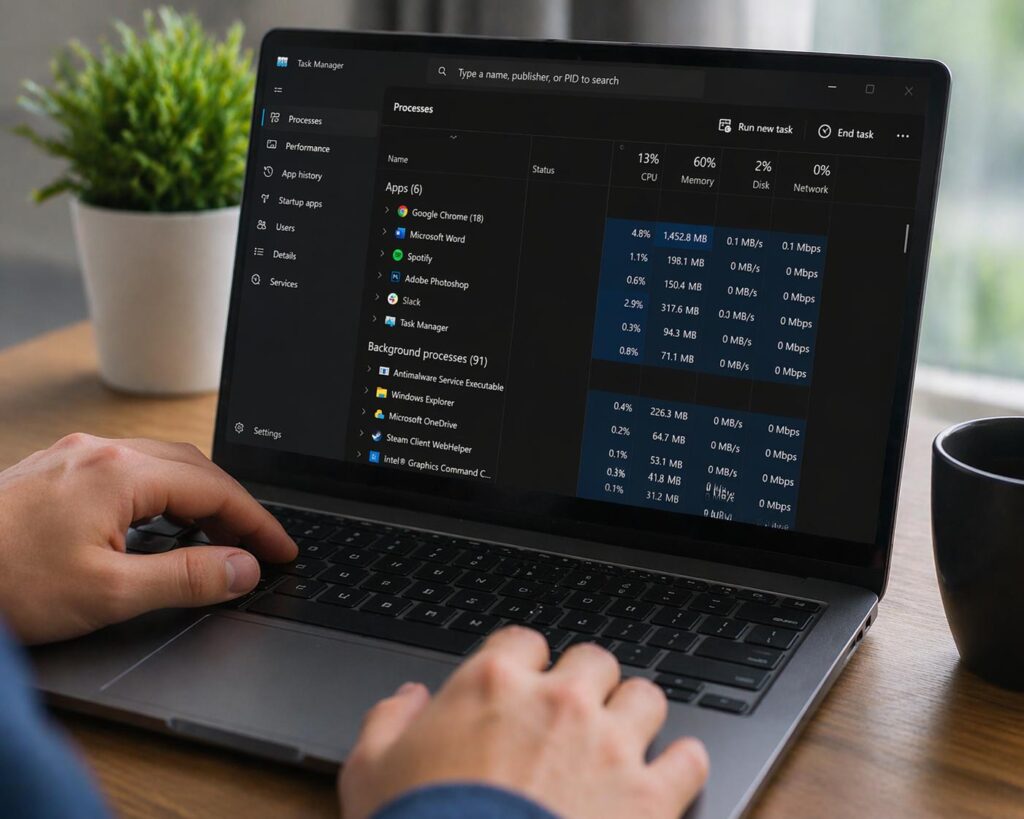
Mac users can open Activity Monitor and select the CPU tab to investigate resource-intensive applications.
If the fan becomes quieter after closing a demanding application, the noise was likely related to workload. rather than a mechanical fault.
For a related article, check out:
2. Restart Your Laptop and Check Background Processes
Sometimes a program becomes stuck, a software update continues working in the background, or a process consumes more resources than expected.
A restart can clear temporary software problems and stop processes that are no longer responding correctly.
Before restarting, save open documents and allow operating-system updated to finish when possible.
After restarting, let the laptop settle for several minutes. Check whether the fan becomes quieter while the computer is idle.
If the fan immediately returns to maximum speed, investigate startup applications, scheduled tasks, system updates, and manufacturer diagnostics.
Do not disable antivirus software to reduce fan noise. Security protection is more important than a small reduction in background activity.
Related article:
3. Improve Laptop Ventilation
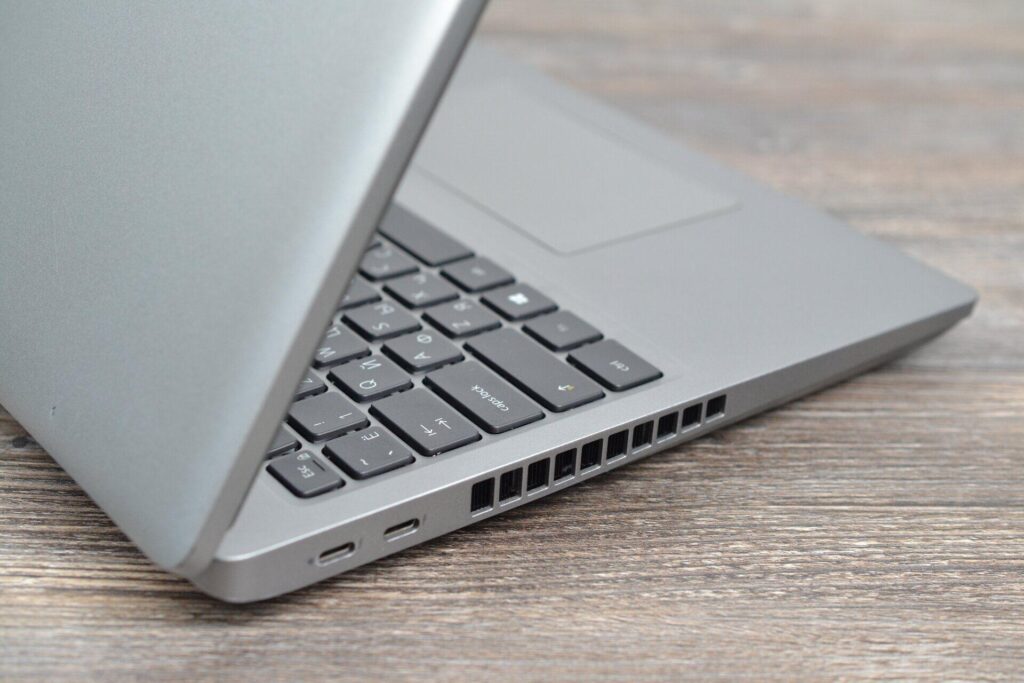
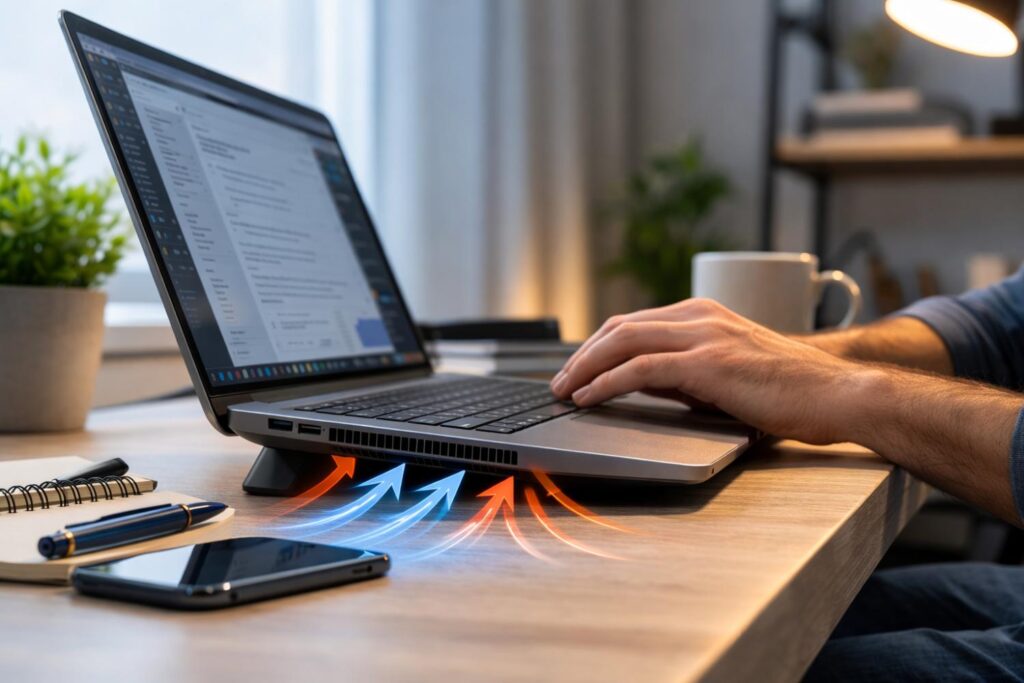
Poor airflow can force the cooling system to work harder. This commonly happens when a laptop is used on a bed, couch, blanket, or other surface that covers its air intake.
How to improve airflow
- Place the laptop on a firm, flat surface
- Keep the intake and exhaust vents unobstructed
- Move the computer away from direct sunlight and heat sources
- Leave space around the sides and rear of the laptop
- Avoid using the laptop on soft furnishings for extended periods
A simple change in positioning may be enough to reduce fan speed and improve thermal performance.
Recommended products:
Related reading:
4. Clean Dust From the Laptop’s Air Vents
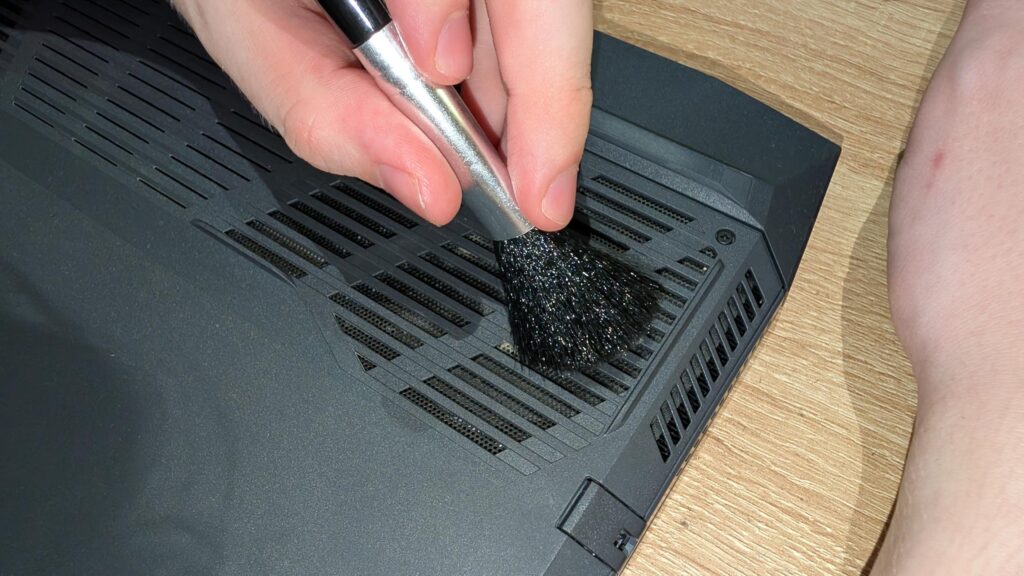
Dust buildup can restrict airflow through the cooling system, making the fan work harder to maintain acceptable temperatures.
External cleaning is a sensible;e first step, espeially if you use your laptop in a dusty environment or have not cleaned its vents for a long time.
How to clean the vents safely
- 1. Shut down the laptop completely
- 2. Disconnect the charger and any connected accessories
- 3. Allow the computer to cool
- 4. Inspect teh intake an exhaust vents for visible dust or lint
- 5. Follow the manufacturer’s cleaning instructions for your specific model
- 6. If approved by the manufacturer, use gentle, controlled air or a suitable soft brush to remove surface dust
Avoid spraying liquids into the vents. Do not use a household vacuum directly on internal components, and do not insert tools into the fan openings.
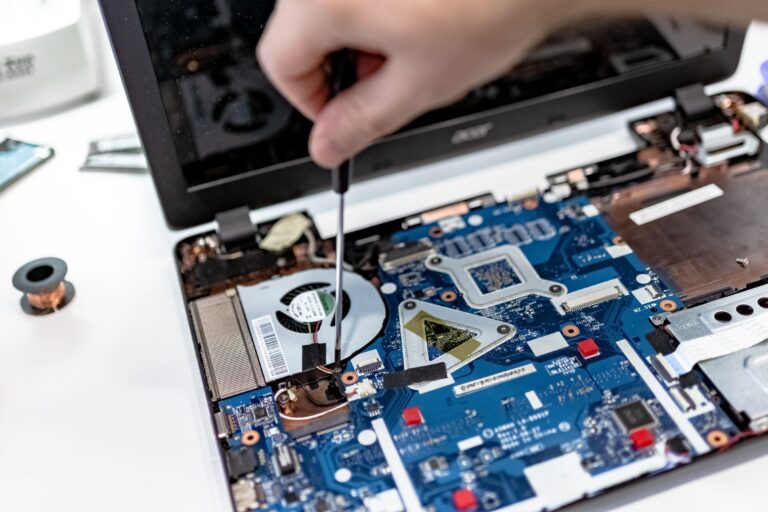
If using compressed air, follow the product and laptop manufacturer’s instructions. Excessive pressure or allowing a fan to spin freely at high speed can damage components. Never open the laptop unless your are comfortable with the procedure and have checked the warranty and service guidance.
If dust is packed inside the cooling fins, external cleaning may not be sufficient . Professional cleaning may be appropriate,
Related products:
Related reading:
5. Check for Overheating and Update System Software
A laptop that becomes unusually hot while performing light tasks may have ahtermal-management problem.
First, determine whether the fan noise corresponds to a demanding workload. Then check for available operating-system updates and manufacturer-recommended BIOS, firmware, chipset, or thermal-management updates.
What to check
- Install relevant Windows or macOS updates
- Visit the laptop manufacturer’s diagnostic utility if one is available
- Review the recommended power and thermal settings
- Check whether the laptop is expereincing unexpected slowdowns or shutdowns
Firmware updates can affect system behavior, so install only updates intended for your exact model and follow the manufacturer’s instructions. Keep the laptop connected to reliable power when required, and do not interrupt a BIOS update.
If the laptop becomes hot and slow, it may be reducing processor performance to control temperature. This is known as thermal throttling.
Persistent overheating, especially when accompanied by shutdowns, should not be ignored.
Continued reading:
6. Consider a Laptop Stand or Cooling Pad
If your laptop vents are clear but airflow remains restricted by its design or working position, a stand or cooling pad may help.
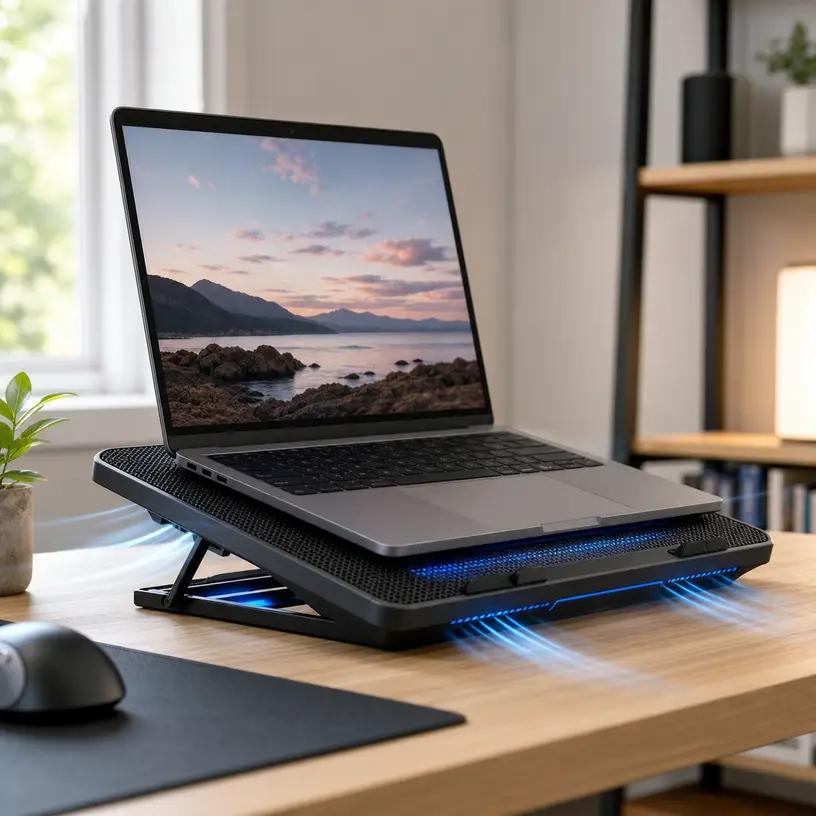
A basic laptop stand raises the computer above the desk, potentially improving airflow underneath the chassis. An active cooling pad adds external fans to move air around the laptop.
What should you buy?
Consider these options:
- Adjustable laptop stand: Useful for improving positioning and keeping the underside clear
- Ventilated laptop stand: Offers open space beneath the laptop without requiring power fans
- Active laptop cooling pad: May help certain laptops, particularly during sustained gaming or other heavy workloads
- USB-powered cooling pad: Convenient when you want an accessory that can be powered from a compatible USB port
A cooling pad is not a guaranteed fix. Results depend on the laptop’s intake locations, thermal design, workload, and the accessory itself. A plan also cannot repair a damaged fan or clear dust packed deep inside the cooling system.
Continue readings:
Recommended products:
- Adjustable Laptop Stand 360 Rotating Base
- Adjustable Laptop Stand for Desk
- havit Laptop Cooling Pad for 15.6-17 inch Laptops
- Kootek Laptop Cooling Pad Cooler Stand for 12″ – 17″ Laptops
7. Adjust Power and Fan Settings
Some laptops provide power profiles that balance performance, temperature, and fan noise.
If your computer is configured for maximum performance, changing to a balanced or quieter profile may reduce heat generation during ordinary work.
Windows users
- 1. Open settings
- 2. Navigate to System and Power, or the equivalent power settings on your Windows version
- 3. Select a balanced or recommended power mode when available
- 4. Check the laptop manufacturer’s utility for any additional thermal profiles
macOS users
Review the available energy and performance settings for your Mac model and macOS version. Options differ by hardware and operating-system release.
Some gaming laptops and workstation models include manufacturer software that allows you to select quiet, balanced, performance, or custom fan profiles.
Avoid forcing the fan to run at an artificially low speed through unofficial utilities. The fan needs to respond appropriately to temperature changes to protect internal components.
If the fan becomes Lous only during a particular game or demanding application, some reduction in performance may be necessary to lower heat output.
8. Investigate Unusual Fan Noises
Not all fan noise is caused by heat. A fan that makes grinding, rattling, scraping, or clicking sounds may have a mechanical problem.
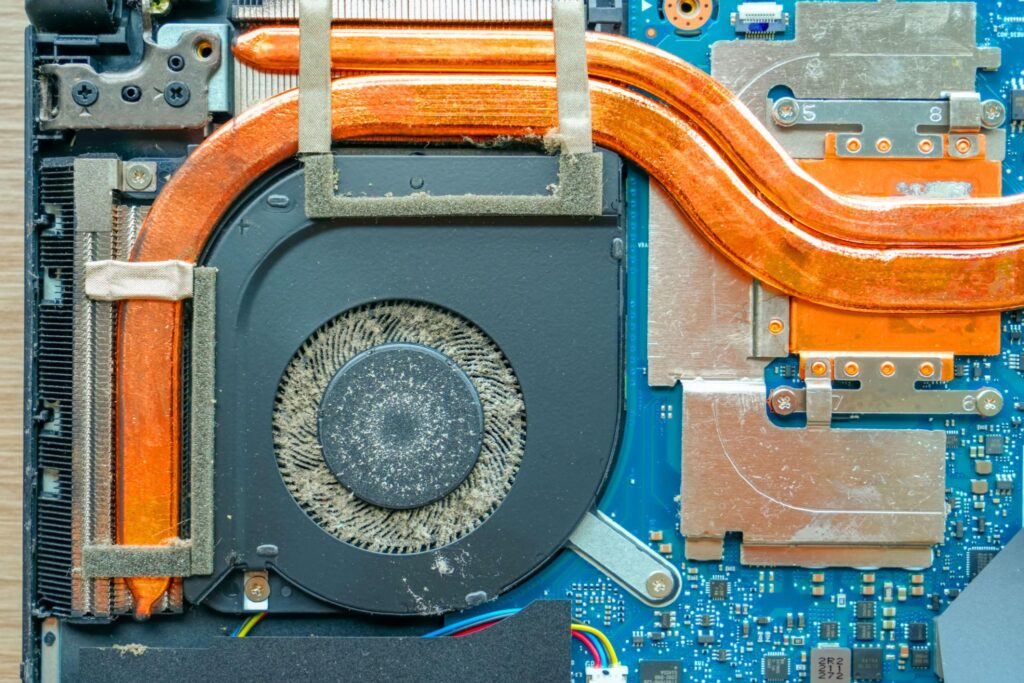
Possible causes include:
- A worn fan bearing
- A damaged fan blade
- Debris caught near the fan
- A loose internal component
- A cooling-system fault
Shut down the laptop if you hear persistent grinding or scraping, especially if the divide is overheating. Avoid repeatedly running the computer to test a suspected failing fan.
If the fan stops working or the laptop overheats while the fan is not running, discontinue use and arrange an appropriate inspection.
For laptops that provide built-in hardware diagnostics, run the manufacturer’s recommended fan or system test. If the test reports an error, record the error code before contacting support.
9. Seek Professional Repair if the Problem Persists
If you have checked resource usage, improved ventilation, cleaned the accessible vents, and reviewed system settings but the fan remains abnormally loud, a hardware inspection may be necessary.
Potential causes include a failing fan, blocked internal cooling fins, degraded thermal interface material, or a sensor or firmware issue.
Consider professional service if:
- The fan makes persistent grinding or rattling noises
- The laptop overheats during light tasks
- The computer shuts down unexpectedly
- Manufacturer diagnostics report a fan or thermal error
- Fan noise remains excessive after the other fixes
Stop using the laptop immediately if you notice a swollen chassis or battery, a boring or chemical smell, or extreme heat after shutdown. Disconnect power when safe and contact the manufacturer or a qualified repair professional. Do not attempt to remove a swollen battery yourself.
Before paying for repairs, check the manufacturer’s warranty and any available service coverage.
Additional reading:
How to Prevent Laptop Fan Noise in the Future
Regular maintenance can reduce the likelihood of recurring fan problems.
- Keep the laptop on a firm surface with clear ventialtion
- Clean accessible vents according to the manufacturer’s instructions
- Install appropriate operating-system and manufacturer updates
- Close unnecessary resource-intensive applications
- Use balanced power settings for routine work
- Avoid prolonged exposure to excessive ambient heat
- Investigate unusual fan sounds early rather than ignoring them
For more detailed maintenance guidance see:
Frequently Asked Questions
Why is my laptop fan so Loud all of a sudden?
A sudden increase in fan noise can be caused by a demanding application, an operating-system update, blocked ventilation, dust accumulation, or a cooling-system fault. Check CPU usage end d ventilation first.
Is it normal for a laptop fan to run continuously?
It can be normal during gaming, rendering, software development, or other sustained workloads. A fan that runs at high speed while the laptop is idle, particularly when accompanied by excessive heat to unusual noises, deserves further investigation.
Can dust make a laptop fan louder?
Yes. Dust can restrict airflow through the vents and cooling fins, making the cooling system work harder. Clean the accessible vents according to the manufacturer’s guidance.
Will a cooling pad stop my laptop fan from being loud?
A cooling pad may improve airflow and help certain laptops run cooler, but results vary. It will not fix a damaged fan, a failed temperature sensor, or a serious internal cooling-system problem.
Should I replace my laptop if the fan is too loud?
Not necessarily. Many fan-noise problems can be resolved through software checks, improved ventilation, or cleaning. If the laptop is old and has several performance or hardware problems, compare the cost of repair with the cost of replacement.
Related reading:
Final Thoughts
A loud laptop fan is often a sign that the computer needs better airflow or is working harder than usual. By checking CPU usage, improving ventilation, cleaning accessible vents, reviewing power settings, and investigating unusual noises, you can often identify the cause without unnecessary spending.
Start with the simplest fixes and work methodically. If the fan continues to grind, the laptop overheats at idle, or the computer shuts down unexpectedly, prioritize a proper hardware diagnosis.
For a broader understanding of how processors, graphics hardware, memory, and storage affect overall performance, continue with The Ultimate Guide to Laptop Performance article.