
How to Speed Up an Old Laptop: 15 Proven Ways to Make Your Laptop Faster
If you want to speed up an old laptop, you don’t necessarily need to replace it with a brand-new machine. Older laptops can often become noticeably faster by removing unnecessary software, damaging startup programs, freeing storage space, improving cooling, upgrading RAM, or replacing an old hard drive with an SSD. Before spending money on a new computer, it makes sense to identify what’a actually slowing your laptop down.
The good news is that. many laptop performance improvements are inexpensive-or completely free.
In this guide, we’ll walk through the most effective ways to make an old laptop faster, starting with simple software changes and moving toward hardware upgrades.
If you’re maintaining an older computer, see our pillar guide Laptop Maintenance 101: How to Keep Your Laptop Running Smoothly for a complete maintenance routine.
Why Do Old Laptops Get Slow?
Before trying to fix z slow laptop, it’s important to understand what’s causing the slowdown.
A laptop may become sluggish because of:
- Too many startup programs
- Excessive browser tabs and extensions
- Low available storage
- Insufficient RAM
- An aging hard disk drive
- Background applications
- Malware or unwanted software
- Overheating
- Outdated drivers
- A aging operating system
- Battery of power-management limitations
- Hardware that has simply become too old for modern applications
Not every slow laptop needs the same solution.
For example, a laptop with an old mechanical HDD may benefit enormously from an SSD upgrade, while a laptop that already has an SSD may benefit more from additional RAM.
Recent upgrade guidance continues to emphasize checking the actual bottleneck before buying hardware. RAM and storage aren’t universally upgradeable, so compatibility should be verified for the specific laptop model before purchasing anything.
1. Restart Your Laptop
It sounds obvious, but restarting your computer can sometimes provide an immediate performance improvement.
When a laptop stays powered on for days or weeks, background processes, temporary files, memory usage, and application states can accumulate.
A restart:
- Clears temporary memory usage
- Closes stuck application
- Resets background processes
- Allows pending update to finish
- Can resolve minor software problems
If your laptop suddenly feels slow, restart it before attempting more complicated fixes.
It’s one of the easiest laptop performance tips available-and it costs nothing.
2. Disable Unnecessary Startup Programs
One of the most common reasons an older Windows laptop takes forever to become usable is an overloaded startup list.
Many applications configure themselves to launch automatically when Windows starts.
How to manage startup apps in Windows
- Press Ctrl + Shift + Esc.
- Open Task Manager
- Select Startup appls
- Review the applications listed
- Disable programs you don;t need launching automatically
Be careful not to disable essential Windows components, security software, or hardware utilities if you aren’t sure what they do.
Reducing startup applications can make an oder laptop feel considerably more responsive immediately after booting.
3. Uninstall Programs You Don’t Use
Old laptops often accumulate years of unused software.
Games, trial applications, manufacturer utilities, browser extensions, duplicate programs, and old productivity software can consume storage and sometimes run background processes.
Open your operating system’s installed-apps list and remove software you no longer use.
Look particularly for:
- Programs you haven’t used in years
- Trial software
- Duplicate applications
- Ole games
- Unnecessary manufacturer utilities
- Toolbars and potentially unwanted applications
Don’t randomly delete applications simply because you don’t recognize the name. Research unfamiliar software first.
This is one of the simplest ways to make an old laptop faster without buying anything.
4. Free Up Storage Space
A nearly full drive can contribute to a sluggish computing experience.
If your laptop’s storage is approaching capacity, start by removing unnecessary files.
Check for:
- Large downloads
- Old videos
- Duplicate photos
- Temporary files
- Recycle Bin contents
- Old installers
- Unused applications
- Large files stored locally that could be archived
Windows includes built-in storage-management tools that can help identify what’s consuming your drive.
A good rule is to avoid allowing your primary stage drive to remain almost completely full.
Related products:
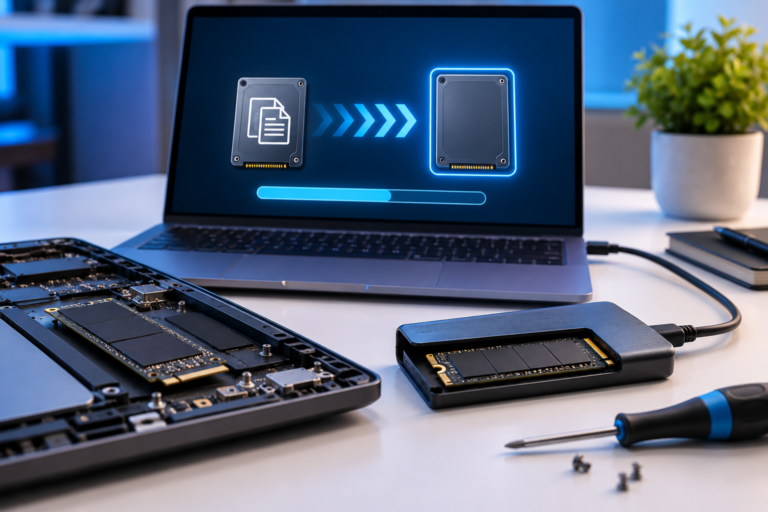
5. Replace an Old HDD With an SSD
If your laptop still uses a traditional mechanical hard disk drive, replacing it with an SSD can be one of the most dramatic upgrades you can make.
An SSD has no spinning platters and generally provides much faster access to data than a mechanical HDD.
The improvement can be especially noticeable in:
- Windows startup
- Application launches
- File searches
- File transfers
- General systen responsiveness
For many older laptops, an SSD upgrade can make the computer feel dramatically newer.
PC upgrade guidance continues to identify SSD upgrades as one of the highest-impace improvements for older systems, particularly when replacing a mechanical HDD.
Before buying an SSD
Check your laptop’s:
- Exact model number
- Drive interface
- Physical drive size
- SATA vs NVMe compatibility
- Maximum supported storage capacity
Don’t alum that every laptop supports an M.2 NVMe drive.
Some older laptops use 2.5-inch SATA drives, while newer models may use M.2 NVMe storage.
If your laptop still uses an HDD, upgrading to a compatible SSD should be on of the first hardware upgrades you investigate.
Suggested products:
- Samsung 870 EVO for compatible SATA systems
- Samsung 990 EVO Plus for compatible NVMe systems
6. Upgrade the RAM
RAM, or system memory, determines how much information your laptop can actively work with at once.
If your laptop has ,imited RAM, you may notice slowdowns when running:
- Multiple browser tabs
- Microsoft Office
- Video calls
- Photo-editing applications
- Developer tools
- Multiple applications simultaneously
Adding RAM can improve laptop multitasking performance, provided the laptop supports a memory upgrade.
For many general-purpose users, 16GB is a useful target in 2026, although requirements vary significantly by workload. Some modern laptops have soldered memory that cannot be upgraded at all.
Related products:
How to determine whether your RAM is upgradeable
Look up the exact laptop model and check iits service manual or specifications.
You should determine:
- Current RAM capacity
- RAM type
- RAM speed
- Number of available slots
- Maximum supported capacity
- Whether memory is soldered
Don’t purchase RAM solely on capacity.
A 16GB module that isn’t compatible with your laptop won’t help.
Suggested products:
7. Clean Out Dust and Improve Cooling
An overheating laptop can throttle its provrssor to reduce temperatures.
The result can be a system that becomes slower during demanding workloads.
Dust can accumulate around:
- Fans
- Air vents
- Heat sinks
- Internal cooling components
Regular cleaning can help maintain airflow.
This is especially important for laptops that are several years old.
Related products:
Related Article:
8. Use Your Laptop on a Hard, Flat Surface
Where you use your laptop can affect cooling.
Using a laptop on:
- Beds
- Blankets
- Sofas
- Pillows
can obstruct ventilation openings.
A laptop stand can also improve airflow and ergonomics.
Some related products are:
For users with thermal problems during sustained workloads, a cooling pad can be an appropriate accessory.
9. Reduce Browser Extensions and Tabs
Modern web browsers can consume significant amounts of RAM and processor resources.
If your old laptop struggles while browsing, look at your browser habits.
Start by:
- Closing unused tabs
- Removing unnecessary extensions
- Disabling extensions you rarely use
- Clearing unnecessary browser data
- Using built-in tab-management features
If your laptop becomes slow whenever you open many tabs, additional RAM may provide a more meaningful improvement than upgrading the processor.
10. Check for Malware
Malware and potentially unwanted software can consume processor resources, memory, network bandwidth, and storage.
If your laptop suddenly becomes slower than normal, investigate whether something unwanted is running in the background.
Use reputable security software and keep it updated.
Also be suspicious of:
- Unexpected pop-ups
- Unknown applications
- Browser redirects
- Unusual CPU usage
- Unknown startup programs
- Sudden browser slowdowns
Don’t install random “PC speed booster” utilities simply because they promise to make your laptop faster.
Many aren’t necessary, and some may create additional problems.
11. Keep Windows and Drivers Updated
Software updates can include:
- Security fixes
- Bug fixes
- Driver improvements
- Compatibility updates
- Performance improvements
Check Windows Update regularly.
You should also make sure important hardware drivers are current, particularly:
- Graphics drivers
- Chipset drivers
- Network drivers
- Storage-controller drivers
However, avoid third-party driver-updater applications that make exaggerated promises about improving performance.
When possible, obtain drivers directly from your laptop manufacturer or the hardware manufacturer’s official support site.
12. Change Windows Visual Effects
Windows includes visual effects that can make the interface look more polished.
On an older laptop, reducing some effects can make the operating system feel more responsive.
You can experiment with settings related to:
- Animations
- Transparency
- Shadows
- Visual effects
This won’t transform a severely outdate laptop into a modern workstation, but it can help reduce unnecessary graphical overhead on particularly old systems.
13. Check What’s Using Your CPU and RAM
If your laptop is slow, don’t guess-look at what’s actually consuming system resources.
Open Task Manager and check:
- CPU usage
- Memory usage
- Desk usage
- Network usage
If one application consistently consumes a disproportionate amount of resources, investigate it.
For example:
High CPU Usage
Potential causes include:
- Background applications
- Updates
- Malware
- Browswer processes
- Intensive software
High memory usage
Potential causes include:
- Too many applications
- Too many browser tabs
- Insufficient RAM
- Memory-heavy software
High disk usage
Potential causes include:
- Mechanical HDD
- Windows processes
- Updates
- Background indexing
- Storage problems
This process helps you determine which upgrade or mainntanenace step is actually worth pursuing.
14. Consider a Clean Windows Installation
If your laptop has accumulated years of software, drivers, applications, and configuration changes, a clean Windows installation can sometimes restore a cleaner software environment.
However, this should not be your first step.
Before installing Windows:
- Backup important files
- Verify that you have access to your accounts
- Record important application licenses
- Confirm you have the required installation media
- Make sure you understand the recovery process
Related product:
A clean installation can help when software clutter is the primary problem, but it won’t fix inadequate hardware.
If your laptop has an aging HDD, for example, reinstalling Windows on the same HDD won’t provide the same benefit as moving to an SSD.
15. Know When It’s Time to Replace the Laptop
Sometimes the best way to speed up an aging laptop is to stop spending money on it.
Consider replacement if:
- The processor is severely outdated
- The laptop cannot run your required software
- RAM cannot be upgraded
- The battery is failing
- The display or keyboard has major problems
- Repairs cost more than the laptop is worth
- The operating system is no longer supported
- Your workload has outgrown the hardware
An inexpensive SSD or RAM upgrade can make an older laptop useful again, but there is a point where continued upgrades no longer make financial sense.
As a general rule, compare the cost of the proposed upgrades with the price and capabilities of a replacement laptop.
Related Articles:
SSD vs RAM: Which Upgrade Should You Do First?
Tis is one of the most common questions people ask when trying to revive an old laptop.
Problem
Laptop still has an HDD
Very slow boot times
Applications take forever to open
Laptop freezes with many tabs
Heavy multitasking causes slowdowns
Laptop already has an SSD but only 4-8GB RAM
Both HDD and low RAM
Laptop has soldered RAM
Best First Upgrade
SSD
SSD
SSD
RAM
RAM
RAM
SSD first, then RAM if supported
SSD, software optimization, or replacement
The key is identifying the bottleneck.
An SSD won’t solve every RAM problem, and additional RAM won’t make a mechanical hard drive behave like an SSD.
What About CPU Upgrades?
Unfortunately, upgrading the CPU is usually not a realistic option.
Modern laptop processors are generally soldered directly to the motherboard.
That means you typically can’t simply remove an old processor and install a newer one like you can with some desktop computers.
If the CPU itself is the primary limitation, software optimization and storage upgrades may only go so far.
At that point, replacing the laptop may make more sense.
How Much Does it Cost to Speed Up an Old Laptop?
The cost depends heavily on the laptop and the problem.
$0 upgrades
Start here:
- Disable starup programs
- Uninstall unnecessary software
- Free storage
- Reduce browser extensions
- Clean up temporary files
- Install updates
- Check for malware
- Improve airflow
Low-cost upgrades
Consider:
- RAM
- SATA SSD
- Laptop stand
- Cooling pad
- External SSD
More expensive upgrades
Depending on the machine, you may need:
- Larger SSD
- Higher-capacity RAM
- Battery replacement
- Professional repair
If several expensive components need replacement, compare the total cost against purchasing a newer laptop.
Common Mistakes When Trying to Make an Old Laptop Faster
Buying RAM Without Checking Compatibility
RAM isn’t universally interchangeable.
Always verify the exact specification required by your laptop.
Buying an NVMe SSD for a Laptop That Doesn’t Support It
Some older laptops require 2.5-inch SATA SSDs.
Check the interface before purchasing.
Using “PC Cleaner” Software
Many third-party cleaning applications aren’t necessary.
Use the tools built into your operating system whenever possible.
Disabling Important Windows Services
Aggressively disabling services can create stability and security problems.
Performance optimization should not come at the expense of system reliabillity.
Ignoring Overheating
If a laptop slows down under load and its fans are constantly running, investigate cooling before assuming the processor is too slow.
Upgrading Everything at Once
Don’t spend hundreds of dollars before identifying the actual problem.
Diagnose first.
Upgrade second.
A Simple Old Laptop Speed-Up Checklist
If you want a straightforward process, work through these steps in order:
- 1. Restart the laptop
- 2. Check CPU, RAM, and disk. usage
- 3. Disable unnecessary startup programs
- 4. Uninstall software you don’t use
- 5. Free up storage space
- 6. Remove unnecessary browser extensions
- 7. Scan for malware
- 8. Install operating system updates
- 9. Clean the laptop’s vents
- 10. Improve airflow
- 11. Determine whether the laptop uses an HDD or SSD
- 12. Check whether RAM is upgradeable
- 13. Upgrade to an SSD if compatible
- 14. Add RAM if the laptop supports it
- 15. Compare upgrade costs with the price of a replacement laptop
This approach helps you avoid wasting money on upgrades that don’t address the actual bottleneck.
How to Make an Old Laptop Faster for Free
If you don’t have money for upgrades, start with the software.
The biggest free improvements usually come from reducing unnecessary background activity.
Focus on:
- Startup applications
- Unused software
- Browser extensions
- Storage cleanup
- Malware detection
- Operating-system updates
- Better airflow
- Fewer simultaneous applications
You may be surprised by how much better an older laptop feels after a basic cleanup.
When an SSD Is the Best Upgrade
If your laptop still boots from a mechanical hard drive, an SSD should be near the top of your upgrade list.
The difference between an HDD and SSD can be especially noticeable during everyday tasks such as booting Windows and opening applications.
This is why an SSD is often the best answer when someone asks how to make an old laptop faster.
Before purchasing, however, verify the drive interface and physical compatibility.
When More RAM Is the Better Upgrade
RAM becomes more important when your laptop already has an SSD but struggles during multitasking.
For example, imagine you’re running:
- Chrome with 20 tabs
- Microsoft Word
- Excel
- Spotify
- Teams
- Photoshop
If the system constantly runs out of available memory, adding RAM-if supported-may provide a more meaningful improvement.
For most general users in 2026, 16GB is a useful target, while developers, creators, and other demanding users may benefit from 32GB or more depending on their workload.
FAQ: Speeding Up an Old Laptop
Can an old laptop be made faster?
Yes. Depending on the laptop, removing unnecessary software, improving cooling, upgrading RAM, and replacing an HDD with an SSD can significantly improve performance.
What is the best way to speed up an old laptop?
If the laptop uses a mechanical HDD, replacing it with a compatible SSD is often one of the most noticeable upgrades. If it already has an SSD but struggles with multitasking, additional RAM may be more beneficial.
Will adding RAM make an old laptop faster?
It can. Additional RAM can improve multitasking when the laptop is frequently running out of available memory. However, the laptop must support a RAM upgrade.
Does an SSD make an old laptop faster?
Yes, particularly when replacing a mechanical HDD. An SSD can substantially improve boot times, application launches, and general system responsiveness.
Should I upgrade RAM or SSD first?
If your laptop has an HDD, consider the SSD first. If it already has an SSD but struggles with multitasking, RAM may be the better upgrade.
How can I make my old laptop faster for free?
Start by disabling unnecessary startup programs, uninstalling unused application, freeing storage, reducing browser extensions, scanning of malware, installing updates, and improving airflow.
Is it worth upgrading a five-year-old laptop?
It can be, especially if the laptop has upgradeable RAM or storage and otherwise meets your needs. Compare the cost of upgrades with the price and capabilities of a replacement system.
How do I know if my laptop needs more RAM?
Check Task Manger while performing your normal workload. If memory usage frequently approaches capacity and the system slows down when multiple applications are open, additional RAM may help-assuming the laptop supports an upgrade.
Final Thoughts: Don’t Replace a Slow Laptop Too Quickly
A slow laptop isn’t automatically a dead laptop.
Before spending hundreds or thousands of dollars on a replacement, determine what’s actually causing the slowdown. A few free software optimizations may be enough to improve performance. If the hardware is the problem, an SSD or RAM upgrade could potentially extend the useful life of the machine.
For an older laptop with a mechanical hard drive, an SSD is often the first hardware upgrade worth investigating. For systems that already have solid-state storage but struggle with multitasking, additional RAM may be the better choice.
The most important lesson is simple: diagnose before you upgrade.
And if your laptop is still several years away from retirement, consistent cleaning, storage management, software maintenance, and thermal care can help keep it useful for longer.
Related Articles: