How to Investigate and Repair a Laptop That Won’t Charge
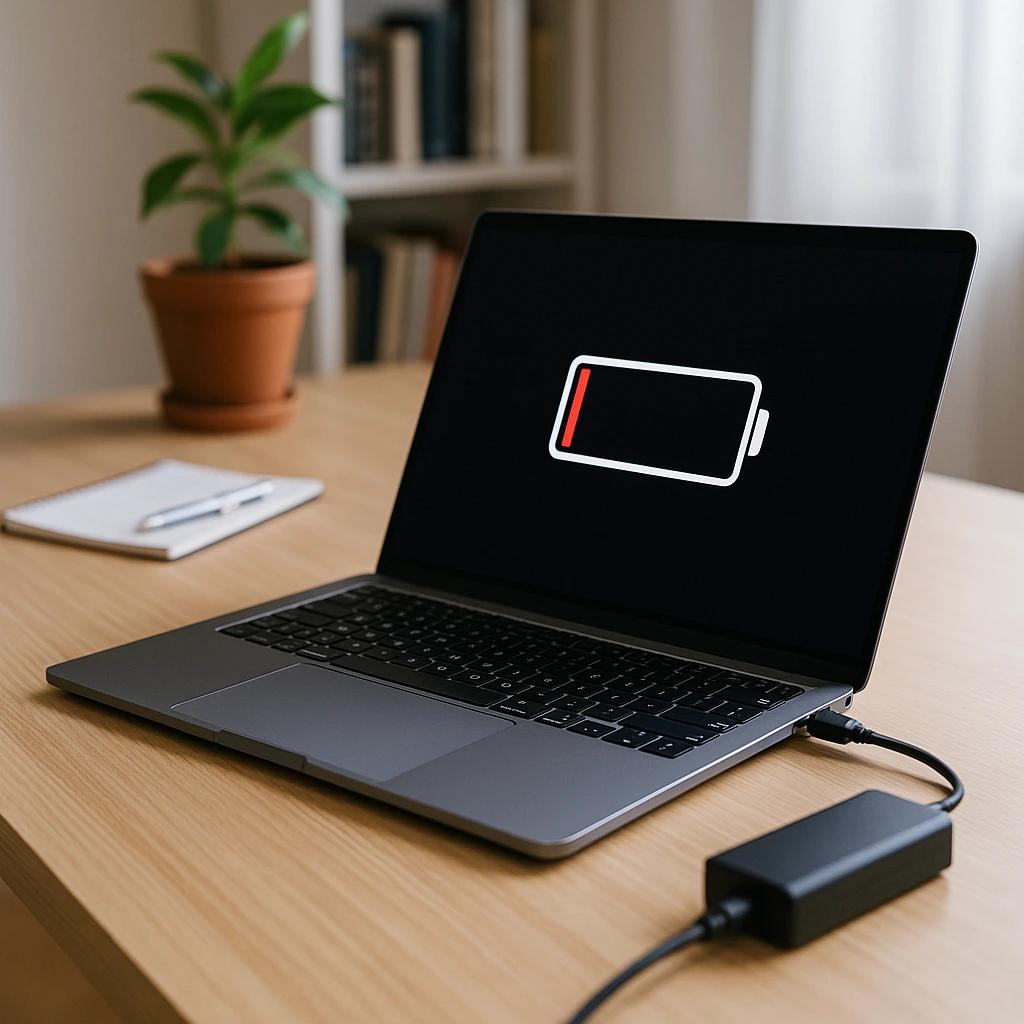
A laptop that won’t charge problem can be frustrating, especially when you need your computer for work, school, or an important project. Fortunately a laptop that refuses to charge does not automatically need a new battery or an expensive repair. The cause could be as simple as a faulty wall outlet, an incompatible power adapter, a damaged charging cable, a loose charging port, a battery protection setting, or a worn-out battery.
In this guide, we’ll walk through how to investigate and repair a laptop that won’t charge, starting with the simplest checks before moving to software diagnostics and potential hardware repairs. You’ll also learn when a replacement charger or battery makes sense-and when it’s time to consult a professional technician.
Related article:
Basic Steps to Follow
1. Identify the Symptoms Before Attempting a Repair
Before buying replacement parts or changing system settings, identify exactly what happened when you connect the charger.
Common symptoms include:
- The laptop show no charging light and will not turn on
- The laptop works while plugged in, but the battery percentage never increases
- The battery icon reports that the computer is plugged in but not charging
- The laptop charges intermittently when the cable is moved
- The battery charges very slowly or loses charger while connected
- The laptop stops charging at 80% or another percentage
- The laptop shuts down immediately after the charger is disconnected
Each symptom points toward a different potential cause. For example, intermittent charging may indicate a loose connector or damaged cable, while a battery that stops at 80% may be operating under a battery-preservation setting.
If the laptop shows no signs of life at all, start with our related article, Laptop Appears to Be Dead.
2. Check the Wall Outlet and Power Adapter
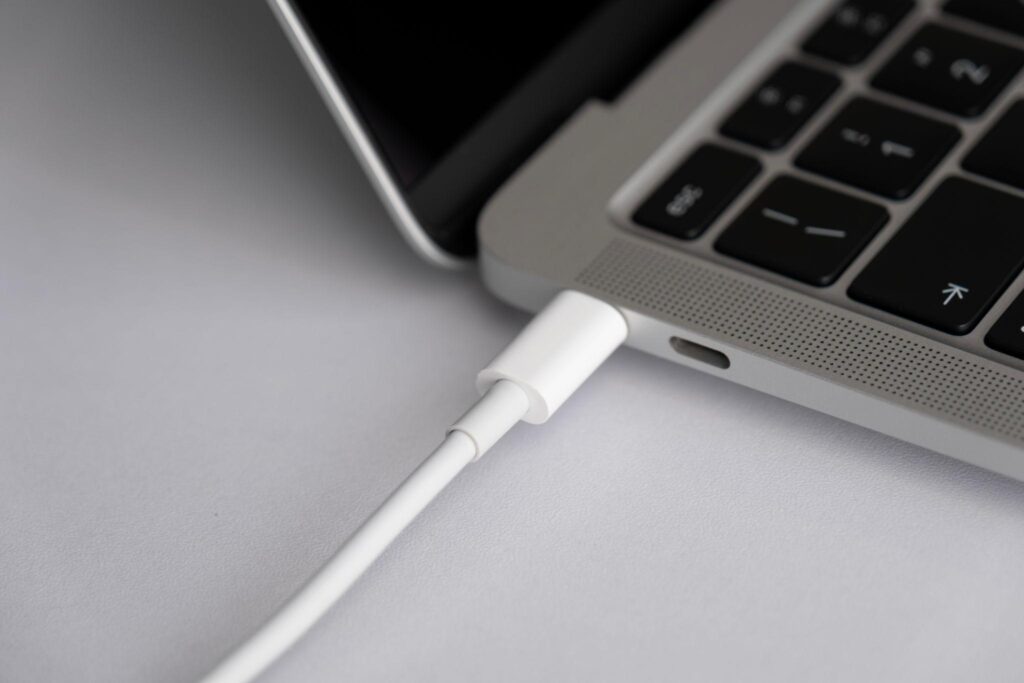
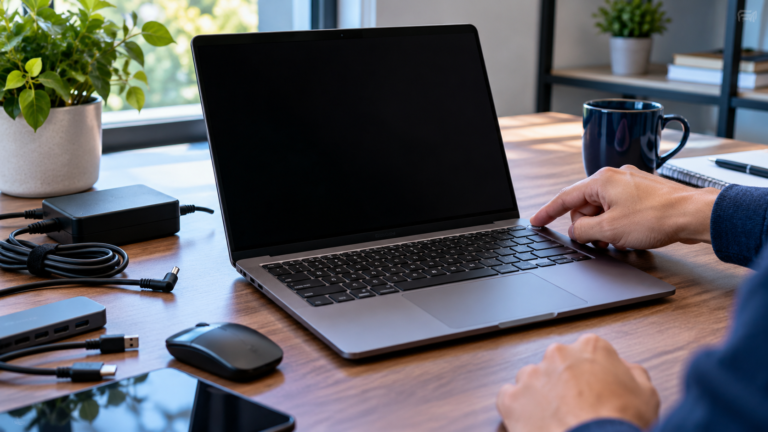
Start with the external power supply. This is one of the easiest ways to identify a charging problem without opening the laptop.
Follow these steps:
- Disconnect the charger from the laptop
- Plug another working device into the same wall outlet to verify that it supplies power
- Inspect the charger, cable, and connectors for cuts, fraying, bent pins, or signs of overheating
- Reconnect the charger directly to a wall outlet, bypassing any docking station, hub, or questionable power strip
- Reconnect the charger to the laptop and look for a charging indicator
If your laptop. uses USB-C charging, make sure you’re using a port that supports charging. Not every USB-C port on every laptop accepts power.
The charger must also provide sufficient wattage. A low-power phone charger may fit the USB-C port but deliver too little power to charge a laptop, especially during use. Microsoft recommends using a compatible charger and cable that let the computer’s power requirements.
Manufacturer approved power adapters:
- Replacement for HP Laptop Charger 65W 45W Computer Charger
- 65W USB-C Charger Compatible with HP EliteBook Envy Spectre x360
- 65W 4.5mm Laptop Charger Compatible with Dell 15 DC15250
- 130W USB-C Charger Compatible with Dell Precision Laptop
- 100W USB-C Charger for Lenovo Laptop – Legion Go Fast Charging
- 65W USB-C Laptop Charger Compatible with Lenovo Thinkpad/Yoga/Chromebook
Important: Always verify compatibility before purchasing!
3. Inspect the Laptop Charging Port
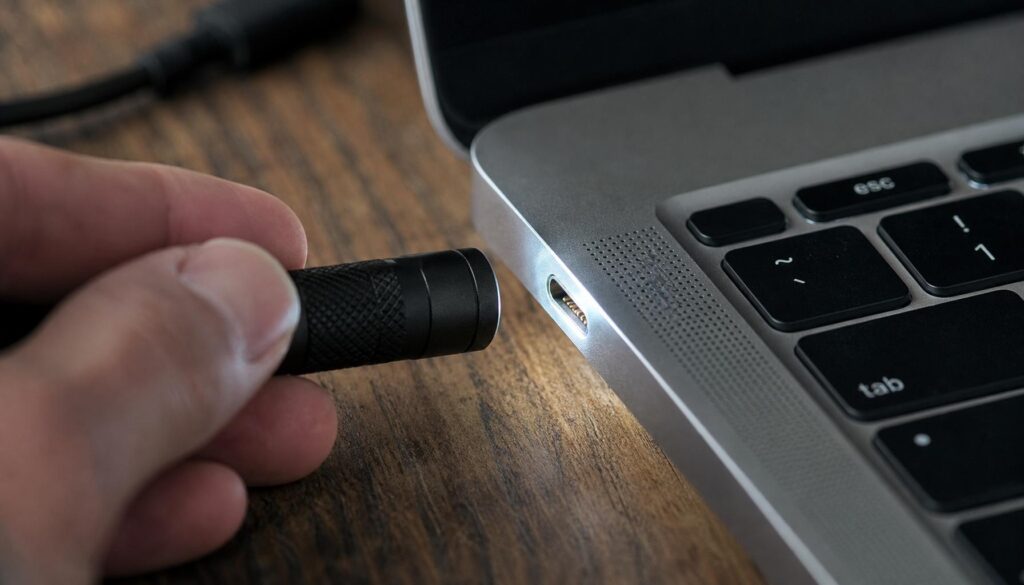
A damaged or obstructed charging port can prevent electricity from reaching the laptop.
With the laptop shut down and the charger disconnected, inspect the port under good lighting. Look for:
- Visible dust or debris
- Bent or damaged connector contacts
- A loose port that moves inside the chassis
- Signs of discoloration, corrosion, or overheating
- A connector that no longer fits securely
If you see loose debris, follow the laptop manufacturer’s cleaning instructions. Do not insert metal tools into the port, force the connector, or spray liquid cleaner inside it. Avoid compressed air if the manufacturer does not recommend it.
If the connector is physically loose or damaged, the problem may require professional repair of the charging jack or motherboard.
Small flashlight for inspection:
4. Perform a safe power reset
Some laptops may temporarily fail to recognize the battery because of a power-management glitch.
Try this general procedure:
- Save any work and shut down the laptop
- Disconnect the AC adapter and all peripheral devices
- If the laptop has a user-removable battery, remove it only as directed by the manufacturer’s instructions.
- With. the laptop disconnected from power, hold the power button for approximately 15-20 seconds, provided the manufacturer supports tis procedure
- Reconnect the charger and attempt to start the laptop
Do not open the computer to disconnect an internal battery unless the manufacturer’s service instructions specifically support the procedure and you have the appropriate repair experience. Some models have their own reset button or recovery sequence, so check the manual first.
5. Check battery health and charging settings
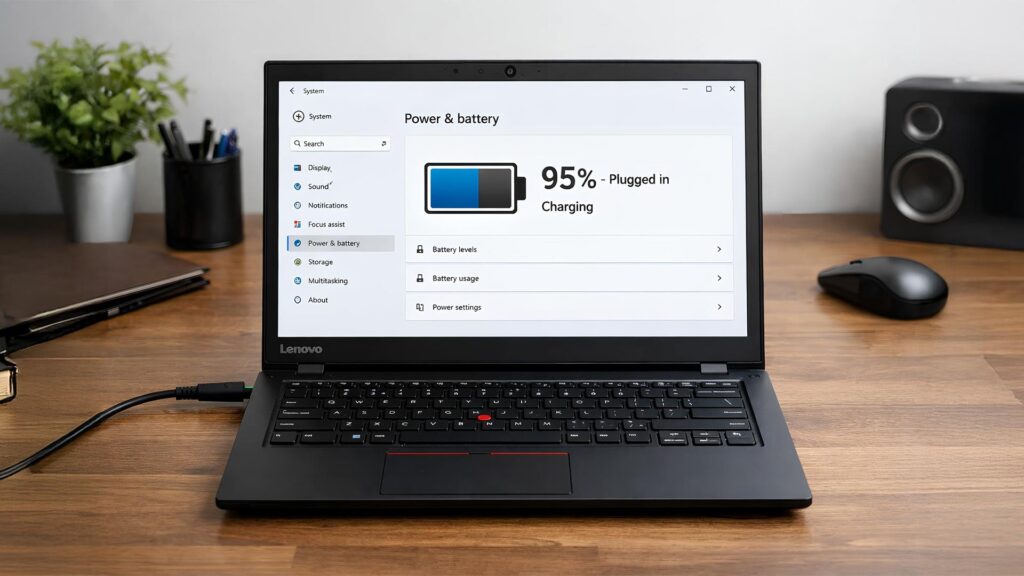
If the laptop powers on but the battery will not charge, examine its battery health and charging configuration.
On Windows laptops:
- Open Settings → System → Power & battery to review battery status and power usage
- Look for manufacturer utilities such as Dell SupportAssist, HP diagnostics, Lenovo Vantage, or your laptop brand’s equivalent
- Run the available battery and AC adapter diagnostics
- Check whether the manufacturer utility has a battery conservation or charge-threshold setting
Some laptops intentionally limit charging to 60%, 80&, or another threshold to help preserve battery longevity. If your laptop consistently stops at a particular percentage, investigate this setting before assuming the battery has failed. Dell documents charge thresholds and AC adapter recognition as potential causes of apparently abnormal charging behavior.
On a Mac
Check the battery status in macOS and review the battery-health in System Settings. Optimized Battery Charging and other battery-management features can affect when the battery charges fully. If the MacBook continues to have trouble, follow Apple’s model-specific charging and service guidance,
Related article:
6. Investigate USB-C charging problems
USB-C charging introduces additional compatibility considerations because the connector alone does not establish that the charger, cable, and laptop support the same power level.
Check the following:
- Does the specific USB-C port support charging?
- Does the charger support the laptop’s required USB Power Delivery profile?
- Is the cable rated for the power level the laptop. needs?
- Is a dock or hun interfering with the connection?
- Does the computer charge when connected directly to a compatible adapter?
If the laptop discharges even when plugged in, its power demand may exceed the adapter’s output. A gaming laptop or mobile workstation, for example, may need a higher-wattage adapter than a lightweight ultraportable.
Microsoft’s USB-C troubleshooting guidance covers inn=comaptible adapters, insufficient wattage, incorrect ports, and unsuitable cables.
7. Determine whether the battery needs replacing
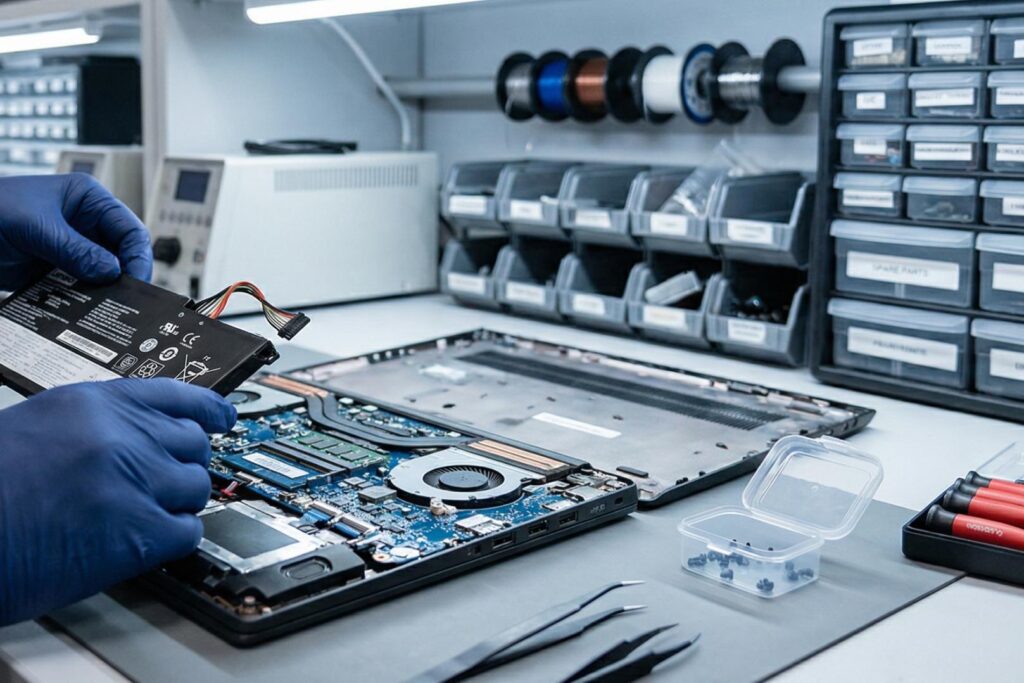
Laptop batteries lose capacity as they age. A failing battery may refuse to charge, hold very little power, or cause unexpected shutdowns.
Consider battery replacement when:
- Manufacturer diagnostics report a battery failure
- Battery runtime has dropped substantially
- The battery repeatedly fails to charge despite a verifies, compatible adapter
- The laptop shuts down unexepectedly when unplugged
- The manufacturer identifies the battery as needing service
Before purchasing replacement, verify the laptop’s exact model, battery part number, voltage and specifications, warranty coverage, and whether the battery is replaceable. Some laptops have batteries that are integrated into the chassis and should be services by a qualified technician.
Important safety warning: If the case is bugging, the trackpad or keyboard is lifting, the battery is unusually hot, or you notice leaking, an unusual smell, or smoke, stop using the laptop and disconnect power if you can do so safely. Do not press on, puncture, or attempt to remove a swollen battery. Contact the manufacturer or an authorized repair provider for safe handling instructions. Swollen lithium-ion batteries can pose a fire risk.
Related article:
8. Check drivers and firmware only after basic checks
If the chargers, port, and battery appear physically sound, software or firmware could be contributing to the issue.
On Windows
- 1. Restart he laptop and check whether the charging behavior changes
- 2. Install applicable operating-system updates
- 3. Use the laptop manufacturer’s support utility to check for approved power-management , chipset, and firmware updates
- 4. Review the manufacturer’s troubleshooting instructions for your exact model
Avoid updating the BIOS or firmware as an experimental first step. Follow the manufacturer’s instructions, connect the correct power adapter, and ensure the laptop has sufficient power and a stable update process. A failed firmware update can make the problem worse.
If diagnostics still indicate a charging failure, the underlying issue could be the DC-in-connector, charging circuitry, or motherboard rather than the battery itself.
9. Choose the right repair
Not every laptop that won’t charge needs a major repair. Use this guide to decide on the next step.
Finding
Wall outlet has no power
Cable or adapter is damaged
USB-C adapter is underpowered
Battery charge stops at 80%
Battery diagnostic fails
Charging port is loose or damaged
Battery is swollen or leaking
Known-good adapter still does not work
Recommended next step
Try a known-working outlet
Stop using it and replace it with a compatible unit
Use a compatible adapter and cable with sufficient wattage
Check battery-preservation settings
Review warranty and replacement options
Arrange professional hardware repair
Stop using the laptop and seek professional guidance
Request manufacturer diagnostics or repair
Before spending money on a repair, compare the cost of the replacement part and labor with the laptop’s age, overall condition, and likely remaining useful life. Our related article, Laptop Battery Health, can help you understand battery degradation and ongoing care.
Related articles:
Conclusion: Fix the charging problem before replacing the laptop
When a laptop won’t charge, the best approach is to work methodically from the simplest possibilities to more complex hardware issues. Verify the power outlet, inspect the adapter and cable, check the charging port, investigate battery settings, and run the manufacturer’s diagnostic before buying replacement parts.
If the battery is damaged, the charging port is loose, or the computer still refuses to charge with a known-compatible adapter, professional repair may be necessary. Always prioritize battery safety over attempts to repair the device yourself.
For mare practical laptop advice, continue with Gear and Code’s Ultimate Guide to Laptop Performance, where you can explore additional ways to. diagnose, maintain, and improve your computers.
Related article: